iPad numeric keyboard only showing 1 4 7 .

My IPad Air 4th generation with latest iOS 17.5.1 is not showing the complete numeric keypad in my up-to-date Barclays banking app. When I need to enter figures I only get the left hand column of the keyboard, ie 147. And can’t expand it with two fingers or any other way. I’ve juggled keyboard settings, restarted the iPad, deleted and re-registered the Barclays app, but the problem remains every time. But no problem on my wife’s iPad with exactly the same iOS 17.5.1 and same Barclays app, with the same keyboard settings, or with my ancient iPhone iOS 14.5. It’s just this iPad Air. Barclays IT team have been looking into it but have no solutions. Any answers?

iPad Air, iPadOS 17

Posted on Jun 14, 2024 2:40 AM

Reply
Question marked as Top-ranking reply

Posted on Jun 14, 2024 9:27 AM

Brainwave! I found the answer, without a forced restart. Other readers may find this useful. I was getting a mini keyboard in the Barclays app, but showing only 1 4 7 . in the left hand column - I’ll include a picture in a moment. But unlike the mini keyboard that I get in Notes and other apps, which is fast and useful when using the Apple pen, it would not expand by touching and spreading two fingers. So I experimented by opening Notes, when the mini keyboard opened - as I last left it - and then expanded it in Notes with the “spread fingers” method. Then I re-opened the Barclays app, attempted to enter some transfer sum between two accounts - and lo and behold the numeric keyboard appeared with all the figures! The 1 4 7 problem had gone. Then with both apps open I returned to Notes and minimized the keyboard - and back in Barclays the 1 4 7 problem was back. Then back to Notes, I expanded the keyboard; and back in Barclays I had all the figures again. So I can toggle the problem on and off in notes. Conclusion: it’s a coding problem in the Barclays app - it doesn’t recognise the mini keyboard setting. Here’s the Barclays “enter amount” keyboard with and without the mini keyboard setting.

2 replies
Question marked as Top-ranking reply

Jun 14, 2024 9:27 AM in response to Xelmoczeta

Brainwave! I found the answer, without a forced restart. Other readers may find this useful. I was getting a mini keyboard in the Barclays app, but showing only 1 4 7 . in the left hand column - I’ll include a picture in a moment. But unlike the mini keyboard that I get in Notes and other apps, which is fast and useful when using the Apple pen, it would not expand by touching and spreading two fingers. So I experimented by opening Notes, when the mini keyboard opened - as I last left it - and then expanded it in Notes with the “spread fingers” method. Then I re-opened the Barclays app, attempted to enter some transfer sum between two accounts - and lo and behold the numeric keyboard appeared with all the figures! The 1 4 7 problem had gone. Then with both apps open I returned to Notes and minimized the keyboard - and back in Barclays the 1 4 7 problem was back. Then back to Notes, I expanded the keyboard; and back in Barclays I had all the figures again. So I can toggle the problem on and off in notes. Conclusion: it’s a coding problem in the Barclays app - it doesn’t recognise the mini keyboard setting. Here’s the Barclays “enter amount” keyboard with and without the mini keyboard setting.

Jun 14, 2024 5:08 AM in response to Xelmoczeta

First, don't anticipated receiving useful support from Barclays. There track record for assisting domestic customers with issues, of any nature, is appalling.


Begin with a forced-restart of your iPad - as this will often clear an isolated software issue:


Force restart iPad (models with Face ID or with Touch ID in the top button)

If your iPad doesn’t have the Home button, do the following:

  1. Press and quickly release the volume button nearest to the top button.
  2. Press and quickly release the volume button farthest from the top button.
  3. Press and hold the top button.
  4. When the Apple logo appears, release the top button.



Force restart iPad (models with the Home button)

Press and hold the top button and the Home button at the same time. When the Apple logo appears, release both buttons.
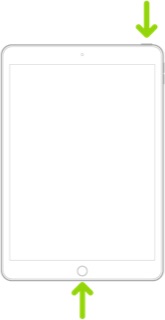


If the problem persists after performing the restart, it may be necessary to reset your iPad settings. While this reset will not cause any loss of data, as a precaution, it is always wise to ensure that you have a current iCloud or iTunes backup before performing the reset:

How to back up your iPhone, iPad, and iPod touch - Apple Support


When you are happy to proceed, you can perform the reset from iPad settings:

Settings > General > Transfer or Reset iPad > Reset > Reset All Settings


If the problem still doesn’t clear, the next step is to reset the iPad to factory settings:

Restore your iPhone, iPad, or iPod to factory settings - Apple Support


Otherwise, you may be able to obtain some diagnostic assistance from Apple Support - however, as the issue is related to a specific App, it may be a short conversation. You can contact the Support Team using the Support link at top-right or bottom-left of this page. Alternatively, you can initiate and manage your support cases using the excellent Apple Support App. If not already installed on your iPad, the App can be downloaded from the App Store:

https://apps.apple.com/app/apple-support/id1130498044


This thread has been closed by the system or the community team. You may vote for any posts you find helpful, or search the Community for additional answers.

iPad numeric keyboard only showing 1 4 7 .

Welcome to Apple Support Community
A forum where Apple customers help each other with their products. Get started with your Apple Account.
