I am getting a security warning when I print using my Epson printer from my iPad Pro


I got a new iPad and get this message when trying to print to a wireless printer. My iPhone still prints fine to the same printer. If I select “Continue”, it does not print.


[Re-Titled by Moderator]

iPad Pro, iPadOS 17

Posted on Aug 14, 2024 4:59 AM

Reply
Question marked as Top-ranking reply

Posted on Aug 14, 2024 6:05 AM

Without delving too deeply into to technical complexities of TLS/SSL, the warning that you see is benign.


Each time that you power-cycle your printer, it automatically generates a new self-signed Certificate with which to encrypt the printing connection. Being self-signed and without a trusted-root, your iPad (and other devices) cannot validate the authenticity of the Certificate - and for this reason you will see the warning that you illustrate. That said, selecting Continue should allow you to click-through any associated security warnings.


If you still cannot print over AirPrint, some other network issue is likely to be the cause. You may find that restart of your network components will resolve the problem. You’ll need to restart your network devices in the correct order. Assuming that you WiFi Router provides DNS services for your network, restart devices in this order - allowing time for devices to fully boot/restart prior to restarting other devices:


  • WiFi Router
  • Upstream wired Network Switch(es) (if any)
  • WiFi Access Points / Network Extenders
  • Other fixed infrastructure devices - such as Printers
  • Client devices (your iPad)


Restarting your iPad, after restarting other devices in the correct sequence, is most simply achieved by a forced-restart of the iPad:


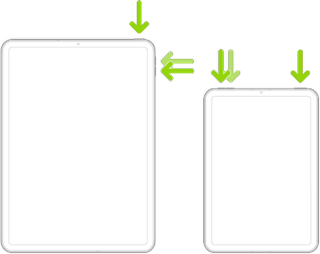
  • On an iPad with a Home button: Press and hold the top button and the Home button at the same time. When the Apple logo appears, release both buttons.



  • On an iPad with Face ID: Press and quickly release the volume up button, press and quickly release the volume down button, then press and hold the top button. When the Apple logo appears, release the button.


If you continue to have difficulties, check to see if your iPad is using the new WiFi Private Address feature. This feature is intended to provide additional privacy and security when using “public” (untrusted) WiFi networks.

Settings > WiFi > [Your WiFi Network / SSID] - tap the “i” icon - Private Address


The Private Address feature is largely unnecessary for your home WiFi network; if enabled, Private Addressing can interfere with anticipated operation of other devices, such as AirPrint/Airplay. In such circumstances, you may need to disable this feature - and can be enabled or disabled for each individual network.


Use private Wi-Fi addresses in iOS 14, iPadOS 14, and watchOS 7 - Apple Support


6 replies
Question marked as Top-ranking reply

Aug 14, 2024 6:05 AM in response to Bgillela

Without delving too deeply into to technical complexities of TLS/SSL, the warning that you see is benign.


Each time that you power-cycle your printer, it automatically generates a new self-signed Certificate with which to encrypt the printing connection. Being self-signed and without a trusted-root, your iPad (and other devices) cannot validate the authenticity of the Certificate - and for this reason you will see the warning that you illustrate. That said, selecting Continue should allow you to click-through any associated security warnings.


If you still cannot print over AirPrint, some other network issue is likely to be the cause. You may find that restart of your network components will resolve the problem. You’ll need to restart your network devices in the correct order. Assuming that you WiFi Router provides DNS services for your network, restart devices in this order - allowing time for devices to fully boot/restart prior to restarting other devices:


  • WiFi Router
  • Upstream wired Network Switch(es) (if any)
  • WiFi Access Points / Network Extenders
  • Other fixed infrastructure devices - such as Printers
  • Client devices (your iPad)


Restarting your iPad, after restarting other devices in the correct sequence, is most simply achieved by a forced-restart of the iPad:


  • On an iPad with a Home button: Press and hold the top button and the Home button at the same time. When the Apple logo appears, release both buttons.


  • On an iPad with Face ID: Press and quickly release the volume up button, press and quickly release the volume down button, then press and hold the top button. When the Apple logo appears, release the button.


If you continue to have difficulties, check to see if your iPad is using the new WiFi Private Address feature. This feature is intended to provide additional privacy and security when using “public” (untrusted) WiFi networks.

Settings > WiFi > [Your WiFi Network / SSID] - tap the “i” icon - Private Address


The Private Address feature is largely unnecessary for your home WiFi network; if enabled, Private Addressing can interfere with anticipated operation of other devices, such as AirPrint/Airplay. In such circumstances, you may need to disable this feature - and can be enabled or disabled for each individual network.


Use private Wi-Fi addresses in iOS 14, iPadOS 14, and watchOS 7 - Apple Support



Aug 14, 2024 8:00 AM in response to Bgillela

If the problem persists after performing the restart, it may be necessary to reset your iPad settings. While this reset will not cause any loss of data, as a precaution, it is always wise to ensure that you have a current iCloud or iTunes backup before performing the reset:

How to back up your iPhone, iPad, and iPod touch - Apple Support


When you are happy to proceed, you can perform the reset from iPad settings:

Settings > General > Transfer or Reset iPad > Reset > Reset All Settings


If the problem still doesn’t clear, the next step is to reset the iPad to factory settings:

Restore your iPhone, iPad, or iPod to factory settings - Apple Support


Otherwise, you would be best advised to seek assistance directly from Apple Support. You can contact the Support Team using the Support link at top-right or bottom-left of this page. Alternatively and perhaps easier, you can initiate and manage your support cases using the excellent Apple Support App. If not already installed on your iPad, the App can be downloaded from the App Store:

https://apps.apple.com/app/apple-support/id1130498044


Aug 15, 2024 4:33 PM in response to Bgillela

We are seeing this exact message systemically and randomly on quite a few of the ipads that we use when doing direct connect to our epson 110. I've tried rebooting both devices, I've forgotten and reconnected to the printer device, I've even gone so far as to reset all network connections. Still not able to print. Please offer another suggestion as I'm getting tired of field staff getting stuck and this is not a print issue its defintiely an Ipad issue as we'll get new printers and STILL have it happen.

This thread has been closed by the system or the community team. You may vote for any posts you find helpful, or search the Community for additional answers.

I am getting a security warning when I print using my Epson printer from my iPad Pro

Welcome to Apple Support Community
A forum where Apple customers help each other with their products. Get started with your Apple Account.