Partitioning an SSD for Time Machine and Exfat

I purchased a Samsung 2TB SSD with the idea of partitioning it 1.5 TB for Time Machine and the rest Exfat for flexibility but I have zero idea how to do that. There are so many options that I'm completely lost

MacBook Pro 14″, macOS 14.6

Posted on Sep 5, 2024 1:51 PM

Reply
Question marked as Top-ranking reply

Posted on Sep 5, 2024 3:03 PM

To do what you want, you need to create a hard partition for the ExFAT portion.


For safety's sake, make sure to have a full backup of the main drive on hand. Just in case you do the following on the wrong drive.


Format the entire external drive as APFS, which is required for Time Machine. Launch Disk Utility. Press Command+2 to show all devices. Highlight the physical drive name in the left column, such as I did here for my external drive:


Choose Erase along top bar. Give the drive a name, choose APFS, GUID Partition Map, and then the Erase button.


When that's done, and while still in Disk Utility with the external's physical drive name highlighted, click the Partition tab at the top. You'll see something like this:


This particular external drive of mine is fairly full, as shown by the field of angled lines. Yours should just be solid blue.


Click on the blue wheel, then the + button below that. You'll get this box:


Make sure to click the Add Partition button. APFS and ExFAT cannot share volume space, so must be separated.


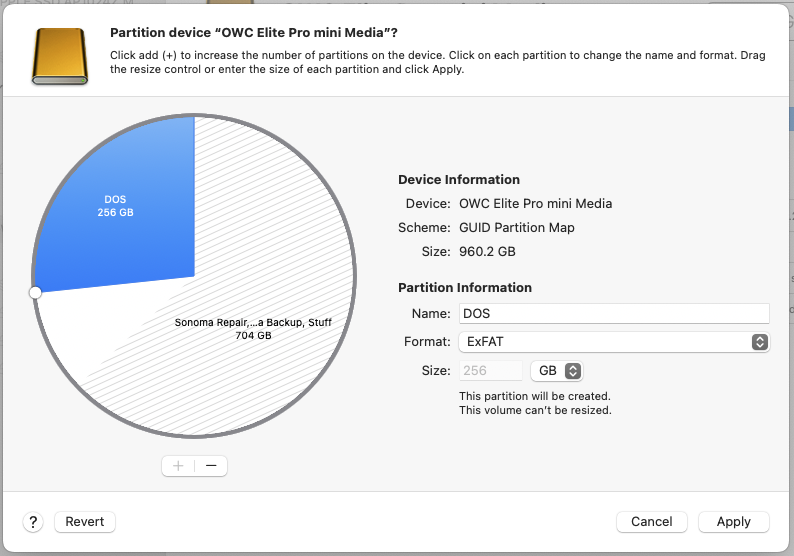
Change the size to 500 GB first as that field will be grayed out once you change the format to ExFAT. Give it whatever name you want, then choose ExFAT. Click Apply.


Once Disk Utility is done, you can close the app. Two volumes should now appear on your desktop. When Time Machine asks to use the new volumes, point it to the 1.5 TB APFS volume. If it asks again for the ExFAT partition, click Cancel or Ignore (I don't recall exactly how these appear).

4 replies
Question marked as Top-ranking reply

Sep 5, 2024 3:03 PM in response to phyared

To do what you want, you need to create a hard partition for the ExFAT portion.


For safety's sake, make sure to have a full backup of the main drive on hand. Just in case you do the following on the wrong drive.


Format the entire external drive as APFS, which is required for Time Machine. Launch Disk Utility. Press Command+2 to show all devices. Highlight the physical drive name in the left column, such as I did here for my external drive:


Choose Erase along top bar. Give the drive a name, choose APFS, GUID Partition Map, and then the Erase button.


When that's done, and while still in Disk Utility with the external's physical drive name highlighted, click the Partition tab at the top. You'll see something like this:


This particular external drive of mine is fairly full, as shown by the field of angled lines. Yours should just be solid blue.


Click on the blue wheel, then the + button below that. You'll get this box:


Make sure to click the Add Partition button. APFS and ExFAT cannot share volume space, so must be separated.


Change the size to 500 GB first as that field will be grayed out once you change the format to ExFAT. Give it whatever name you want, then choose ExFAT. Click Apply.


Once Disk Utility is done, you can close the app. Two volumes should now appear on your desktop. When Time Machine asks to use the new volumes, point it to the 1.5 TB APFS volume. If it asks again for the ExFAT partition, click Cancel or Ignore (I don't recall exactly how these appear).

This thread has been closed by the system or the community team. You may vote for any posts you find helpful, or search the Community for additional answers.

Partitioning an SSD for Time Machine and Exfat

Welcome to Apple Support Community
A forum where Apple customers help each other with their products. Get started with your Apple Account.