Why is my iPad Pro losing Wi-Fi connection after iOS 18 update?

I have a 4th gen iPad Pro and made the mistake of updating to ios18. Since then my internet connectivity has been a real issue as the ipad keeps dripping the Wi-Fi connection, even after doing the usual routines of forgetting the network, switch off/on, etc.

Will there be an update soon to stop this from happening?


[Re-Titled by Moderator]

iPad Pro, iPadOS 18

Posted on Oct 3, 2024 1:32 AM

Reply
Question marked as Top-ranking reply

Posted on Oct 3, 2024 2:14 AM

WiFi/Internet connection difficulties are usually an indication that your device does not have a routable IP Address - your IP Address usually being assigned by DHCP. When problems occur, your iPad may only have a self-assigned link-local IP address that begins 169.254.x.x.


You can verify your DHCP-assigned IP Address from settings:

Settings > WiFi > [Your WiFi Network / SSID] - tap the blue “i” icon - [IPv4 Address] IP Address


If you have a VPN App or profiles installed, or a security/AV/firewall App such as Norton, these may be interfering with DHCP and preventing your device from obtaining a valid IP Address for the WiFi network to which you are attempting to connect. The resolution is usually simple; if installed, you may only need to temporarily disable or remove the Security App and/or VPN.


DHCP is frequently used to automatically obtain an IP Address. Until your iPad has a valid IP Address to connect to your network, you will not have an internet connection. Disabling or removing VPN and/or the offending security App should allow DHCP to operate normally - allowing connection to your network and the internet.


If this resolves your issue, the VPN and/or security App can be reinstated after the connectivity problem has been resolved.


If some Apps are working as expected, while others are not - or other devices can connect to your WiFi network - you may find that a restart of your WiFi Router, followed by a restart of your iPad will clear the problem….


To restart your router, disconnect power from the router for at least 30 seconds - then reconnect power to restart. After your router reboots (which may take several minutes), force restart your iPad:


Force restart iPad (models with Face ID or with Touch ID in the top button)

If your iPad doesn’t have the Home button, do the following:

  1. Press and quickly release the volume button nearest to the top button.
  2. Press and quickly release the volume button farthest from the top button.
  3. Press and hold the top button.
  4. When the Apple logo appears, release the top button.


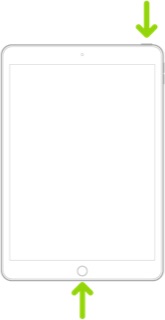
Force restart iPad (models with the Home button)

Press and hold the top button and the Home button at the same time. When the Apple logo appears, release both buttons.


If you continue to have difficulties, check to see if your iPad is using the WiFi Private Address feature. This feature is intended to provide additional privacy and security when using “public” (untrusted) WiFi networks.

Settings > WiFi > [Your WiFi Network / SSID] - tap the “i” icon - Private Address


The Private Address feature is largely unnecessary for your home WiFi network; if enabled, Private Addressing can cause issues if specific MAC addresses are expected by your WiFi Router. You may need to disable this feature - and can be enabled or disabled for each individual network.


Use private Wi-Fi addresses in iOS 14, iPadOS 14, and watchOS 7 - Apple Support


As for when the next update to iOS/iPadOS 18 will be released, contributors here (none of which are affiliated with Apple) will have no idea. An update will certainly arrive soon - but as for when, we have no idea.


19 replies
Question marked as Top-ranking reply

Oct 3, 2024 2:14 AM in response to Arleccino

WiFi/Internet connection difficulties are usually an indication that your device does not have a routable IP Address - your IP Address usually being assigned by DHCP. When problems occur, your iPad may only have a self-assigned link-local IP address that begins 169.254.x.x.


You can verify your DHCP-assigned IP Address from settings:

Settings > WiFi > [Your WiFi Network / SSID] - tap the blue “i” icon - [IPv4 Address] IP Address


If you have a VPN App or profiles installed, or a security/AV/firewall App such as Norton, these may be interfering with DHCP and preventing your device from obtaining a valid IP Address for the WiFi network to which you are attempting to connect. The resolution is usually simple; if installed, you may only need to temporarily disable or remove the Security App and/or VPN.


DHCP is frequently used to automatically obtain an IP Address. Until your iPad has a valid IP Address to connect to your network, you will not have an internet connection. Disabling or removing VPN and/or the offending security App should allow DHCP to operate normally - allowing connection to your network and the internet.


If this resolves your issue, the VPN and/or security App can be reinstated after the connectivity problem has been resolved.


If some Apps are working as expected, while others are not - or other devices can connect to your WiFi network - you may find that a restart of your WiFi Router, followed by a restart of your iPad will clear the problem….


To restart your router, disconnect power from the router for at least 30 seconds - then reconnect power to restart. After your router reboots (which may take several minutes), force restart your iPad:


Force restart iPad (models with Face ID or with Touch ID in the top button)

If your iPad doesn’t have the Home button, do the following:

  1. Press and quickly release the volume button nearest to the top button.
  2. Press and quickly release the volume button farthest from the top button.
  3. Press and hold the top button.
  4. When the Apple logo appears, release the top button.


Force restart iPad (models with the Home button)

Press and hold the top button and the Home button at the same time. When the Apple logo appears, release both buttons.


If you continue to have difficulties, check to see if your iPad is using the WiFi Private Address feature. This feature is intended to provide additional privacy and security when using “public” (untrusted) WiFi networks.

Settings > WiFi > [Your WiFi Network / SSID] - tap the “i” icon - Private Address


The Private Address feature is largely unnecessary for your home WiFi network; if enabled, Private Addressing can cause issues if specific MAC addresses are expected by your WiFi Router. You may need to disable this feature - and can be enabled or disabled for each individual network.


Use private Wi-Fi addresses in iOS 14, iPadOS 14, and watchOS 7 - Apple Support


As for when the next update to iOS/iPadOS 18 will be released, contributors here (none of which are affiliated with Apple) will have no idea. An update will certainly arrive soon - but as for when, we have no idea.

Oct 8, 2024 5:25 PM in response to Arleccino

Hi, network engineer here. The issue is iOS 18. We have three devices - two iPhones 16 Pros and an iPad 11 Pro - no WiFi issues before iOS 18 on the iPad, all three will just stop working on WiFi. Requires a WiFi toggle and things will resume. It’s constant, repeatable, and consistent across all iOS 18 devices we have.


Edit: yes, we have tried resetting network settings.

Oct 28, 2024 3:49 AM in response to iAmTheDave

Same thing happening here...

I have tried everything but I can assure thet the issue is iOS 18 related.


Netgear Satellite, quite distant, two Apple devices, same room, iPad updated to iOS 18.0.1 and the iPhone still running a iOS 17 version.

While the iPad disconnects the iPhone stays connected.

Same WiFi, same distance, same everything but the iOS.

Disconnections last something between few seconds to five minutes.

I have tried all that is reported functioning, but without success.


When it happens, during the "n" attempts to re-connect, I have seen that the iPad connectivity switches from 5 GHz to 2,4 (checking the Netgear connected devices) and the speed decreases to one tenth of its normal capacity.


I suspect a "glitch" in the band-switch implementation in iOS 18.

If I stay closer to the router (satellite) this does not happen.


Jan 15, 2025 5:54 AM in response to TexMatt

TexMatt wrote:

My iPad, 2 years old, is now dropping WiFi. IOS 18.1.1. Anybody home at Apple?


This is a user-to-user technical community. Contributors here are all end-users, just like you. Other than the site Moderators, Apple neither monitors nor participates within this Community. As such, your comments here will not be seen by Apple Support.


Should you need to do so, you can contact the Support Team using the Support link at top-right or bottom-left of this page.


Alternatively, you can initiate and manage your support cases from Apple devices using the excellent Apple Support App. If not already installed, the App can be downloaded from the App Store:

https://apps.apple.com/app/apple-support/id1130498044


You might also visit the Genius Bar at your local Apple Store or Apple Authorised Service Provider (AASP) - where the technicians will be able to offer assistance:

Genius Bar Reservation and Apple Support Options - Apple

Jan 15, 2025 6:03 AM in response to Arleccino

Arleccino wrote:

So, I no longer have the problem of the WiFi dropping and have absolutely no idea how and why this changed. For days and days it just didn’t work, even after all the usual rituals we are fibbed off with, and then one day it did.
I appreciate this isn’t helpful but maybe someone from Apple can explain.
Best of luck out there!


This is a user-to-user technical community. Contributors here are all end-users, just like you. Other than the site Moderators, Apple neither monitors nor participates within this Community. As such, your comments here will not be seen by Apple Support.


Should you need to do so, you can contact the Support Team using the Support link at top-right or bottom-left of this page.


Alternatively, you can initiate and manage your support cases from Apple devices using the excellent Apple Support App. If not already installed, the App can be downloaded from the App Store:

https://apps.apple.com/app/apple-support/id1130498044


This thread has been closed by the system or the community team. You may vote for any posts you find helpful, or search the Community for additional answers.

Why is my iPad Pro losing Wi-Fi connection after iOS 18 update?

Welcome to Apple Support Community
A forum where Apple customers help each other with their products. Get started with your Apple Account.