While it isn't necessary to erase the drive that frequently (unless you're the type of person who routinely installs apps from shady sources), here's what you can do.
a) Do your erase and reinstall.
b) Install and set up your known third party apps you always use.
c) Get your daily use data back on the drive, such as word processing documents, etc.
d) With the drive in a pristine state, connect an external drive formatted as APFS.
e) Use Disk Utility to create a new volume (not a hard partition). Give it a name that's logical to you. Such as, I have my startup drive named Sequoia. The volume on the external SSD is Sequoia Backup.
f) Use CCC to make what is now a standard backup.
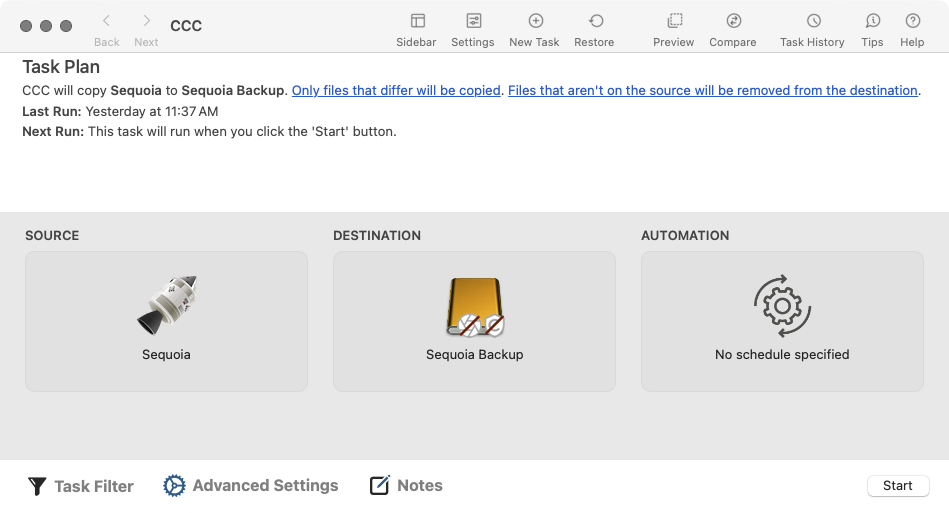
g) Note that I have both the SafetyNet, and Manage snapshots off for the target drive. I personally find no use or need for those.
Never touch that backup after this. Create a separate volume on the external drive if you want do other incremental backups (which would mostly duplicate the clean volume) in-between restores.
You don't have to fully erase the drive each time, either. It's much faster to use a function in macOS. I just setup a new M4 Pro mini, and moved my M2 Pro mini over for my wife's use. Here's what I did.
a) Made a last CCC backup of the M2 Pro to my external drive, disconnected it and turned it off.
b) Swapped out the M2 Pro with the M4 Pro and turned it on.
c) The first thing it asks is if you have data to restore. I turned on the external drive and pointed it to my CCC backup.
d) When the restore is done, everything is back on the Mac exactly as you last had it in your backup. All except for the Privacy & Security entries in the System Settings. Those all have to be added again as needed.
Now, here's really where your restore sequence would come in, and is how I restored my wife's 2018 mini CCC backed up data to the M2 Pro.
a) The is the much faster part. System Settings > General > Transfer or Reset > Erase All Content and Settings.
b) Everything that is not part of macOS will be removed from the drive. The end result will be a Mac that will be set back to the default, out-of-the-box state without spending nearly as much time as a full erase of the drive and reinstall of the OS would.
c) When the Mac finishes resetting itself to a factory state, it will come up with the "Hello" screen. You point it to your clean CCC backup volume and restore that.
Do this anytime you want to restore your Mac to your last clean state. The only time you would ever write to that external clean volume would be immediately after a restore, and you want to install new third party apps you know you're always going to use. As soon as the new apps are installed, update your clean CCC backup. Then those new apps will be added to that volume and you won't have to keep reinstalling them after a restore.





