If the iPad is brand new as described, you have benefit of a warranty. As such, if the iPad has a fault, you should return it to the retailer from which it was purchased for replacement.
Begin with a forced-restart - as this will often clear an isolated software issue:
Force restart iPad (models with Face ID or with Touch ID in the top button)
If your iPad doesn’t have the Home button, do the following:
- Press and quickly release the volume button nearest to the top button.
- Press and quickly release the volume button farthest from the top button.
- Press and hold the top button.
- When the Apple logo appears, release the top button.

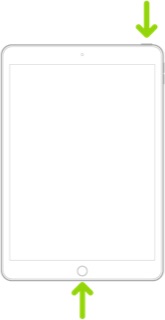
Force restart iPad (models with the Home button)
Press and hold the top button and the Home button at the same time. When the Apple logo appears, release both buttons.
If the issue survives the restart, you can easily determine if you have a hardware or software issue. A reliable method to confirm a screen or other hardware fault is to take a screenshot when the fault is evident - and then review the captured screenshot image...
When reviewed, if the lines are not present in the screenshot image, then you have demonstrated that you have a hardware fault. If the lines are visible in the screenshot, the something other than hardware will be the cause.
Note: When reviewing the image, rotating the iPad screen orientation by 90°, from Portrait to Landscape, will ensure that the image does not coincide with screen defects if present.
Take a screenshot on your iPad – Apple Support
If the test indicates that a hardware fault (as, given your description is perhaps likely) a visit to the Genius Bar at your local Apple Store is recommended - where the technicians will be able to test and assess your iPad. This will likely inform your next steps:
Genius Bar Reservation and Apple Support Options - Apple
iPad Repair – Official Apple Support
If the iPad is within its one year manufacturer's warranty and a fault develops in this time, Apple will resolve the issue without cost to you.

