Cannot establish connection to server for YouTube on iPad

Just updated my iPad to iOS 17 and now when I try to load YouTube I get the “cannot establish connection to server” message. Same issue on safari, chrome and the YouTube app. Checked on my iPhone using same WiFi network and it’s fine so not a network issue - tried with a hotspot and not working. Only seems to be YouTube that’s not loading, other sites seem fine. Tried all the usual fixes found on google like changing DNS server, checking date/time, clearing web history but no luck fixing.


Posted on Feb 22, 2025 3:45 PM

Reply
Question marked as Top-ranking reply

Posted on Feb 23, 2025 4:16 AM

If you have a VPN App or profiles installed, or a security/AV/firewall App such as Norton, these may be interfering with your iPad's network stack. If applicable, the resolution is usually simple; if installed, you may only need to temporarily disable or remove the Security App and/or VPN.


Consider a reset of your iPad's network settings - as this will often clear unexpected network or App-connection issues:

Settings > General > Transfer or Reset iPad > Reset > Reset Network Settings


If some Apps are working as expected, while others are not - or other devices can connect to your WiFi network and/or specific internet resources - you may find that a restart of your WiFi Router, followed by a restart of your iPad will clear the problem….


To restart your router, disconnect power from the router for at least 30 seconds - then reconnect power to restart. After your router reboots (which may take several minutes), force restart your iPad:


Force restart iPad (models with Face ID or with Touch ID in the top button)

If your iPad doesn’t have the Home button, do the following:

  1. Press and quickly release the volume button nearest to the top button.
  2. Press and quickly release the volume button farthest from the top button.
  3. Press and hold the top button.
  4. When the Apple logo appears, release the top button.


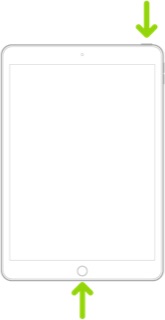
Force restart iPad (models with the Home button)

Press and hold the top button and the Home button at the same time. When the Apple logo appears, release both buttons.


If you continue to have difficulties, check to see if your iPad is using the WiFi Private Address feature. This feature is intended to provide additional privacy and security when using “public” (untrusted) WiFi networks.

Settings > WiFi > [Your WiFi Network / SSID] - tap the “i” icon - Private Address


The Private Address feature is largely unnecessary for your home WiFi network; if enabled, Private Addressing can cause issues if specific MAC addresses are expected by your WiFi Router. You may need to disable this feature - and can be enabled or disabled for each individual network.


Use private Wi-Fi addresses in iOS 14, iPadOS 14, and watchOS 7 - Apple Support


1 reply
Question marked as Top-ranking reply

Feb 23, 2025 4:16 AM in response to rismail98

If you have a VPN App or profiles installed, or a security/AV/firewall App such as Norton, these may be interfering with your iPad's network stack. If applicable, the resolution is usually simple; if installed, you may only need to temporarily disable or remove the Security App and/or VPN.


Consider a reset of your iPad's network settings - as this will often clear unexpected network or App-connection issues:

Settings > General > Transfer or Reset iPad > Reset > Reset Network Settings


If some Apps are working as expected, while others are not - or other devices can connect to your WiFi network and/or specific internet resources - you may find that a restart of your WiFi Router, followed by a restart of your iPad will clear the problem….


To restart your router, disconnect power from the router for at least 30 seconds - then reconnect power to restart. After your router reboots (which may take several minutes), force restart your iPad:


Force restart iPad (models with Face ID or with Touch ID in the top button)

If your iPad doesn’t have the Home button, do the following:

  1. Press and quickly release the volume button nearest to the top button.
  2. Press and quickly release the volume button farthest from the top button.
  3. Press and hold the top button.
  4. When the Apple logo appears, release the top button.


Force restart iPad (models with the Home button)

Press and hold the top button and the Home button at the same time. When the Apple logo appears, release both buttons.


If you continue to have difficulties, check to see if your iPad is using the WiFi Private Address feature. This feature is intended to provide additional privacy and security when using “public” (untrusted) WiFi networks.

Settings > WiFi > [Your WiFi Network / SSID] - tap the “i” icon - Private Address


The Private Address feature is largely unnecessary for your home WiFi network; if enabled, Private Addressing can cause issues if specific MAC addresses are expected by your WiFi Router. You may need to disable this feature - and can be enabled or disabled for each individual network.


Use private Wi-Fi addresses in iOS 14, iPadOS 14, and watchOS 7 - Apple Support



This thread has been closed by the system or the community team. You may vote for any posts you find helpful, or search the Community for additional answers.

Cannot establish connection to server for YouTube on iPad

Welcome to Apple Support Community
A forum where Apple customers help each other with their products. Get started with your Apple Account.