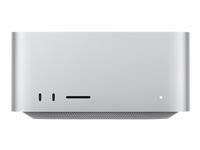
Find my mac is not working on macOs Sequioa

Hello,


I'm having an issue with the "Find My Mac" feature. Although it appears as enabled in the computer's Settings on the device, when I access the app (either from the device itself or from iCloud.com), the Mac appears as disabled.


I've already performed several troubleshooting steps:


I disabled and re-enabled the option in iCloud.

I signed out of iCloud and signed back in.


I tried from iCloud.com and from the "Find My Mac" app on the iPhone.


Unfortunately, none of these resolved the issue. The Mac still appears as unreachable.


Do you have any additional suggestions or know of any recent bugs related to this?


Posted on Jun 20, 2025 6:31 AM

Reply
Question marked as Top-ranking reply

Posted on Jun 21, 2025 11:05 AM

You might try booting the Mac in recovery mode and then run First Aid on the startup drive from Disk Utility. Afterward, disable and reenable the Find My service on the Mac.

This was the fix for me recently with a similar (not exact) isolated Find My issue.

How to repair a Mac storage device with Disk Utility - Apple Support


Repair a storage device in Disk Utility on Mac - Apple Support

Note: If you’re checking your startup disk or startup volume, restart your computer in macOS Recovery. See the Apple Support article [...]. Next, select Disk Utility in the macOS Recovery window, then click Continue. If you check your startup volume (Macintosh HD), make sure you also check your data volume (Macintosh HD - Data).❞

6 replies
Question marked as Top-ranking reply

Jun 21, 2025 11:05 AM in response to marcio284

You might try booting the Mac in recovery mode and then run First Aid on the startup drive from Disk Utility. Afterward, disable and reenable the Find My service on the Mac.

This was the fix for me recently with a similar (not exact) isolated Find My issue.

How to repair a Mac storage device with Disk Utility - Apple Support


Repair a storage device in Disk Utility on Mac - Apple Support

Note: If you’re checking your startup disk or startup volume, restart your computer in macOS Recovery. See the Apple Support article [...]. Next, select Disk Utility in the macOS Recovery window, then click Continue. If you check your startup volume (Macintosh HD), make sure you also check your data volume (Macintosh HD - Data).❞

Jun 20, 2025 7:39 AM in response to marcio284

There are 4 Categories of Third Party Software / Services that are baffling.


In no special order 


Third Party 2 Way Firewalls 


Commercial VPNs 


Third Party Security Software 


Third Party Disk Cleaners / Optimizer 


If in doubt >>


Download the Application Etrecheck ( External Link ) directly from the Developer.


This is a Diagnostic Tool that makes no changes to the computer.


It makes a coherent and readable inventory of both the Hardware and Software used on the computer 


The application is free or paid for added features. 


The Report will Not Reveal Any Personal Information. 


Post back the Full Report - Share Report >> Copy , then  paste  >>>> using the Additional Text Icon  <<<<

This thread has been closed by the system or the community team. You may vote for any posts you find helpful, or search the Community for additional answers.

Find my mac is not working on macOs Sequioa

Welcome to Apple Support Community
A forum where Apple customers help each other with their products. Get started with your Apple Account.