
Apps in tahoe 26.0 - how to change the default categories for applications?

I had applications grouped to support workflows, which I depend on to make money.


The current app launcher makes it nearly impossible to quickly bring up a window and select an app. Now I have to know the name of the app (not always as simple as you'd think - I have several different terminal emulators that have the name term or terminal in them, and the icons are very similar)


I have applications that I don't run frequently, but when I need them, I need to be able to easily launch them.


I have several IDEs and code editors I use depending on what I am working on, now I can't just launch a developer tools window and get what I need.


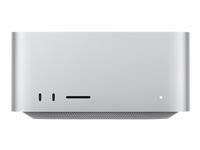
I bought an M4 pro mini for being able to be more productive, not less. I really don't want to add 30+ applications to the dock (even in folders)

Posted on Sep 15, 2025 4:47 PM

Reply
Question marked as Top-ranking reply

Posted on Jan 9, 2026 9:54 AM

It is an USB appliance with rows of buttons on it. The buttons are oled screens. You configure the buttons to do things, like open an app, load a new set of button definitions, send keystrokes, etc. The particular one I got was Ampligame. I spent about $60 USD on it. it was incredibly simple to set up and works great with my MAC.


I have all my work streams set up as pages under buttons, depending on what I am trying to do. The legends and icons for the buttons are easy to change.The deck I got has 15 buttons. you can define 5 pages of button settings, plus each button can have pages of buttons defined beneath them.


So, from my start set of buttons, if I am doing development, I push the button I have labeled Dev Tools and the 15 buttons change to all the tools I need and use for this. The same for video production, etc, and even choosing games to play.


I consider this to be some of the best money spent on a perhipheral for my mac mini.

25 replies
Question marked as Top-ranking reply

Jan 9, 2026 9:54 AM in response to leroydouglas

It is an USB appliance with rows of buttons on it. The buttons are oled screens. You configure the buttons to do things, like open an app, load a new set of button definitions, send keystrokes, etc. The particular one I got was Ampligame. I spent about $60 USD on it. it was incredibly simple to set up and works great with my MAC.


I have all my work streams set up as pages under buttons, depending on what I am trying to do. The legends and icons for the buttons are easy to change.The deck I got has 15 buttons. you can define 5 pages of button settings, plus each button can have pages of buttons defined beneath them.


So, from my start set of buttons, if I am doing development, I push the button I have labeled Dev Tools and the 15 buttons change to all the tools I need and use for this. The same for video production, etc, and even choosing games to play.


I consider this to be some of the best money spent on a perhipheral for my mac mini.

Dec 6, 2025 12:24 AM in response to Tim Lovern

For the apps I need to run rarely, but want to find them quickly, when I don't remember their name, I created a folder "Launchpad" on my Desktop and dragged it to the Dock.

In this folder are some subfolders corresponding to my app categories. like Photos, Music, Writing.

And to each category subfolder I added aliases for the apps.

That makes it easy to find the apps quickly, that I im only using once a year or so.


Oct 16, 2025 10:21 AM in response to dialabrain

dialabrain wrote:


Jagnut wrote:

There are several categories in the new app launcher such as Utilities, Social, Creativity, etc. Why not be able to creates a custom category - Say Photo Editing and then tag specific apps to that category. That's what I want to be like the previous App Launcher!!!
Try an alternative launcher such as Launchie in the App Store.

Independent developers to the rescue, filling a need.

Sep 15, 2025 5:10 PM in response to Tim Lovern

Tim Lovern wrote:

I had applications grouped to support workflows

The current app launcher makes it nearly impossible to quickly bring up a window and select an app. Now I have to know the name of the app (not always as simple as you'd think - I have several different terminal emulators that have the name term or terminal in them, and the icons are very similar)

I have applications that I don't run frequently, but when I need them, I need to be able to easily launch them.


I do not really grok what is your "App Launcher" compare to what?


—Applications folder

—Spotlight

—on the Dock?


I moved from Sequoia to Tahoe and I see no difference— granted my work flow sounds less complex than the picture you are trying to paint.


If you are speaking of the old Launchpad see this reference—

ref: https://www.macworld.com/article/2846899/this-terminal-trick-brings-back-launchpad-on-macos-26.html


maybe you can say more.

Sep 19, 2025 2:41 PM in response to Tim Lovern

@chabberdabbe—


It does seem the new App.app is in its infancy. Many have issue with its practicality /edit-ability compare to the old LaunchPad.app


I never used LaunchPad so I am unaffected in this regard.


What I do see as a welcome new edition is the Command 4 for access to the history of the Clipboard using the App interface or its sister Spotlight.

ref: Search your Clipboard history in Spotlight on Mac - Apple Support


with any luck it will improve over the years.


To be proactive you can file a bug report / submit your Apple Feedback here:  Product Feedback - Apple


Dec 6, 2025 12:12 AM in response to Tim Lovern

I’m finding the new app-selection method difficult to use, especially with a large number of apps — in my case, around 190. It would be extremely helpful if Apple could offer an option to use either the new or the previous selection method.

It would also be beneficial if users had the ability to revert to an earlier version of the operating system. If an update introduces issues, being able to return to a previous version would provide an important safety net and help maintain productivity.

Thank you for considering these improvements.

Jan 8, 2026 9:44 PM in response to Tim Lovern

Same issue here,

I've just updated it


Now my workflow has been affected,

this design may work for people that uses limited features,


But for professionals that run many different apps and need folders for them

Several apps have partitions and now they are spread all over in a folder,


my question is,

If there already was a folder called applications that was messy enough,

why now make what was the Launchpad same mess as the applications folders?


Can't even drag an app to a folder,

if there is a 3rd party app, can't move to any folder so need to search the app's name,

its supposed to be an improvement for productivity, but where is the productivity in that?


Please go back or have the option to go back

Jan 9, 2026 9:39 AM in response to Tim Lovern

Apple has made their interface different from the iPhone and less intuitive and more like a card index. For professional users with many apps it has been a retrogressive step. Hopefully they don’t think it would be good on an iPhone. They seem to think change for any reason is good without giving the ability to allow both interfaces

Jan 9, 2026 10:15 AM in response to Tim Lovern

Tim Lovern wrote:

I had applications grouped to support workflows,

I bought an M4 pro mini for being able to be more productive, not less.

I really don't want to add 30+ applications to the dock


I guess I don't understand why you would not utilize the Dock for convenient access(?)

arrange to suit your needs if grouping is your issue.


I didn't count the icons but over 80 none the less on my Dock...I am hard pressed to see an issue there.


Apps in tahoe 26.0 - how to change the default categories for applications?

Welcome to Apple Support Community
A forum where Apple customers help each other with their products. Get started with your Apple Account.
