How to revert back to iPadOS 26 after updating to iOS 26.2 on iPad?
I have just updated my iPad to iOS 26.2 and cannot it get set up. Can I revert back to iOS 26 somehow?
[Re-Titled by Moderator]
Original Title: iOS 26.2 problems.
iPad, iPadOS 26
I have just updated my iPad to iOS 26.2 and cannot it get set up. Can I revert back to iOS 26 somehow?
[Re-Titled by Moderator]
Original Title: iOS 26.2 problems.
iPad, iPadOS 26
Rolling-back to an earlier version of iOS/iPadOS is not possible.
All System Updates are digitally signed by Apple - and can only be installed whilst the digital signatures remain valid. After release of a new iOS/iPadOS version, the immediately preceding version continues to be digitally signed by Apple - however, usually within a few days, Apple will revoke the digital certificate with which the earlier version is signed.
If your iPad is not operating as expected, try a forced-restart - as this will often clear an isolated or post-update software issue:
Force restart iPad (models with Face ID or with Touch ID in the top button)
If your iPad doesn’t have the Home button, do the following:
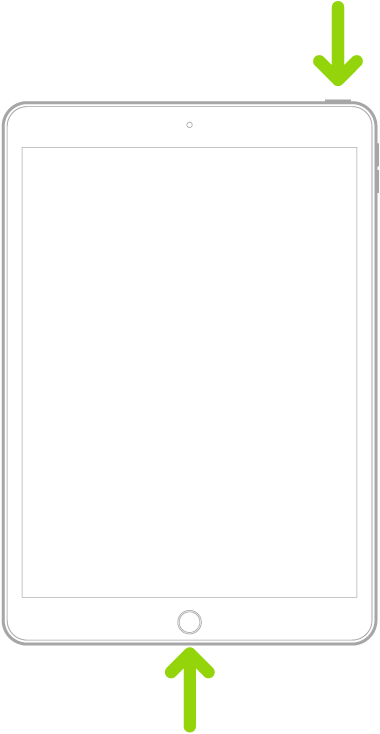
Force restart iPad (models with the Home button)
Press and hold the top button and the Home button at the same time. When the Apple logo appears, release both buttons.
If the problem persists after performing the restart, it may be necessary to reset your iPad settings. While this reset will not cause any loss of data, as a precaution, it is always wise to ensure that you have a current iCloud or iTunes backup before performing the reset:
How to back up your iPhone, iPad, and iPod touch - Apple Support
When you are happy to proceed, you can perform the reset from iPad settings:
Settings > General > Transfer or Reset iPad > Reset > Reset All Settings
If the problem still doesn’t clear, the next step is to reset the iPad to factory settings:
Restore your iPhone, iPad, or iPod to factory settings - Apple Support
Otherwise, you would be best advised to seek assistance directly from Apple Support. You can contact the Support Team using the Support link at top-right or bottom-left of this page. Alternatively you can initiate and manage your support cases using the excellent Apple Support App. If not already installed on your iPad, the App can be downloaded from the App Store:
https://apps.apple.com/app/apple-support/id1130498044
You might also visit the Genius Bar at your local Apple Store or Apple Authorised Service Provider (AASP) - where the technicians will be able to assist with troubleshooting:
Genius Bar Reservation and Apple Support Options - Apple
Rolling-back to an earlier version of iOS/iPadOS is not possible.
All System Updates are digitally signed by Apple - and can only be installed whilst the digital signatures remain valid. After release of a new iOS/iPadOS version, the immediately preceding version continues to be digitally signed by Apple - however, usually within a few days, Apple will revoke the digital certificate with which the earlier version is signed.
If your iPad is not operating as expected, try a forced-restart - as this will often clear an isolated or post-update software issue:
Force restart iPad (models with Face ID or with Touch ID in the top button)
If your iPad doesn’t have the Home button, do the following:
Force restart iPad (models with the Home button)
Press and hold the top button and the Home button at the same time. When the Apple logo appears, release both buttons.
If the problem persists after performing the restart, it may be necessary to reset your iPad settings. While this reset will not cause any loss of data, as a precaution, it is always wise to ensure that you have a current iCloud or iTunes backup before performing the reset:
How to back up your iPhone, iPad, and iPod touch - Apple Support
When you are happy to proceed, you can perform the reset from iPad settings:
Settings > General > Transfer or Reset iPad > Reset > Reset All Settings
If the problem still doesn’t clear, the next step is to reset the iPad to factory settings:
Restore your iPhone, iPad, or iPod to factory settings - Apple Support
Otherwise, you would be best advised to seek assistance directly from Apple Support. You can contact the Support Team using the Support link at top-right or bottom-left of this page. Alternatively you can initiate and manage your support cases using the excellent Apple Support App. If not already installed on your iPad, the App can be downloaded from the App Store:
https://apps.apple.com/app/apple-support/id1130498044
You might also visit the Genius Bar at your local Apple Store or Apple Authorised Service Provider (AASP) - where the technicians will be able to assist with troubleshooting:
Genius Bar Reservation and Apple Support Options - Apple
Downgrading your installed iOS version its not supported. What issue are you having?
Thank you - I managed to do a restart which has solved some of my problems with iOS
I would imagine that as I become more familiar with the system it will become easier.
Thank you again for your help.
You're very welcome.
Please don't hesitate to return here if you need help with specific issues. I and other senior contributors will try to help where we can.
The iPad User Guide is a rich source of frequently overlooked information about your iPad and iPadOS. The Guide is available online using a web browser (such as Safari):
iPad User Guide - Apple Support
The Tips App, installed by default on iPad, provides a brief introduction - and leads you to the User Guide. In case you missed it, or need to reinstall the App, here is a link to the Tips App:
https://apps.apple.com/app/tips/id1069509450
Apple also has a huge YouTube Channel - containing videos and feature guidance:
https://www.youtube.com/user/Apple
-LP
How to revert back to iPadOS 26 after updating to iOS 26.2 on iPad?