iPads unable to connect to home Wi-Fi after update attempt

We have two iPads, 8th and 10th generations. We've spent the past two days attempting to update to 26.2 - not the usual straightforward process.

Now, neither of the iPads will talk to the friendly local router, which used to be such a close and personal confidant.

We've tried everything from clearing the wifi data to a factory reset to no avail. They can connect to the internet through a mobile phone wifi hotspot, but that is not a viable daily solution.

This situation, of course, means that no future Apple improvement to 26.2 is available. It seems that we have just two solutions (and wishing for a third):

  1. Replace the nine-year-old router, which still, obviously, meets the specifications here: Wi-Fi and Ethernet specifications for Apple devices – Apple Support (UK) (and will be replaced sometime soon anyway when our copper landline is replaced with fibre)
  2. Ignominiously reinstall OS 18 from an image via our Windows-based iTunes.

I see from an email response to my signing in that "The Apple Support Community has the answers, and more".

Hoping so.

iPad, iPadOS 26

Posted on Jan 19, 2026 3:39 AM

Reply
Question marked as Top-ranking reply

Posted on Jan 19, 2026 5:36 AM

You may have tried some of this already, but is included here in case something has been missed. Start here:

If your iPhone, iPad, or iPod touch won’t connect to a Wi-Fi network - Apple Support


…and here:

Recommended settings for Wi-Fi routers and access points - Apple Support


WiFi/Internet connection difficulties are usually an indication that your device does not have a routable IP Address - your IP Address usually being assigned by DHCP. When problems occur, your iPad may only have a self-assigned link-local IP address that begins 169.254.x.x.


You can verify your DHCP-assigned IP Address from settings:

Settings > WiFi > [Your WiFi Network / SSID] - tap the blue “i” icon - [IPv4 Address] IP Address


If you have a VPN App or profiles installed, or a security/AV/firewall App such as Norton, these may be interfering with DHCP and preventing your device from obtaining a valid IP Address for the WiFi network to which you are attempting to connect. The resolution is usually simple; if installed, you may only need to temporarily disable or remove the Security App and/or VPN - and then restart the affected device(s).


DHCP is frequently used to automatically obtain an IP Address. Until your iPad has a valid IP Address to connect to your network, you will not have an internet connection. Disabling or removing VPN and/or the offending security App should allow DHCP to operate normally - allowing connection to your network and the internet.


If this resolves your issue, the VPN and/or security App can be reinstated after the connectivity problem has been resolved.


If some Apps are working as expected, while others are not - or other devices can connect to your WiFi network - you may find that a restart of your WiFi Router, followed by a restart of your iPad will clear the problem….


To restart your router, disconnect power from the router for at least 30 seconds - then reconnect power to restart. After your router reboots (which may take several minutes), force restart your iPad:


Force restart iPad (models with Face ID or with Touch ID in the top button)

If your iPad doesn’t have the Home button, do the following:

  1. Press and quickly release the volume button nearest to the top button.
  2. Press and quickly release the volume button farthest from the top button.
  3. Press and hold the top button.
  4. When the Apple logo appears, release the top button.


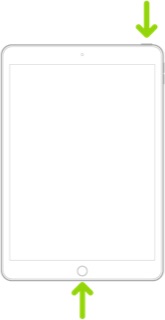
Force restart iPad (models with the Home button)

Press and hold the top button and the Home button at the same time. When the Apple logo appears, release both buttons.


If you continue to have difficulties, check to see if your iPad is using the WiFi Private Address feature. This feature is intended to provide additional privacy and security when using “public” (untrusted) WiFi networks.

Settings > WiFi > [Your WiFi Network / SSID] - tap the “i” icon - Private Address


The Private Address feature is largely unnecessary for your home WiFi network; if enabled, Private Addressing can cause issues if specific MAC addresses are expected by your WiFi Router. You may need to disable this feature - and can be enabled or disabled for each individual network.


Use private Wi-Fi addresses in iOS 14, iPadOS 14, and watchOS 7 - Apple Support


5 replies
Question marked as Top-ranking reply

Jan 19, 2026 5:36 AM in response to SadSamuel

You may have tried some of this already, but is included here in case something has been missed. Start here:

If your iPhone, iPad, or iPod touch won’t connect to a Wi-Fi network - Apple Support


…and here:

Recommended settings for Wi-Fi routers and access points - Apple Support


WiFi/Internet connection difficulties are usually an indication that your device does not have a routable IP Address - your IP Address usually being assigned by DHCP. When problems occur, your iPad may only have a self-assigned link-local IP address that begins 169.254.x.x.


You can verify your DHCP-assigned IP Address from settings:

Settings > WiFi > [Your WiFi Network / SSID] - tap the blue “i” icon - [IPv4 Address] IP Address


If you have a VPN App or profiles installed, or a security/AV/firewall App such as Norton, these may be interfering with DHCP and preventing your device from obtaining a valid IP Address for the WiFi network to which you are attempting to connect. The resolution is usually simple; if installed, you may only need to temporarily disable or remove the Security App and/or VPN - and then restart the affected device(s).


DHCP is frequently used to automatically obtain an IP Address. Until your iPad has a valid IP Address to connect to your network, you will not have an internet connection. Disabling or removing VPN and/or the offending security App should allow DHCP to operate normally - allowing connection to your network and the internet.


If this resolves your issue, the VPN and/or security App can be reinstated after the connectivity problem has been resolved.


If some Apps are working as expected, while others are not - or other devices can connect to your WiFi network - you may find that a restart of your WiFi Router, followed by a restart of your iPad will clear the problem….


To restart your router, disconnect power from the router for at least 30 seconds - then reconnect power to restart. After your router reboots (which may take several minutes), force restart your iPad:


Force restart iPad (models with Face ID or with Touch ID in the top button)

If your iPad doesn’t have the Home button, do the following:

  1. Press and quickly release the volume button nearest to the top button.
  2. Press and quickly release the volume button farthest from the top button.
  3. Press and hold the top button.
  4. When the Apple logo appears, release the top button.


Force restart iPad (models with the Home button)

Press and hold the top button and the Home button at the same time. When the Apple logo appears, release both buttons.


If you continue to have difficulties, check to see if your iPad is using the WiFi Private Address feature. This feature is intended to provide additional privacy and security when using “public” (untrusted) WiFi networks.

Settings > WiFi > [Your WiFi Network / SSID] - tap the “i” icon - Private Address


The Private Address feature is largely unnecessary for your home WiFi network; if enabled, Private Addressing can cause issues if specific MAC addresses are expected by your WiFi Router. You may need to disable this feature - and can be enabled or disabled for each individual network.


Use private Wi-Fi addresses in iOS 14, iPadOS 14, and watchOS 7 - Apple Support



Jan 19, 2026 9:01 AM in response to SadSamuel

Using MAC addresses to restrict access to a network is an old, ineffective and now largely deprecated access control measure. Reliance upon the device MAC Address is unreliable at best - as MAC Addresses are trivial to spoof and equally simple to "discover" using readily available network utilities.


The physical address used by a client device (i.e. MAC Address) is broadcast in-clear within every IP packet/frame - and can be trivially recovered from WiFi or with physical access to a wired network. As you are using WiFi, broadcasting your MAC addresses to anyone within range, MAC white-listing is ineffective. If you intend to employ network access control measures, you will need to explore considerably more secure methods - such a 802.1x with Certificates - which, for the majority of domestic applications is impractical.


Given the above - and the fact that a significant proportion of modern "connected" devices may regularly rotate MAC addresses for "privacy" (this measure being one aspect of ameliorating device fingerprinting and tracking) - you might be well advised to either (a) fully disable MAC Address white-listing for your Router, or (b) ensure that your client devices are configured to use either their globally unique (i.e. burned-in) MAC address, or a fixed MAC within device settings.


Be aware that reliance upon MAC white-listing will increase your administrative overhead - as client network settings/parameters may be changed or reset for a variety of reasons.


Addendum:


An additional point of note concerning your initial post...


Rolling-back to an earlier version of iOS/iPadOS is not possible. All System Updates are digitally signed by Apple - and can only be installed whilst the digital signatures remain valid. After release of a new iOS/iPadOS version, the immediately preceding version continues to be digitally signed by Apple - however, usually within a few days, Apple will revoke the digital certificate with which the earlier version is signed.


Perhaps consider that iOS/iPadOS updates include both functional and essential security updates. Restoring an earlier version of the OS would expose your device, privacy and data to emerging and known security threats and vulnerabilities.

Jan 19, 2026 8:11 AM in response to LotusPilot

Thank you - yes, I have been through those checklists many - many times - and we don't use a VPN.


But that's a good tip on the Private Address feature. What I did learn was that if you do:

General > Transfer or Reset iPad > Reset > Reset Network Settings

the Private Address switches to Fixed with a working but fictional MAC address. I've not come across any mention of this default and it seems to be Apple's preferred state by implication. This is not helpful when the router has a whitelist of permitted devices.


But we're making progress. Both iPads can now (mostly) connect to the router and receive a dynamic IP address. But, unlike other wireless devices on this network, they have both lost the ability to maintain an internet connection with frequent dropouts that are not synchronised between the two. I'm not sure that any useful links are being made - a number of apps are failing to reinstall after the factory reset on one machine and we can't connect to the App Store.

Jan 19, 2026 10:00 AM in response to LotusPilot

Well, I am old, ineffective and now largely deprecated and will have to revise everything when the new systems arrive some time soon.


As a temporary measure we have managed to recreate an essential mail account on an older iPad, which is working correctly at full speed. The two newer ones using 26.2 continue to be unreliable and unable to work as well as they did under the previous OS.


Rolling back to a previous OS would have solved the problems, problems that I created by not reading the reviews and help requests for the latest iteration. I've been an Apple user since 1978 and owned many machines, but never been so disappointed. It looks like we have a couple of iPads that are currently not much better than paperweights, with the ability to download further updates looking compromised.

But thank you for your replies.

iPads unable to connect to home Wi-Fi after update attempt

Welcome to Apple Support Community
A forum where Apple customers help each other with their products. Get started with your Apple Account.