First, at the time of writing, iOS/iPadOS 26.2.1 is current. If you haven't already done so, you should update to the most recent version.
Increased battery utilisation can be expected after performing a system software update - as many background housekeeping tasks, such as reindexing, will be running. Nominal battery performance should return within a day or two of the update.
Liquid Glass
iOS/iPadOS 26.1 introduced a new setting that can subtly charge its appearance - which for some addresses some of the criticism:
Settings > Display & Brightness > Liquid Glass - select Clear or Tinted
Sadly, this new setting makes very little difference for those that struggle with both the appearance and overlapping screen elements introduced with Liquid Glass. If you dislike or are experiencing difficulty with the new Liquid Glass UI, there are other settings that can significantly improve the appearance and suppress the majority of unwanted effects:
- Settings > Accessibility > [Vision] Display & Text Size > Reduce Transparency - set to ON
- Settings > Accessibility > [Vision] Display & Text Size > Increase Contrast - set to ON
- Settings > Accessibility > [Motion] Reduce Motion - set to ON
Each if these settings can be used individually, or in combination. Setting Reduce Transparency alone (1) will likely suppress the majority of your issues. The Reduce Motion setting (3), if used, will eliminate the "lensing" effects of the Liquid Glass UI. Experiment; you should find a combination that works for you.
I suggest that you begin with setting Reduce Transparency to ON - and then, if needed, experiment with additional use of one or more of the other options.
NB: The new Display & Brightness > Liquid Glass setting can only be changed/toggled while Reduce Transparency is set to OFF. You might find that setting Liquid Glass to Clear, prior to enabling Reduced Transparency to ON, may give the best result.
Liquid Glass is here to stay - and will likely evolve throughout the lifespan of iPadOS 26. Hopefully, Apple will provide additional controls with which to selectively eliminate some aspects of the new UI to better meet the functional and visual needs of the wider user population. Liquid Glass is very "pretty" - but for some is arguably form over function, reducing legibility and usability.
Split Screen & Slide Over
iPadOS multitasking has received a significant makeover from that to which you may be accustomed in iPadOS 18.x and earlier - and may take a little time to learn and adjust your workflows. You would be well advised to review the official iPadOS User Guide and the many available online tutorials (such as YouTube) to become better acquainted with the new multitasking interface and associated gestures and controls.
Start here (the inset video offers an excellent introduction):
Multitask on iPad with iPadOS 26 - Apple Support
Additional:
Work with multiple windows at once on iPad - Apple Support
OS - iPadOS 26 - Apple
Change the layout of windows on iPad - Apple Support
The three-dot multitasking button with which you are no doubt familiar from earlier versions of iPadOS has been replaced with the traffic-light button to access and control the revised window-based User Interface.
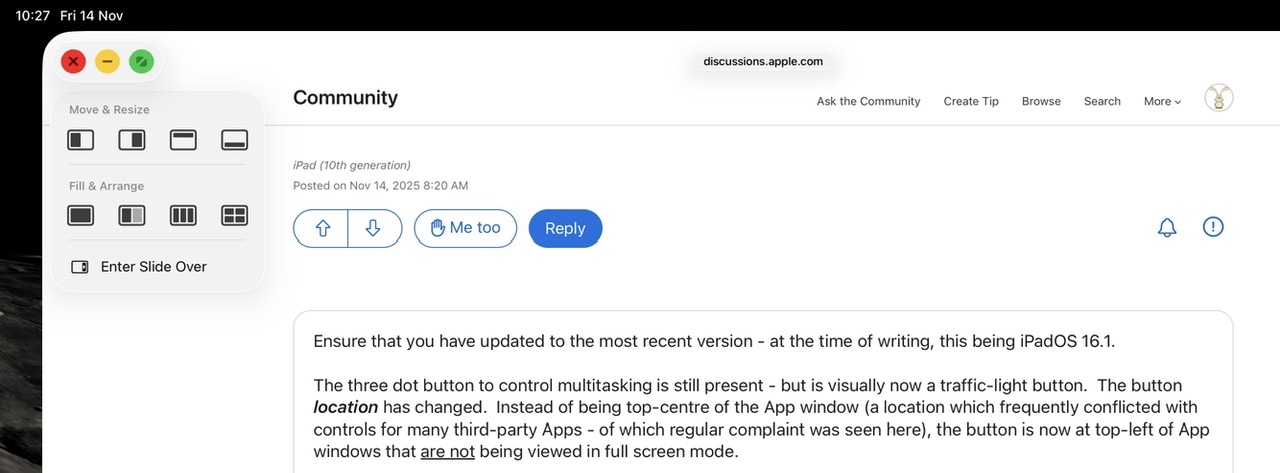
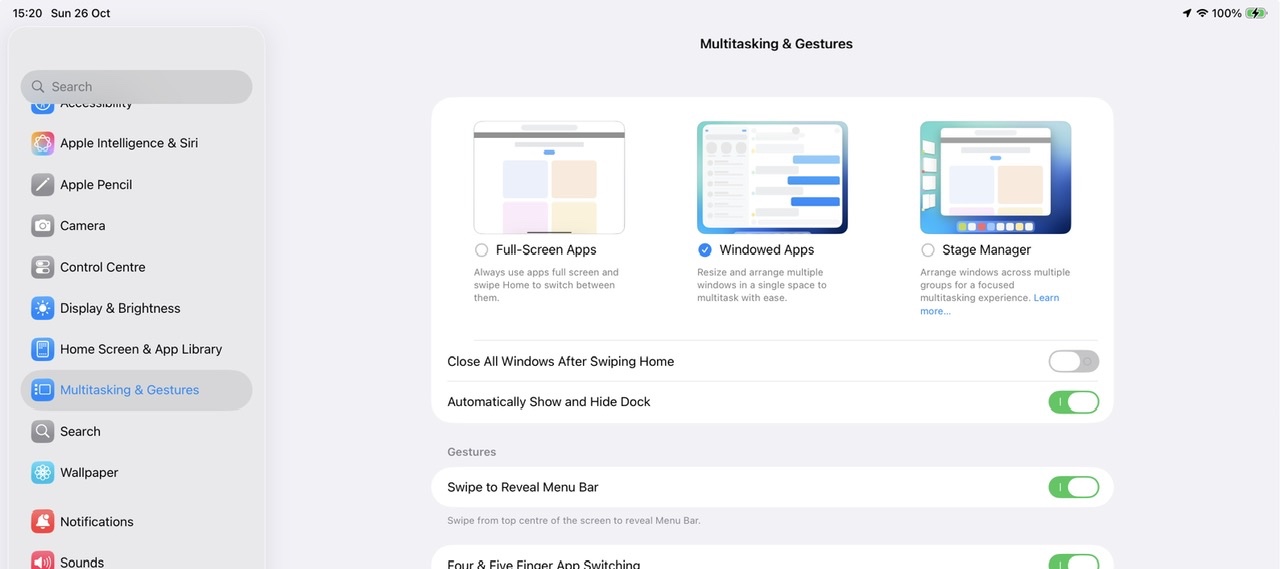
If you dislike the windowed environment, you can switch to using the basic Full-Screen App mode - but this disables all multitasking capabilities and hide the traffic-light controls; you will not be able to use split screen or slide-over modes with which you are likely familiar:
Settings > Multitasking & Gestures - select Full Screen Apps
Apple invite submission of constructive comments and feature requests via its Product Feedback portal. If you would like Apple to reconsider recent changes, or alter the appearance or function of the multitasking controls, this would be the most appropriate and effective path to having your voice heard:
Feedback - iPad - Apple