You will need to be more specific as to the iPad model - as this will determine the version of iPadOS to which the iPad will be attempting to update. At the time of writing, the only unavailable version of iPadOS is iPadOS 16.7.13. Due to a technical issue, this version has been temporarily withdrawn by Apple.
For information, here is a list of the highest version of iOS supported recent models of iPad (for simplicity - “generations” are shortened to a number):
- iPad Air2*, iPad mini4 - iPadOS 15.8.6
- iPad5*, iPad Pro (9.7"/12.9" 1st generation)* - iPadOS 16.7.13 (currently unavailable)
- iPad6, iPad Pro 12.9" 2nd generation*, iPad Pro 10.5" - iPadOS 17.7.10
- iPad7 - iPadOS 18.7.4
(*) obsolete
Newer models are all able to be updated to the current version - iPadOS 26.2.1, or optionally if still running iPadOS 18.x to iPadOS 18.7.3:
- iPad Pro 13" (M4/M5)
- iPad Pro 12.9" (3rd generation and later)
- iPad Pro 11" (1st generation and later + M4/M5)
- iPad Air (3rd generation and later + M2/M3)
- iPad (8th generation and later + A16)
- iPad mini (5th generation and later + A17 Pro)
To be absolutely clear, if you have an iPad5, iPad Pro 9.7" or iPad Pro 12.9" 1st generation - you cannot update at this time. If you have one of these models, you will need to wait until Apple release a patched release - hopefully this will be available within a few days.
Direct transfer from one device to another is only possible if the target device has the same or more recent version of iPadOS than the source. There is no workaround.
If the automatic update process has stalled because the update is either unavailable or will not verify prior to install - your only available option is to abandon the update process by performing a forced-restart:
Force restart iPad (models with Face ID or with Touch ID in the top button)
If your iPad doesn’t have the Home button, do the following:
- Press and quickly release the volume button nearest to the top button.
- Press and quickly release the volume button farthest from the top button.
- Press and hold the top button.
- When the Apple logo appears, release the top button.

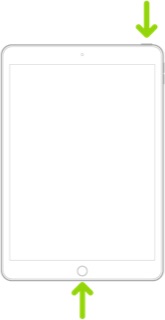
Force restart iPad (models with the Home button)
Press and hold the top button and the Home button at the same time. When the Apple logo appears, release both buttons.
After restart, you might then set-up the iPad as new - but skipping the update process.
At a future date, when the update is available, you can complete the update. If all is well, you can then reset the "new" iPad - and then perform the transfer process from your old iPad. Reset of the old iPad is triggered from iPad settings:
Settings > General > Transfer or Reset iPad > Erase All Content & Settings

