Unable to split screen after iOS 26 update

I am an artist and only use my ipad for drawing. I used to split my screen between pinterest and procreate, but with the new update I am unable to do so. It only allows me to pop pinterest as a movable app on top of my screen (which is incredibly wonky) and it crowds the procreate ui, blocking certain functions. I just want to be able to draw easily like i'm used to. This issue has made me cry out of frustration and i do not even want to use my ipad anymore. Please help me.

iPad Pro, iPadOS 26

Posted on Feb 20, 2026 3:07 PM

Reply
Question marked as Top-ranking reply

Posted on Feb 20, 2026 3:11 PM

iPadOS 26 has introduced new multitasking capabilities and controls - with, optionally, Apps appearing within their own windows instead of being full-screen or appearing in side-by-side split screen. To better understand the changes, I recommend that you start with the video introduction here - and then read the remaining explanations:

Multitask on iPad with iPadOS 26 - Apple Support


iPadOS multitasking has received a significant makeover from that to which you may be accustomed in iPadOS 18.x and earlier - and may take a little time to learn and adjust your workflows. You would be well advised to review the official iPadOS User Guide and the many available online tutorials (such as YouTube) to become better acquainted with the new multitasking interface and associated gestures and controls.

Work with multiple windows at once on iPad - Apple Support

OS - iPadOS 26 - Apple


The three-dot multitasking button with which you are no doubt familiar from earlier versions of iPadOS has been replaced with the traffic-light button to access and control the revised window-based User Interface.
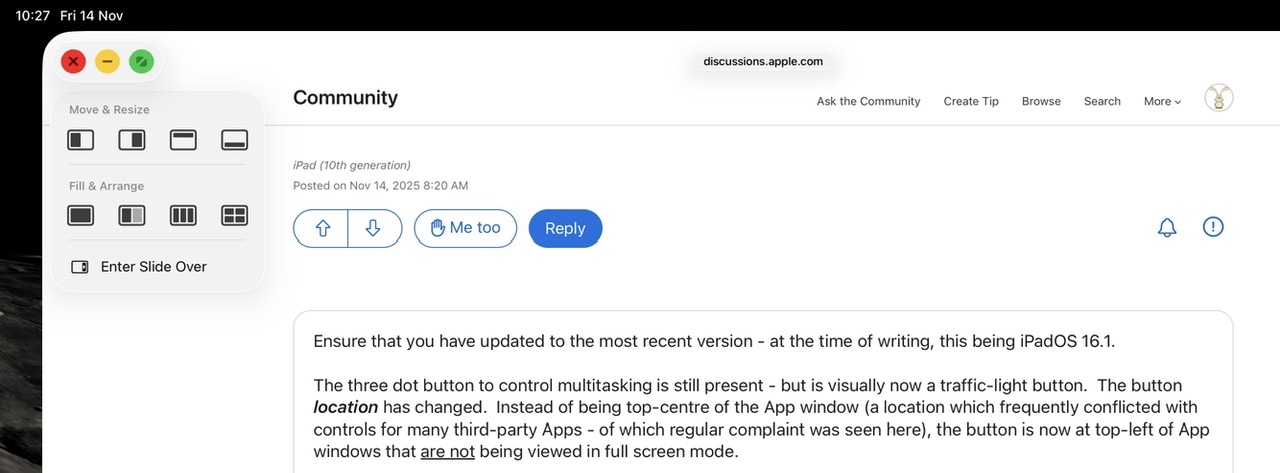


Touch-and-hold (not tap) the traffic light button to expand the full set of windowing controls - which includes a full set of windowing options and side-over:


Tapping the traffic-light multitasking button expands the control - whereas touch-and-hold of the button offers the option of arranging open windows side-by-side, as a triple, or arranged into a quad.


If an App window is being displayed full screen, swiping down from the top-edge of the screen exposes the new top menu-bar - at the left of which you will find the traffic-light button. Again, touch-and-hold to expose the full set of windowing controls:


When operating in Stage Manager mode, you'll note an additional option to quickly open an additional App window for the same App.



1 reply
Question marked as Top-ranking reply

Feb 20, 2026 3:11 PM in response to pinkwaterfalls

iPadOS 26 has introduced new multitasking capabilities and controls - with, optionally, Apps appearing within their own windows instead of being full-screen or appearing in side-by-side split screen. To better understand the changes, I recommend that you start with the video introduction here - and then read the remaining explanations:

Multitask on iPad with iPadOS 26 - Apple Support


iPadOS multitasking has received a significant makeover from that to which you may be accustomed in iPadOS 18.x and earlier - and may take a little time to learn and adjust your workflows. You would be well advised to review the official iPadOS User Guide and the many available online tutorials (such as YouTube) to become better acquainted with the new multitasking interface and associated gestures and controls.

Work with multiple windows at once on iPad - Apple Support

OS - iPadOS 26 - Apple


The three-dot multitasking button with which you are no doubt familiar from earlier versions of iPadOS has been replaced with the traffic-light button to access and control the revised window-based User Interface.


Touch-and-hold (not tap) the traffic light button to expand the full set of windowing controls - which includes a full set of windowing options and side-over:


Tapping the traffic-light multitasking button expands the control - whereas touch-and-hold of the button offers the option of arranging open windows side-by-side, as a triple, or arranged into a quad.


If an App window is being displayed full screen, swiping down from the top-edge of the screen exposes the new top menu-bar - at the left of which you will find the traffic-light button. Again, touch-and-hold to expose the full set of windowing controls:


When operating in Stage Manager mode, you'll note an additional option to quickly open an additional App window for the same App.


This thread has been closed by the system or the community team. You may vote for any posts you find helpful, or search the Community for additional answers.

Unable to split screen after iOS 26 update

Welcome to Apple Support Community
A forum where Apple customers help each other with their products. Get started with your Apple Account.