When an iPhone is connected to a car’s audio system via Bluetooth, it will not automatically switch to another Bluetooth device unless specific conditions are met. These are:
- The current Bluetooth connection is interrupted or lost, typically due to signal interference from nearby electronic devices, physical obstructions, or the car's Bluetooth system momentarily dropping the connection. However, this interference usually does not come from another Bluetooth audio device actively trying to take over.
- Once the iPhone is disconnected from the car’s Bluetooth, it may automatically connect to another previously paired Bluetooth device—but only if:
- That device is powered on, within range, and set to allow automatic connections.
- It was already paired and trusted by the iPhone in the past.
- The iPhone has not prioritized another known device for automatic connection (Apple devices tend to remember recent usage patterns).
In short, the iPhone won’t jump from one active Bluetooth audio device to another unless it gets dropped by the first and the second was already on friendly terms.

You may refer: --> How to Stop AirPods Switching to Other Devices Automatically
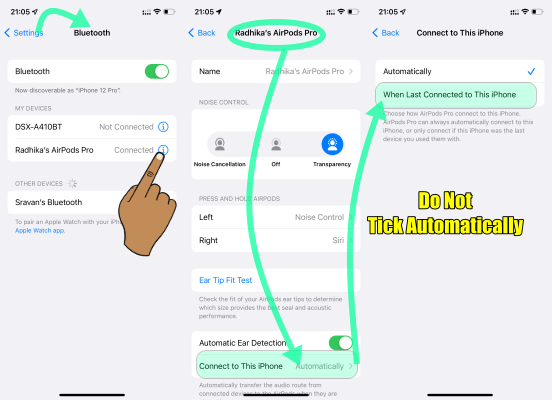
- Make sure your AirPods or AirPods Pro are connected to your iPhone.
- Launch the Settings app.
- Tap Bluetooth.
- Tap the encircled info (i) button next to your AirPods in the list.
- Tap Connect to This iPhone.
- Select When Last Connected to This iPhone.
See the Pic below.
Bluetooth interference can potentially cause connectivity issues due to the disruption of the wireless communication between devices. Bluetooth operates in the 2.4 GHz frequency range, which is also used by various other devices such as Wi-Fi routers, microwaves, cordless phones, and even some baby monitors. When multiple devices are operating nearby and using the same frequency band, interference can occur.
Here's how Bluetooth interference can impact connectivity:
- Audio Streaming Interruptions: When you're streaming music via Apple Music or while playing audio content, Bluetooth interference can disrupt the connection between your device (such as an iPhone) and the Bluetooth speaker or headphones. This interference can result in the audio stuttering, dropping out momentarily, or experiencing poor sound quality.
- Bluetooth devices transmit data in packets. Interference can cause some of these packets to be lost or corrupted during transmission. As a result, the receiving device may have trouble decoding the audio correctly, leading to stuttering or delayed responses.
- Bluetooth signals can be weakened by interference from other devices operating on the same frequency band. If the signal strength drops significantly, it can affect the stability of the connection between your device and the Bluetooth accessory. This can result in intermittent stuttering as the connection struggles to maintain a consistent data flow.
- Bluetooth uses different channels within the 2.4 GHz frequency range to establish connections. When there are many Bluetooth devices nearby, multiple connections can create congestion on the available channels. This congestion can cause interference, leading to degraded performance for Apple Music streaming.

