If your printer supports AirPrint - is set-up correctly and was previously working as expected - you may find that restart of your network components will resolve the problem. You’ll need to restart your network devices in the correct order. Assuming that you WiFi Router provides DNS services for your network, restart devices in this order - allowing time for devices to fully boot/restart prior to restarting other devices:
- WiFi Router
- Upstream wired Network Switch(es) (if any)
- WiFi Access Points / Network Extenders
- Other fixed infrastructure devices - such as Printers
- Client devices (your iPad)
Restarting your iPad, after restarting other devices in the correct sequence, is most simply achieved by a forced-restart of the iPad:
Force restart iPad (models with Face ID or with Touch ID in the top button)
If your iPad doesn’t have the Home button, do the following:
- Press and quickly release the volume button nearest to the top button.
- Press and quickly release the volume button farthest from the top button.
- Press and hold the top button.
- When the Apple logo appears, release the top button.

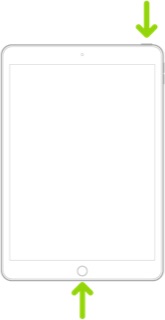
Force restart iPad (models with the Home button)
Press and hold the top button and the Home button at the same time. When the Apple logo appears, release both buttons.
If you continue to have difficulties, check to see if your iPad is using the new WiFi Private Address feature. This feature is intended to provide additional privacy and security when using “public” (untrusted) WiFi networks.
Settings > WiFi > [Your WiFi Network / SSID] - tap the “i” icon - Private Address
The Private Address feature is largely unnecessary for your home WiFi network; if enabled, Private Addressing can interfere with anticipated operation of other devices, such as AirPrint/Airplay. In such circumstances, you may need to disable this feature - and can be enabled or disabled for each individual network.
Use private Wi-Fi addresses in iOS 14, iPadOS 14, and watchOS 7 - Apple Support


