How to fix greyed-out Face ID after repairing a cracked camera on iPhone?

Hey soo my Face ID has been doing this for a couple of weeks now can somebody please help me fix it the camera WAS blurry and cracked but now fixed and greyed out HELP PLEASEEEEE


[Re-Titled by Moderator]

Original Title: Face ID help

iPhone 15 Pro Max, iOS 26

Posted on Mar 4, 2026 11:17 PM

Reply
Question marked as Top-ranking reply

Posted on Mar 4, 2026 11:21 PM

Kindly reach out to the Store/Individual/Agency from whom you acquired your iPhone. They would be best equipped to confirm whether the device has undergone servicing by an unauthorized service provider.


In case you recall not encountering this message at the time of purchase and it surfaced after an update, it's important to note that this message is visible specifically on iOS 15.2 and subsequent versions. It might be beneficial to inquire about any recent updates or changes made to the device's software configuration that could have triggered this notification.


Understanding the circumstances surrounding the appearance of this message could provide insights into any alterations in the device's service history or software updates that have brought about this notice.



Camera and service history

With iPhone 12 models and later using iOS 15.2 and later you can go to Settings > General > About to see the parts and service history of your iPhone and you can see if the camera has been replaced. If the repair was done using genuine Apple parts and processes, you will see "Genuine Apple Part" next to the Camera.

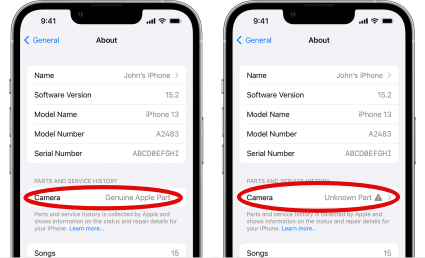


  • You will see an Unknown Part  message if the camera installation is incomplete or if the camera:
  • Was replaced with a nongenuine camera
  • Was already used or installed in another iPhone
  • Isn't functioning as expected

This message doesn't affect your ability to use your iPhone or access your camera.

Learn more about iPhone parts and service history.


Battery and Display and service history

With iPhone 11 models and later, excluding iPhone SE (2nd and 3rd generation), using iOS 15.2 and later, you can go to Settings > General > About for the parts and service history of your iPhone. You can also find out if the display has been replaced. If the repair was done using genuine Apple parts and processes, "Genuine Apple Part" will appear next to Display.
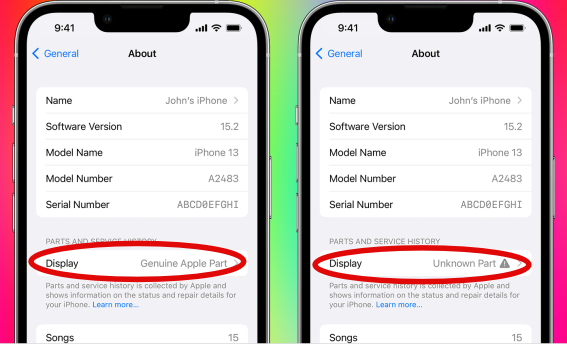


  • An Unknown Part  message will appear if the display installation is incomplete or if the display:
  • Was replaced with a nongenuine display
  • Was already used or installed in another iPhone
  • Isn't functioning as expected


An additional message might appear that says "Apple has updated the device information for this iPhone." This means that Apple has updated the device information maintained for this iPhone for service needs, safety analysis, and to improve future products. 


If your iPhone's parts have been previously replaced, repaired, or serviced by an unauthorized service provider, it's worth noting that Apple may decline to provide service for your device. The decision to refuse service will depend on the specific components that were affected by the unauthorized service.


Get a Genius Bar Reservation and Apple Support Options - Apple


Contact Genius Bar.

Manage Reservations - My Reservations - Apple


2 replies
Question marked as Top-ranking reply

Mar 4, 2026 11:21 PM in response to kalynn16

Kindly reach out to the Store/Individual/Agency from whom you acquired your iPhone. They would be best equipped to confirm whether the device has undergone servicing by an unauthorized service provider.


In case you recall not encountering this message at the time of purchase and it surfaced after an update, it's important to note that this message is visible specifically on iOS 15.2 and subsequent versions. It might be beneficial to inquire about any recent updates or changes made to the device's software configuration that could have triggered this notification.


Understanding the circumstances surrounding the appearance of this message could provide insights into any alterations in the device's service history or software updates that have brought about this notice.


Camera and service history

With iPhone 12 models and later using iOS 15.2 and later you can go to Settings > General > About to see the parts and service history of your iPhone and you can see if the camera has been replaced. If the repair was done using genuine Apple parts and processes, you will see "Genuine Apple Part" next to the Camera.


  • You will see an Unknown Part  message if the camera installation is incomplete or if the camera:
  • Was replaced with a nongenuine camera
  • Was already used or installed in another iPhone
  • Isn't functioning as expected

This message doesn't affect your ability to use your iPhone or access your camera.

Learn more about iPhone parts and service history.


Battery and Display and service history

With iPhone 11 models and later, excluding iPhone SE (2nd and 3rd generation), using iOS 15.2 and later, you can go to Settings > General > About for the parts and service history of your iPhone. You can also find out if the display has been replaced. If the repair was done using genuine Apple parts and processes, "Genuine Apple Part" will appear next to Display.


  • An Unknown Part  message will appear if the display installation is incomplete or if the display:
  • Was replaced with a nongenuine display
  • Was already used or installed in another iPhone
  • Isn't functioning as expected


An additional message might appear that says "Apple has updated the device information for this iPhone." This means that Apple has updated the device information maintained for this iPhone for service needs, safety analysis, and to improve future products. 


If your iPhone's parts have been previously replaced, repaired, or serviced by an unauthorized service provider, it's worth noting that Apple may decline to provide service for your device. The decision to refuse service will depend on the specific components that were affected by the unauthorized service.


Get a Genius Bar Reservation and Apple Support Options - Apple


Contact Genius Bar.

Manage Reservations - My Reservations - Apple


This thread has been closed by the system or the community team. You may vote for any posts you find helpful, or search the Community for additional answers.

How to fix greyed-out Face ID after repairing a cracked camera on iPhone?

Welcome to Apple Support Community
A forum where Apple customers help each other with their products. Get started with your Apple Account.