Epson WF-3820 security warning on iPhone/iPad

Printer Security Warning Epson WF-3820


My Epson Printer displays a Security Warning on my iPhone and iPad when I try to print a document: Security Warning

The printer 'EPSON WF-3820 Series' appears to be a different printer than the previously used printer of the same name, or the connection is not reliable. If this is as expected, tap "Continue". 

However, this does not produce the desired result; the job appears on the list of print jobs and nothing happens. This came about after I installed another router, printing works fine via my wife's Iphone and iPad, my Macbook and my MacMini. 

Note: Restarting the modem and restarting the printer will not give any results. 

I expect to have to reinstall the printer on my iPhone and iPad. I would like to ask you what I should do to fix the problem so that I can also print via my iPhone and iPad. 

Thank you for your cooperation!


iPhone 13, iOS 26

Posted on May 11, 2026 3:58 AM

Reply
Question marked as Top-ranking reply

Posted on May 12, 2026 7:07 AM

Your iPhone and printer are using a secure (i.e., encrypted) TLS/SSL connection.


Without delving into the technical complexities of TLS/SSL security, perhaps understand that each time your printer is restarted, it will generate and self-sign a new TLS Certificate to secure the connection. Self-signed certificates do not have a verifiable chain-of-trust that can be automatically verified; as such, as the Certificate cannot be automatically verified, you will see the warning that you report here.


The warning that you see is benign; accepting the warning causes your iPad to trust the Certificate until the Certificate time-expires (usually after, days, months or even years). If the printer is restarted, a new Certificate is generated; as the new Certificate differs from the previously trusted Certificate, you will see another warning.


Given that the warning is entirely expected, you can safely click-through and proceed to print.


As for your subsequent difficulty in successfully printing, this is separate issue...


If using a VPN connection, this may need to be disabled. VPN connections can disrupt AirPrint and other local network services. Similarly, if you have installed any "security" Apps (such as Norton or MacAfee), these can also cause issues; if these are installed, as a diagnostic exercise, they need to be removed.


Presumably your printer supports AirPrint; you may find that restart of your network components will resolve the problem. You’ll need to restart your network devices in the correct order. Assuming that your WiFi Router provides DNS services for your network, restart devices in this order - allowing time for devices to fully boot/restart prior to restarting other devices:


  • WiFi Router
  • Upstream wired Network Switch(es) (if any)
  • WiFi Access Points / Network Extenders
  • Other fixed infrastructure devices - such as Printers
  • Client devices (your iPad)


Restarting your iPad, after restarting other devices in the correct sequence, is most simply achieved by a forced-restart of the iPad:


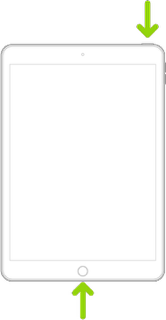
  • On an iPad with a Home button: Press and hold the top button and the Home button at the same time. When the Apple logo appears, release both buttons.


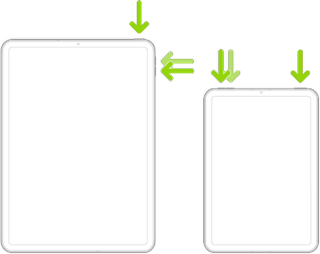
  • On an iPad with Face ID: Press and quickly release the volume up button, press and quickly release the volume down button, then press and hold the top button. When the Apple logo appears, release the button.


If you continue to have difficulties, check to see if your iPad is using the new WiFi Private Address feature. This feature is intended to provide additional privacy and security when using “public” (untrusted) WiFi networks.

Settings > WiFi > [Your WiFi Network / SSID] - tap the “i” icon - Private Address


The Private Address feature is largely unnecessary for your home WiFi network; if enabled, Private Addressing can interfere with anticipated operation of other devices, such as AirPrint/Airplay. In such circumstances, you may need to disable this feature - and can be enabled or disabled for each individual network.


Use private Wi-Fi addresses in iOS 14, iPadOS 14, and watchOS 7 - Apple Support

9 replies
Question marked as Top-ranking reply

May 12, 2026 7:07 AM in response to Marco_Ask

Your iPhone and printer are using a secure (i.e., encrypted) TLS/SSL connection.


Without delving into the technical complexities of TLS/SSL security, perhaps understand that each time your printer is restarted, it will generate and self-sign a new TLS Certificate to secure the connection. Self-signed certificates do not have a verifiable chain-of-trust that can be automatically verified; as such, as the Certificate cannot be automatically verified, you will see the warning that you report here.


The warning that you see is benign; accepting the warning causes your iPad to trust the Certificate until the Certificate time-expires (usually after, days, months or even years). If the printer is restarted, a new Certificate is generated; as the new Certificate differs from the previously trusted Certificate, you will see another warning.


Given that the warning is entirely expected, you can safely click-through and proceed to print.


As for your subsequent difficulty in successfully printing, this is separate issue...


If using a VPN connection, this may need to be disabled. VPN connections can disrupt AirPrint and other local network services. Similarly, if you have installed any "security" Apps (such as Norton or MacAfee), these can also cause issues; if these are installed, as a diagnostic exercise, they need to be removed.


Presumably your printer supports AirPrint; you may find that restart of your network components will resolve the problem. You’ll need to restart your network devices in the correct order. Assuming that your WiFi Router provides DNS services for your network, restart devices in this order - allowing time for devices to fully boot/restart prior to restarting other devices:


  • WiFi Router
  • Upstream wired Network Switch(es) (if any)
  • WiFi Access Points / Network Extenders
  • Other fixed infrastructure devices - such as Printers
  • Client devices (your iPad)


Restarting your iPad, after restarting other devices in the correct sequence, is most simply achieved by a forced-restart of the iPad:


  • On an iPad with a Home button: Press and hold the top button and the Home button at the same time. When the Apple logo appears, release both buttons.


  • On an iPad with Face ID: Press and quickly release the volume up button, press and quickly release the volume down button, then press and hold the top button. When the Apple logo appears, release the button.


If you continue to have difficulties, check to see if your iPad is using the new WiFi Private Address feature. This feature is intended to provide additional privacy and security when using “public” (untrusted) WiFi networks.

Settings > WiFi > [Your WiFi Network / SSID] - tap the “i” icon - Private Address


The Private Address feature is largely unnecessary for your home WiFi network; if enabled, Private Addressing can interfere with anticipated operation of other devices, such as AirPrint/Airplay. In such circumstances, you may need to disable this feature - and can be enabled or disabled for each individual network.


Use private Wi-Fi addresses in iOS 14, iPadOS 14, and watchOS 7 - Apple Support

May 15, 2026 8:19 AM in response to MrHoffman

I was offered the following solution:

To the best of our knowledge, the printer settings on an iPhone or iPad can only be completely removed by forgetting the relevant Wi-Fi network on the device and then reconnecting by re-entering the Wi-Fi password. This may also delete the old printer information.

By performing this solution, the problem has been solved.

Thank you for your support!


May 12, 2026 2:15 PM in response to Marco_Ask

Marco_Ask wrote:
I replace my existing router with a new one in my WiFi network.
It's curious that my wife's iPhone and iPad can print without any problems, while I get a security warning on my iPhone and iPad and the printer doesn't print the job I want.


Okay, so a one-to-one replacement, and everything on the local network then got restarted.


Is the Epson WorkForce Pro WF-3820 printer running its most current firmware? Based in a quick look at the printer documentation, it seems the most recent firmware update is from September 2025 (or maybe newer?), and it seems the firmware update must be run manually. The firmware update might be available from the web interface for this printer (doc on that interface is… notably sparse) and via a separate firmware update tool within the Epson apps.

May 12, 2026 7:00 AM in response to Lawrence Finch

Thank you for the suggestions;


·       I have the latest version iOS for my device

·       I have no VPN installed 

·       My printer is connected to the SAME Wi-Fi or wired network 

·       I checked the Wi-Fi band (2.4 or 5 GHz) the printer is connected to

·       I reconnect to the Wi-Fi connection


Then I followed the instructions below: 


·       Power off the printer

·       Power off the iPhone or the iPad

·       Restart the router by unplugging it for 15 seconds (many newer routers have no true power switch)

·       I wait until the router is ready, which can take several minutes

·       I turn on my iPhone or my iPad

·       I connect the iPhone or iPad to the Wi-Fi network 

·       Power on the printer and wait for it to connect to Wi-Fi and verify that it connected to the same network via its control panel.


The iPhone and the iPad of my wife, the Macbook and the MacMini print perfect,


On my iPhone and my iPad i till get the same warning:


Security Warning

The printer 'EPSON WF-3820 Series' appears to be a different printer than the previously used printer of the same name, or the connection is not reliable. If this is as expected, tap "Continue". 

However, this does not produce the desired result; the job appears on the list of print jobs and nothing happens.


What can I do to restore the security warning on my iPhone and iPad and I can print directly from my iPhone and iPad again?


May 13, 2026 9:01 AM in response to MrHoffman

I replace my existing router with a new one in my WiFi network.

It's curious that my wife's iPhone and iPad can print without any problems, while I get a security warning on my iPhone and iPad and the printer doesn't print the job I want.

There are now many jobs waiting to print.


The printer was updated with the last version; my iPhone and iPad have also the last update.

Epson WF-3820 security warning on iPhone/iPad

Welcome to Apple Support Community
A forum where Apple customers help each other with their products. Get started with your Apple Account.