How to resolve 'Guided Access not available' issue on iPhone?

i turned guided access on so i can trace something for my leavers shirt and now it’s saying guided access not available when i try to turn it on. it won’t let me touch my screen and i can’t do anything. please help 🫩


[Re-Titled by Moderator]

Original Title: guided access unavailable?

Posted on Jun 13, 2026 9:21 AM

Reply
Question marked as Top-ranking reply

Posted on Jun 13, 2026 10:18 AM

Your description suggests that Guided Access is active - and you are unable to escape from this mode.


When you are stuck in Guided Access mode, you can be really stuck as the typical triple tap on the home button to quit out of Guided Access may not work. Even a forced exit may not work because the power button and the home button are seemingly disabled. 


Devices with a physical Home Button


The only way to get out of Guided Access is to press the Home and Power button together for 15 seconds. This should turn off Guided Access by forcibly rebooting your device. Once your device is restarted, you can then go to Settings > Accessibility > Guided Access > Guided Access - and turn off Guided Access if needed.


Use Guided Access on iPad - Apple Support

Use Guided Access with iPhone, iPad, and iPod touch - Apple Support


Force restart iPad (models with Face ID or with Touch ID in the top button)

If your iPad doesn’t have the Home button, do the following:

  1. Press and quickly release the volume button nearest to the top button.
  2. Press and quickly release the volume button farthest from the top button.
  3. Press and hold the top button.
  4. When the Apple logo appears, release the top button.



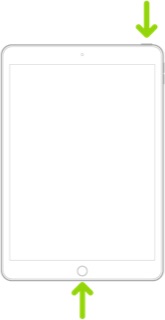
Force restart iPad (models with the Home button)

Press and hold the top button and the Home button at the same time. When the Apple logo appears, release both buttons.


1 reply
Question marked as Top-ranking reply

Jun 13, 2026 10:18 AM in response to elyzah44

Your description suggests that Guided Access is active - and you are unable to escape from this mode.


When you are stuck in Guided Access mode, you can be really stuck as the typical triple tap on the home button to quit out of Guided Access may not work. Even a forced exit may not work because the power button and the home button are seemingly disabled. 


Devices with a physical Home Button


The only way to get out of Guided Access is to press the Home and Power button together for 15 seconds. This should turn off Guided Access by forcibly rebooting your device. Once your device is restarted, you can then go to Settings > Accessibility > Guided Access > Guided Access - and turn off Guided Access if needed.


Use Guided Access on iPad - Apple Support

Use Guided Access with iPhone, iPad, and iPod touch - Apple Support


Force restart iPad (models with Face ID or with Touch ID in the top button)

If your iPad doesn’t have the Home button, do the following:

  1. Press and quickly release the volume button nearest to the top button.
  2. Press and quickly release the volume button farthest from the top button.
  3. Press and hold the top button.
  4. When the Apple logo appears, release the top button.


Force restart iPad (models with the Home button)

Press and hold the top button and the Home button at the same time. When the Apple logo appears, release both buttons.


How to resolve 'Guided Access not available' issue on iPhone?

Welcome to Apple Support Community
A forum where Apple customers help each other with their products. Get started with your Apple Account.