iPhone X locked after forgetting passcode

My iPhone X is screen lock because I forgot the passcode and put wrong passcode 5 time , now can not do anything . How I can do?


[Edited by Moderator]

Earlier iPhone models

Posted on Jun 15, 2026 1:25 AM

Reply
Question marked as Top-ranking reply

Posted on Jun 15, 2026 1:47 AM

You will need to reset your phone. All data will be wiped, hopefully you made backups.


If you forgot the passcode on your iPhone, or your iPhone is disabled or unavailable -


Click on the link for instructions on how to reset your passcode without a computer if you have iOS 15.2 or higher.

If you see an iPhone, iPad, or Apple Vision Pro unavailable message or Security Lockout screen - Apple Support


Click on the link for instructions on how to reset your passcode using a computer.

If you forgot your iPhone passcode or your iPhone is disabled - Apple Support


Restore your IPhone from a backup -

Restore your iPhone, iPad, or iPod touch from a backup - Apple Support


4 replies
Question marked as Top-ranking reply

Jun 15, 2026 1:47 AM in response to PearlApple

You will need to reset your phone. All data will be wiped, hopefully you made backups.


If you forgot the passcode on your iPhone, or your iPhone is disabled or unavailable -


Click on the link for instructions on how to reset your passcode without a computer if you have iOS 15.2 or higher.

If you see an iPhone, iPad, or Apple Vision Pro unavailable message or Security Lockout screen - Apple Support


Click on the link for instructions on how to reset your passcode using a computer.

If you forgot your iPhone passcode or your iPhone is disabled - Apple Support


Restore your IPhone from a backup -

Restore your iPhone, iPad, or iPod touch from a backup - Apple Support


Jun 15, 2026 3:52 AM in response to PearlApple

Your data is not lost if you have a backup either on iCloud or iTunes.



If you see an iPhone or iPad unavailable message or a "Security Lockout" screen


If you forgot your passcode, you can use your Apple ID and password to erase and reset your device without a computer.


Learn what to do if you see "[Device] unavailable" or "Security Lockout" on your iPhone or iPad.)


iPhone is disabled.


Following this process is the only way out if your iPhone is disabled. The steps given in this link will help you reset the passcode -> If you forgot the passcode for your iPhone, iPad, or iPod touch, or your ...


Regarding your data…

  1. If you have an iCloud or iTunes latest backup, then there is nothing to worry about. If not read more...
  2. You have synced your data to iCloud, then what you will get back is what you have synced to iCloud and uploaded to iCloud Drive; the information that is synced and stored in iCloud are, Contacts, Calendars, Bookmarks, Mail, Notes, Voice Memosshared photosiCloud Photos*, Health data, call history, and files you store in iCloud Drive. (*-If you have turned on iCloud Photos, your content is automatically stored in iCloud.)
  3. You have imported your Photos and videos to Mac/PC then they are safely residing there on Mac/PC
  4. You have uploaded some of it to Cloud Drives using the Files app (iCloud Drive, Google Drive, OneDrive, DropBox, Flickr, box, AmazonDrive, Adobe Creative Cloud, etc). The data remains there.
  5. If you have not backed up or do not have the latest backup, nor imported nor you have synced or uploaded your data to cloud drives prior to the situation that you are in, then I am sorry, all your data is lost.


Jun 15, 2026 3:51 AM in response to PearlApple

Follow this process below to keep your personal data.


If you see the Restore screen on your iPhone, iPad, or iPod touch

If you see the Restore screen on your iPhone, iPad, or iPod touch, learn what to do.
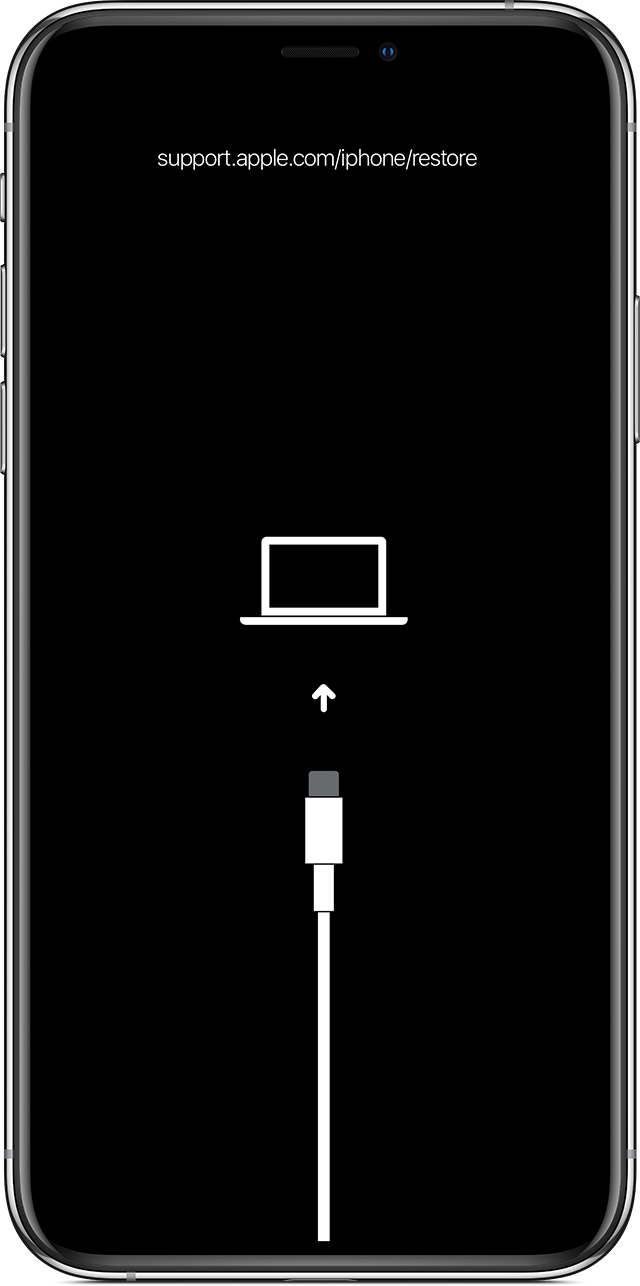


Restart your device

If you see the Restore screen, restart your device:

  • iPad models with Face ID: Press and quickly release the Volume Up button. Press and quickly release the Volume Down button. Press and hold the Top button until the device restarts.
  • iPhone 8 or later: Press and quickly release the Volume Up button. Press and quickly release the Volume Down button. Press and hold the Side button until you see the Apple logo.
  • iPhone 7, iPhone 7 Plus, and iPod touch (7th generation): Press and hold both the Side (or Top) button and the Volume Down button until you see the Apple logo. 
  • iPad with Home button, iPhone 6s or earlier, and iPod touch (6th generation) or earlier: Press and hold both the Side (or Top) button and the Home button until you see the Apple logo.


Reinstall iOS or iPadOS

If you still see the Restore screen after you restart, you need to reinstall iOS or iPadOS:

  1. On your Mac, make sure that you’ve installed the latest software updates (including iTunes if you have MacOS Mojave or earlier). Or on your Windows PC, make sure that you’ve installed the latest version of iTunes.
  2. Connect your device to your computer using the cable that came with your device. You should see this message: "There's a problem with the [your device name] that requires it to be updated or restored."
  3. Click Update (not Restore) to reinstall iOS or iPadOS and keep your personal data.


If the above fails


If your device turns on but gets stuck during start up

If you see the Apple logo or a red or blue screen during startup, try these steps:
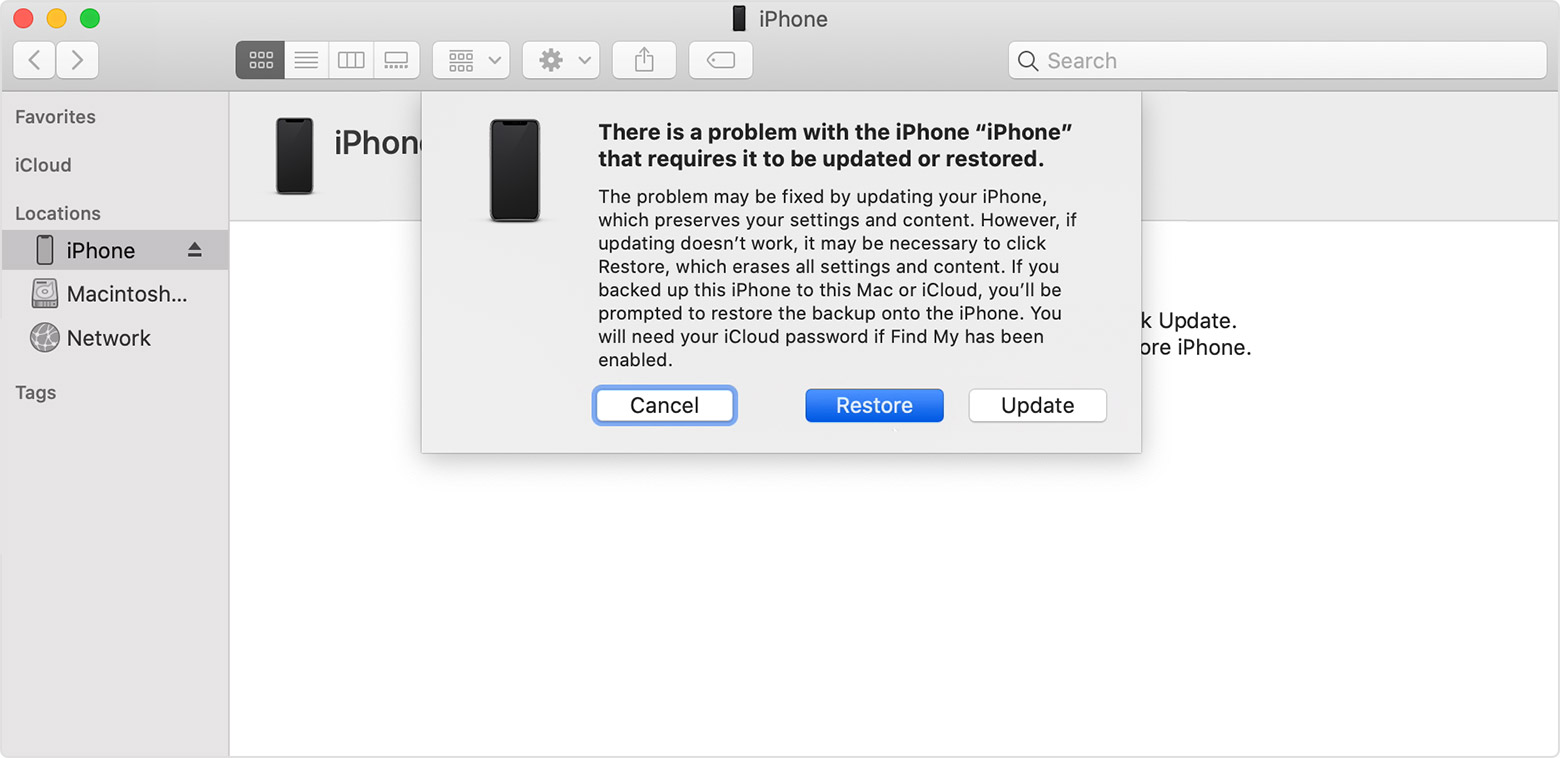
  1. Connect your device to a computer. On a Mac with macOS Catalina 10.15, open Finder. On a Mac with macOS Mojave 10.14 or earlier, or on a PC, open iTunes.
  2. Locate your device on your computer.
  3. While your device is connected, follow these steps:
    • iPad models with Face ID: Press and quickly release the Volume Up button. Press and quickly release the Volume Down button. Press and hold the Top button until your device begins to restart. Continue holding the Top button until your device goes into recovery mode.
    • iPhone 8 or later: Press and quickly release the Volume Up button. Press and quickly release the Volume Down button. Then, press and hold the Side button until you see the recovery mode screen.
    • iPhone 7, iPhone 7 Plus, and iPod touch (7th generation): Press and hold the Top (or Side) and Volume Down buttons at the same time. Keep holding them until you see the recovery mode screen.
  • iPad with Home button, iPhone 6s or earlier, and iPod touch (6th generation) or earlier: Press and hold both the Home and the Top (or Side) buttons at the same time. Keep holding them until you see the recovery mode screen.
  1. When you get the option to restore or update, choose Update. Your computer will try to reinstall iOS or iPadOS without erasing your data.

Your computer will download the software for your device. If it takes more than 15 minutes, your device will exit recovery mode and you'll need to repeat steps 2 and 3.


If you need more help

Contact Apple Support to set up service if you have any of these issues:

  • You still see a black screen after charging, force restarting, or following the steps in this article.
  • You see a black screen, but you can hear alerts, sounds, and vibrations.
  • The screen remains black, but the device chirps when you unmute it and connect it to power.
  • Your screen is on, but it doesn't respond when you tap, slide, or try other gestures. 
  • You can't force your device to restart because a button is broken or stuck.
  • Your device is stuck on the Apple logo, displays a solid color, or isn't recognized in iTunes.


iPhone X locked after forgetting passcode

Welcome to Apple Support Community
A forum where Apple customers help each other with their products. Get started with your Apple Account.
