For iPad and iPadOS, reinstalling the OS entails restoring the iPad to factory settings - this process installs a fresh copy of the most recent version of iPadOS supported by your iPad model. The process will unavoidably fully erase/reset the iPad - however, you can avoid data loss simply restoring your iCloud or iTunes backup after restoring the iPad.
If your iPad is not operating as expected, try a forced-restart - as this will often clear an isolated software issue:
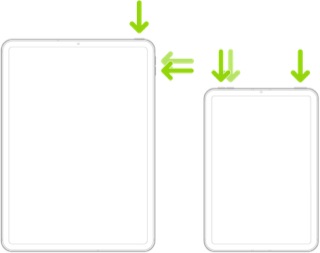
Force restart iPad (models with Face ID or with Touch ID in the top button)
If your iPad doesn’t have the Home button, do the following:
- Press and quickly release the volume button nearest to the top button.
- Press and quickly release the volume button farthest from the top button.
- Press and hold the top button.
- When the Apple logo appears, release the top button.
If the problem persists after performing the restart, it may be necessary to reset your iPad settings. While this reset will not cause any loss of data, as a precaution, it is always wise to ensure that you have a current iCloud or iTunes backup before performing the reset:
How to back up your iPhone, iPad, and iPod touch - Apple Support
When you are happy to proceed, you can perform the reset from iPad settings:
Settings > General > Transfer or Reset iPad > Reset > Reset All Settings
If the problem still doesn’t clear, the next step is to reset the iPad to factory settings:
Restore your iPhone, iPad, or iPod to factory settings - Apple Support
After performing the reset, you'll need to setup the iPad afresh using your Apple Account credentials. During the setup process, you'll be offered opportunity to restore your iCloud backup. If you don't restore the backup during initial setup, you can manually restore your iCloud/iTunes backup:
Restore your iPhone, iPad, or iPod touch from a backup - Apple Support



