Turned off all updates but iPad still updated to iPadOS 26!

I turned off all auto updates on my 11 inch iPad m5 pro and it still updated the OS!!!! Would I be able to bring it back to apple to downgrade back to IpadOS 18? I literally got this iPad because it had IpadOS 18 and not their new absolutely awful and hack IOS26 that drains my battery and has made my iPad slower.


I’ve turned off background refreshing for battery life and it’s still horrible.


I don’t care if it erases everything, is there any way to get out of this OS?


[Edited by Moderator]

Posted on Jun 25, 2026 1:48 PM

Reply
Question marked as Top-ranking reply

Posted on Jun 26, 2026 1:19 AM

Rolling-back to an earlier version of iOS/iPadOS is not possible.


All System Updates are digitally signed by Apple - and can only be installed whilst the digital signatures remain valid. After release of a new iOS/iPadOS version, the immediately preceding version continues to be digitally signed by Apple - however, usually within a few days, Apple will revoke the digital certificate with which the earlier version is signed. Perhaps consider that iOS/iPadOS updates include both functional and essential security updates. Restoring an earlier version of the OS would undermine the security of your device and your personal data.


Ensure that you have updated to iPadOS 26.5. This release is stable and free of significant issues.


It is entirely normal for the performance of your iPad to be sub-par for a day or or two after performing a system software update - as your iPad will be running many background housekeeping tasks (such as re-indexing). Normal performance can be expected to return in a day or two.


If anticipated performance does not return within this timeframe and/or your iPad is not operating as expected, try a forced-restart - as this will often clear an isolated or post-update software issue:


Force restart iPad (models with Face ID or with Touch ID in the top button)

If your iPad doesn’t have the Home button, do the following:

  1. Press and quickly release the volume button nearest to the top button.
  2. Press and quickly release the volume button farthest from the top button.
  3. Press and hold the top button.
  4. When the Apple logo appears, release the top button.
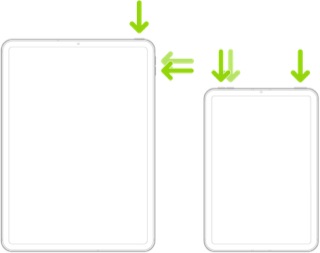


If the problem persists after performing the restart, it may be necessary to reset your iPad settings. While this reset will not cause any loss of data, as a precaution, it is always wise to ensure that you have a current iCloud or iTunes backup before performing the reset:

How to back up your iPhone, iPad, and iPod touch - Apple Support


When you are happy to proceed, you can perform the reset from iPad settings:

Settings > General > Transfer or Reset iPad > Reset > Reset All Settings


If the problem still doesn’t clear, the next step is to reset the iPad to factory settings:

Restore your iPhone, iPad, or iPod to factory settings - Apple Support


Otherwise, you would be best advised to seek assistance directly from Apple Support. You can contact the Support Team using the Support link at top-right or bottom-left of this page. Alternatively and perhaps easier, you can initiate and manage your support cases using the excellent Apple Support App. If not already installed on your iPad, the App can be downloaded from the App Store:

https://apps.apple.com/app/apple-support/id1130498044


You might also visit the Genius Bar at your local Apple Store or Apple Authorised Service Provider (AASP) - where the technicians will be able to test and assess your iPad - and you can explore your available options:

Genius Bar Reservation and Apple Support Options - Apple



6 replies
Question marked as Top-ranking reply

Jun 26, 2026 1:19 AM in response to joeydgraffix

Rolling-back to an earlier version of iOS/iPadOS is not possible.


All System Updates are digitally signed by Apple - and can only be installed whilst the digital signatures remain valid. After release of a new iOS/iPadOS version, the immediately preceding version continues to be digitally signed by Apple - however, usually within a few days, Apple will revoke the digital certificate with which the earlier version is signed. Perhaps consider that iOS/iPadOS updates include both functional and essential security updates. Restoring an earlier version of the OS would undermine the security of your device and your personal data.


Ensure that you have updated to iPadOS 26.5. This release is stable and free of significant issues.


It is entirely normal for the performance of your iPad to be sub-par for a day or or two after performing a system software update - as your iPad will be running many background housekeeping tasks (such as re-indexing). Normal performance can be expected to return in a day or two.


If anticipated performance does not return within this timeframe and/or your iPad is not operating as expected, try a forced-restart - as this will often clear an isolated or post-update software issue:


Force restart iPad (models with Face ID or with Touch ID in the top button)

If your iPad doesn’t have the Home button, do the following:

  1. Press and quickly release the volume button nearest to the top button.
  2. Press and quickly release the volume button farthest from the top button.
  3. Press and hold the top button.
  4. When the Apple logo appears, release the top button.


If the problem persists after performing the restart, it may be necessary to reset your iPad settings. While this reset will not cause any loss of data, as a precaution, it is always wise to ensure that you have a current iCloud or iTunes backup before performing the reset:

How to back up your iPhone, iPad, and iPod touch - Apple Support


When you are happy to proceed, you can perform the reset from iPad settings:

Settings > General > Transfer or Reset iPad > Reset > Reset All Settings


If the problem still doesn’t clear, the next step is to reset the iPad to factory settings:

Restore your iPhone, iPad, or iPod to factory settings - Apple Support


Otherwise, you would be best advised to seek assistance directly from Apple Support. You can contact the Support Team using the Support link at top-right or bottom-left of this page. Alternatively and perhaps easier, you can initiate and manage your support cases using the excellent Apple Support App. If not already installed on your iPad, the App can be downloaded from the App Store:

https://apps.apple.com/app/apple-support/id1130498044


You might also visit the Genius Bar at your local Apple Store or Apple Authorised Service Provider (AASP) - where the technicians will be able to test and assess your iPad - and you can explore your available options:

Genius Bar Reservation and Apple Support Options - Apple



Jun 25, 2026 2:14 PM in response to joeydgraffix

If you manually updated to a different version of iPad OS 18, that update includes a screen that says Software Update Complete, and on that page it requires you to tap Continue, and it says that future updates will be performed automatically and if you don't want that to happen, you need to go back into Settings and turn Automatic Updates back off. Many people simply tap Continue without reading and then wonder why it was updated. Here is an example of that screen that tells you future updates will be automatic unless changed in Settings. This screenshot was for a previous iOS update, but the same is true for the iPad. It was not updated to iPad OS 26 if you had gone back into Settings and turned if off again.


As for downgrading after the update, no that is not an option.

Jun 29, 2026 11:02 AM in response to joeydgraffix

joeydgraffix wrote:
Yeap, I did all that. First thing I did was turn off automatic updates. I saw how IPadOS26 destroyed my m1 iPad now i have this garbage OS on my new iPad. I absolutely hate it.

That’s amazing; I LOVE iPadOS 26 on my iPads. If you describe any problems you have I’l sure someone in the forum can make suggests to improve the experience.

Jun 29, 2026 11:14 AM in response to Lawrence Finch

Lawrence Finch wrote:
joeydgraffix wrote:
Yeap, I did all that. First thing I did was turn off automatic updates. I saw how IPadOS26 destroyed my m1 iPad now i have this garbage OS on my new iPad. I absolutely hate it.
That’s amazing; I LOVE iPadOS 26 on my iPads. If you describe any problems you have I’l sure someone in the forum can make suggests to improve the experience.

So let me tell you the first thing that is the best about IPadOS26.

  1. The Liquid Glass is like the best thing apple has ever made with the app logos all Liquid Glass and it makes apple and your item even more fun
  2. The security and privacy
  3. Journal because you can like document stuff that you do and Apple will never share your personal stuff.

i hope this changes your mind “joeydgraffix” about IPadOS26!

Turned off all updates but iPad still updated to iPadOS 26!

Welcome to Apple Support Community
A forum where Apple customers help each other with their products. Get started with your Apple Account.