rasul197 wrote:
Hello! I am experiencing a specific software bug with my Apple Pencil Pro on my new iPad Pro M5 running iPadOS 26.5.2.
The haptic feedback completely stopped working on the "Double Tap" gesture, but it works perfectly fine on the "Squeeze" gesture.
To isolate the issue, I tested this exact Apple Pencil Pro on an older iPad Pro M4, and the Double Tap haptics worked perfectly there. This proves the Pencil hardware is 100% healthy.
I have already done all the troubleshooting steps, including unpairing/re-pairing, a Hard Reset, and even a full "Reset All Settings" on the iPad. Nothing helped.
This appears to be a software bug specific to the iPadOS build for the M5 chip. Please log this bug report and escalate it to the engineering team. Thank you!
Please understand the Apple Support Community is a user-to-user technical forum. Contributors here are all end-users, just like you. Other than the site Moderators, Apple neither monitor nor participate here. As such, if you anticipate that Apple will see or act upon your posts made here, you will be disappointed.
Should you choose to do so, you can submit a Bug Report yourself via Apple's Product Feedback portal. For iPad and iPadOS:
Feedback - iPad - Apple
When submitting your Bug Report, please ensure that you include details of your iPad model and installed version of iPadOS within the body-text of your report along with details of the problem. Do not rely upon the pick-list alone - as this rarely includes the current version of iOS.
Returning to your issue, if your iPad and Pencil are not operating as expected, try a forced-restart - as this will often clear an isolated or post update software issue:
Force restart iPad (models with Face ID or with Touch ID in the top button)
If your iPad doesn’t have the Home button, do the following:
- Press and quickly release the volume button nearest to the top button.
- Press and quickly release the volume button farthest from the top button.
- Press and hold the top button.
- When the Apple logo appears, release the top button.
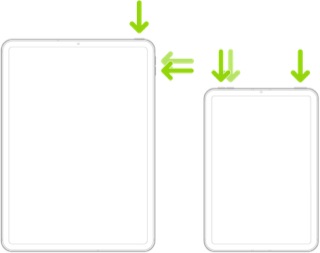
If the problem persists after performing the restart, it may be necessary to reset your iPad settings. While this reset will not cause any loss of data, as a precaution, it is always wise to ensure that you have a current iCloud or iTunes backup before performing the reset:
How to back up your iPhone, iPad, and iPod touch - Apple Support
When you are happy to proceed, you can perform the reset from iPad settings:
Settings > General > Transfer or Reset iPad > Reset > Reset All Settings
If the problem still doesn’t clear, the next step is to reset the iPad to factory settings:
Restore your iPhone, iPad, or iPod to factory settings - Apple Support
Otherwise, you might seek assistance directly from Apple Support. You can contact the Support Team using the Support link at top-right or bottom-left of this page. Alternatively you can initiate and manage your support cases using the excellent Apple Support App. If not already installed on your iPad, the App can be downloaded from the App Store:
https://apps.apple.com/app/apple-support/id1130498044
You might also visit the Genius Bar at your local Apple Store or Apple Authorised Service Provider (AASP) - where the technicians will be able to test and assess your iPad - and you can explore your available options:
Genius Bar Reservation and Apple Support Options - Apple

