iPhone/iPad Pro text notification issue on iOS 26.5.2

I have an older iPad on  iOS 18.7.9, text notifications are working fine. My iPhone & iPad Pro, running 26.5.2, are not reporting incoming texts message correctly.  Sounds like a software issue in the 26 iOS and NOT an issue with my carrier, or Settings on my devices. YES, I have already tried all the possible solutions being offered.

iPhone 12 mini, iOS 26

Posted on Jul 22, 2026 3:31 AM

Reply
Question marked as Top-ranking reply

Posted on Jul 22, 2026 3:57 AM

Given that you have provided no information as to what you have (or have not) attempted, contributors here are unlikely to be able to offer constructive help without duplication. With "all possible solutions" already attempted, there is little scope available in providing anything new to try.


With that said, while freely acknowledging that you may have tried some (or even all) of this already, the following represents a thorough set of troubleshooting steps...


If you have an iPhone - and both iPad and iPhone are signed-in to iCloud with the same AppleID - to send or receive SMS/MMS messages (green bubbles) from your iPad, you must explicitly enable Text Message Forwarding for your iPad on your iPhone...


On your iPhone:

Settings > Messages > Text Message Forwarding - set to ON - and explicitly enable each of your iPads from the list of devices.


Also ensure that Messages in iCloud is enabled on both your iPhone and iPad:

Settings > [Your Name / AppleID] > Messages - set to ON


More information about Continuity and the relevant Cellular services can be found here:


Otherwise, if an iPad is not operating as expected, try a forced-restart - as this will often clear an isolated or post-update software issue:


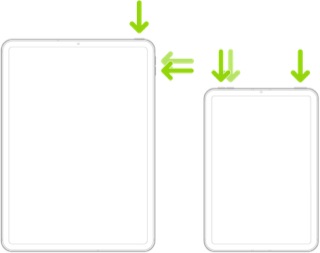
Force restart iPad (models with Face ID or with Touch ID in the top button)

If your iPad doesn’t have the Home button, do the following:

  1. Press and quickly release the volume button nearest to the top button.
  2. Press and quickly release the volume button farthest from the top button.
  3. Press and hold the top button.
  4. When the Apple logo appears, release the top button.


If the problem persists after performing the restart, it may be necessary to reset your iPad settings. While this reset will not cause any loss of data, as a precaution, it is always wise to ensure that you have a current iCloud or iTunes backup before performing the reset:

How to back up your iPhone, iPad, and iPod touch - Apple Support


When you are happy to proceed, you can perform the reset from iPad settings:

Settings > General > Transfer or Reset iPad > Reset > Reset All Settings


If the problem still doesn’t clear, the next step is to reset the iPad to factory settings:

Restore your iPhone, iPad, or iPod to factory settings - Apple Support


Should the problem remain unresolved, you would be best advised to seek assistance directly from Apple Support. You can contact the Support Team using the Support link at top-right or bottom-left of this page. Alternatively you can initiate and manage your support cases using the excellent Apple Support App. If not already installed on your iPad, the App can be downloaded from the App Store:

https://apps.apple.com/app/apple-support/id1130498044


You might also visit the Genius Bar at your local Apple Store or Apple Authorised Service Provider (AASP) - where the technicians will be able to provide hands-on assistance with troubleshooting:

Genius Bar Reservation and Apple Support Options - Apple


3 replies
Question marked as Top-ranking reply

Jul 22, 2026 3:57 AM in response to WRaspiller

Given that you have provided no information as to what you have (or have not) attempted, contributors here are unlikely to be able to offer constructive help without duplication. With "all possible solutions" already attempted, there is little scope available in providing anything new to try.


With that said, while freely acknowledging that you may have tried some (or even all) of this already, the following represents a thorough set of troubleshooting steps...


If you have an iPhone - and both iPad and iPhone are signed-in to iCloud with the same AppleID - to send or receive SMS/MMS messages (green bubbles) from your iPad, you must explicitly enable Text Message Forwarding for your iPad on your iPhone...


On your iPhone:

Settings > Messages > Text Message Forwarding - set to ON - and explicitly enable each of your iPads from the list of devices.


Also ensure that Messages in iCloud is enabled on both your iPhone and iPad:

Settings > [Your Name / AppleID] > Messages - set to ON


More information about Continuity and the relevant Cellular services can be found here:


Otherwise, if an iPad is not operating as expected, try a forced-restart - as this will often clear an isolated or post-update software issue:


Force restart iPad (models with Face ID or with Touch ID in the top button)

If your iPad doesn’t have the Home button, do the following:

  1. Press and quickly release the volume button nearest to the top button.
  2. Press and quickly release the volume button farthest from the top button.
  3. Press and hold the top button.
  4. When the Apple logo appears, release the top button.


If the problem persists after performing the restart, it may be necessary to reset your iPad settings. While this reset will not cause any loss of data, as a precaution, it is always wise to ensure that you have a current iCloud or iTunes backup before performing the reset:

How to back up your iPhone, iPad, and iPod touch - Apple Support


When you are happy to proceed, you can perform the reset from iPad settings:

Settings > General > Transfer or Reset iPad > Reset > Reset All Settings


If the problem still doesn’t clear, the next step is to reset the iPad to factory settings:

Restore your iPhone, iPad, or iPod to factory settings - Apple Support


Should the problem remain unresolved, you would be best advised to seek assistance directly from Apple Support. You can contact the Support Team using the Support link at top-right or bottom-left of this page. Alternatively you can initiate and manage your support cases using the excellent Apple Support App. If not already installed on your iPad, the App can be downloaded from the App Store:

https://apps.apple.com/app/apple-support/id1130498044


You might also visit the Genius Bar at your local Apple Store or Apple Authorised Service Provider (AASP) - where the technicians will be able to provide hands-on assistance with troubleshooting:

Genius Bar Reservation and Apple Support Options - Apple


Jul 22, 2026 5:39 AM in response to LotusPilot

I’m really just trying to share an observation: my older iPad, running iPadOS 18.7.9 (which doesn’t support iPadOS 26), is receiving text message notifications exactly as it should. To me, that shifts the focus toward iOS/iPadOS 26 rather than my carrier, Apple ID, or device settings.


Since I’m clearly not the only person experiencing this issue, I simply want to share my findings with other users—and hopefully with Apple as well.


I truly appreciate your willingness to help. As I mentioned in my original post, I’ve already worked through every troubleshooting step I’ve been able to find online in an effort to resolve the problem. The only suggestion I hadn’t previously encountered was performing a factory reset. While I understand why that recommendation is sometimes made, I don’t believe it should be considered an acceptable solution to what appears to be a software regression. If a group of Windows users experienced the same problem after an update and Microsoft’s recommended fix was to reinstall Windows, I think most people would agree that something still needs to be corrected in the software itself.


Jul 22, 2026 6:03 AM in response to WRaspiller

I too have a mixture of devices - with my primary iPad running iPadOS 26.5.2 and others running iPadOS 17.x/18.x. My iPhone is running iOS 26.x. Messaging and Notifications are working for all devices - exactly as expected.


While not suggesting that you don't yourself have a problem, the issue that you describe is not widespread. If you have followed all of the troubleshooting steps already described, should the problem remain unresolved, you would be best advised to seek assistance directly from Apple Support.


To reiterate, you can contact the Support Team using the Support link at top-right or bottom-left of this page. Alternatively you can initiate and manage your support cases using the excellent Apple Support App. If not already installed on your iPad, the App can be downloaded from the App Store:

https://apps.apple.com/app/apple-support/id1130498044


You might also visit the Genius Bar at your local Apple Store or Apple Authorised Service Provider (AASP) - where the technicians will be able to provide hands-on assistance with troubleshooting:

Genius Bar Reservation and Apple Support Options - Apple


Please remember, this is a user-to-user technical community. Contributors here are all end-users, just like you. Other than the site Moderators, Apple neither monitors nor participates within this Community. As such, your comments here will not be seen or acted upon by Apple Support.


Apple does invite submission of comments and bug reports via its Product Feedback portal:

Feedback - Apple

iPhone/iPad Pro text notification issue on iOS 26.5.2

Welcome to Apple Support Community
A forum where Apple customers help each other with their products. Get started with your Apple Account.