Swiping and Scrolling won’t work after latest security update

I updated my iPad, last night, with the latest security update 26.6.1

I have an iPad Air 5th generation.

Today I am having big problems with scrolling and swiping. I cannot swipe open tabs off the screen and I cannot scroll through photos, either. I tried doing a hard shutdown, but it won’t turn off either. Very frustrated!!!

iPad Air, iPadOS 26

Posted on Aug 27, 2026 2:31 PM

Reply
Question marked as Top-ranking reply

Posted on Aug 27, 2026 2:35 PM

If your iPad is not operating as expected, try a forced-restart - as this will often clear an isolated software issue:


Force restart iPad (models with Face ID or with Touch ID in the top button)

If your iPad doesn’t have the Home button, do the following:

  1. Press and quickly release the volume button nearest to the top button.
  2. Press and quickly release the volume button farthest from the top button.
  3. Press and hold the top button. Do not release the top button (ignore the power-off slider) until...
  4. When the Apple logo appears, release the top button.
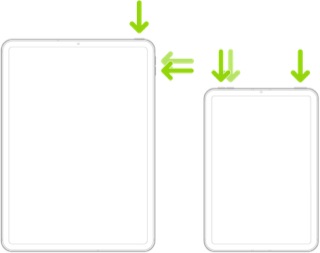


When performed correctly, the iPad will restart.


If the problem persists after performing the restart, it may be necessary to reset your iPad settings. While this reset will not cause any loss of data, as a precaution, it is always wise to ensure that you have a current iCloud or iTunes backup before performing the reset:

How to back up your iPhone, iPad, and iPod touch - Apple Support


When you are happy to proceed, you can perform the reset from iPad settings:

Settings > General > Transfer or Reset iPad > Reset > Reset All Settings


If the problem still doesn’t clear, the next step is to reset the iPad to factory settings:

Restore your iPhone, iPad, or iPod to factory settings - Apple Support


Otherwise, you would be best advised to seek assistance directly from Apple Support. You can contact the Support Team using the Support link at top-right or bottom-left of this page. Alternatively and perhaps easier, you can initiate and manage your support cases using the excellent Apple Support App. If not already installed on your iPad, the App can be downloaded from the App Store:

https://apps.apple.com/app/apple-support/id1130498044


You might also visit the Genius Bar at your local Apple Store or Apple Authorised Service Provider (AASP) - where the technicians will be able to test and assess your iPad - and you can explore your available options:

Genius Bar Reservation and Apple Support Options - Apple

2 replies
Question marked as Top-ranking reply

Aug 27, 2026 2:35 PM in response to Rhaynapa

If your iPad is not operating as expected, try a forced-restart - as this will often clear an isolated software issue:


Force restart iPad (models with Face ID or with Touch ID in the top button)

If your iPad doesn’t have the Home button, do the following:

  1. Press and quickly release the volume button nearest to the top button.
  2. Press and quickly release the volume button farthest from the top button.
  3. Press and hold the top button. Do not release the top button (ignore the power-off slider) until...
  4. When the Apple logo appears, release the top button.


When performed correctly, the iPad will restart.


If the problem persists after performing the restart, it may be necessary to reset your iPad settings. While this reset will not cause any loss of data, as a precaution, it is always wise to ensure that you have a current iCloud or iTunes backup before performing the reset:

How to back up your iPhone, iPad, and iPod touch - Apple Support


When you are happy to proceed, you can perform the reset from iPad settings:

Settings > General > Transfer or Reset iPad > Reset > Reset All Settings


If the problem still doesn’t clear, the next step is to reset the iPad to factory settings:

Restore your iPhone, iPad, or iPod to factory settings - Apple Support


Otherwise, you would be best advised to seek assistance directly from Apple Support. You can contact the Support Team using the Support link at top-right or bottom-left of this page. Alternatively and perhaps easier, you can initiate and manage your support cases using the excellent Apple Support App. If not already installed on your iPad, the App can be downloaded from the App Store:

https://apps.apple.com/app/apple-support/id1130498044


You might also visit the Genius Bar at your local Apple Store or Apple Authorised Service Provider (AASP) - where the technicians will be able to test and assess your iPad - and you can explore your available options:

Genius Bar Reservation and Apple Support Options - Apple

Aug 27, 2026 2:34 PM in response to Rhaynapa

Since the iPad won’t respond normally enough to shut down, I’d try a force restart first. That doesn’t erase your data.


On the iPad Air 5th generation:


1. Quickly press and release the volume button closest to the top button.

2. Quickly press and release the other volume button.

3. Press and hold the top button until the Apple logo appears.


After it restarts, test scrolling and swiping again in Photos and Safari.


If touch gestures are still failing across multiple apps after the restart, I’d contact Apple Support rather than resetting or restoring the iPad.

Swiping and Scrolling won’t work after latest security update

Welcome to Apple Support Community
A forum where Apple customers help each other with their products. Get started with your Apple Account.