iPad Air 5 wont turn on by power button nor screen tap.

Hello, my 3 years old iPad Air 5 recently been acting up. Around a week ago i noticed that it suddenly wont turn on. tapped the screen, pressed the power button, nothing happened, i started panicking and waited for around 2-3minutes and try to tap the screen once again, and its alive. But then i noticed the power button is not working. I then tried to use assistiveTouch to lock the screen, andd.... it wont. also i want to make it clear that this is not because the devices battery is dead.


Is it a software bug? so then i tried to update the software and after updating and restarting the device, its working perfectly fine. Then 2 days later it started acting up again. Same thing, cant turn on the screen by tapping nor by the power button. so i waited around 3-5 minutes then its acting perfectly fine. around 3 days passed on and then comes today, it started to act up once again as im writing this. cant turn on the iPad using power button and screen tap, but then after a minute it turned on fine But still no power button function(WHICH MEANS i cant even shut down the iPad, which also makes me worry "what if i restarted the iPad and the power button wont work to turn it on?").


Has anyone had this problem happened before? what are the causes? and how can i fix this? Thankyouu


.... as i just typed the line above, it started working completely fine now, i wonder what actually happened and im scared that this will keep happening forward ...

iPad mini 5, iPadOS 26

Posted on Sep 14, 2026 9:13 AM

Reply
Question marked as Top-ranking reply

Posted on Sep 14, 2026 10:35 AM

It is a common misconception that an iPad (or iPhone) can remain fully functional with damaged or defective physical buttons.  While rare, the internal button mechanism can collapse - rendering the affected button inoperative.


Whilst Accessibility features (such as assistive touch) can be used to augment the User Interface, these features cannot be used as a substitute for physical button sequences that must be used to trigger system recovery actions. Sooner or later you will encounter a situation from which you cannot recover.


You can arrange repair of your iPad either by (a) visiting the Genius Bar at your local Apple Store or Apple Authorised Service Provider (AASP) - or (b) using Apple's mail-in repair service:

Genius Bar Reservation and Apple Support Options - Apple

iPad Repair & Service - Apple Support


If your iPad is unresponsive, connect your iPad to its Power Adapter and allow the iPad to charge undisturbed for at least and hour - or preferably overnight. Then, while still connected to external power, try a forced-restart:


Force restart iPad (models with Face ID or with Touch ID in the top button)

If your iPad doesn’t have the Home button, do the following:

  1. Press and quickly release the volume button nearest to the top button.
  2. Press and quickly release the volume button farthest from the top button.
  3. Press and hold the top button.
  4. When the Apple logo appears, release the top button.
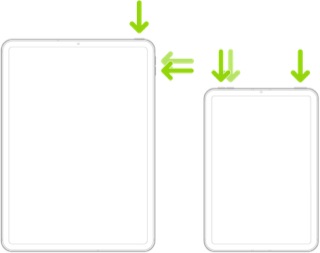


If iPad doesn’t turn on, or if it gets stuck during start up, see the Apple Support article If your iPhone, iPad, or iPod touch won’t turn on or is frozen. Or, if your iPad isn’t working correctly after you restart it, see the iPad Support website.


These support pages should help with troubleshooting general battery and charging issues:

Charge and monitor the iPad battery - Apple Support

If your iPad won't charge – Apple Support


Troubleshooting generally requires substitution of the Power Adapter and cable for another known-good item. Most models of iPad require a Power Adapter rated at 12W (i.e., 2.4A @5V) or greater to reliably charge. 5W Power Adapters (1.0A @5V) intended for older models of iPhone are inadequate to charge an iPad; if the iPad charges at all, charging will be very slow. Recent models of iPad are supplied with a 20W USB-C Power Adapter.


Some third-party USB-C power adapters (and portable PowerBanks) may not support USB PD (Power Delivery). Power Delivery mutually negotiates the charging voltage; the source, load and cable are all elements involved in the negotiation protocol. Unless the Power Adapter explicitly supports USB PD, it will almost certainly fail to charge the iPad; proprietary charging standards, such as QC (Quick Charge), are not supported.


Many computer USB ports also cannot source sufficient power to charge an iPad. Unless explicitly designed for charging connected devices, computer USB ports are typically limited to 0.5-1A @5V (i.e., 2.5-5.0W).


If you continue to experience difficulties when using an appropriate Power Adapter of 12W or greater, you might be best advised to seek assistance directly from from Apple Support. You can contact the Support Team using the Support link at top-right or bottom-left of this page. Alternatively, you can initiate and manage your support cases from Apple devices using the excellent Apple Support App. If not already installed, the App can be downloaded from the App Store:

https://apps.apple.com/app/apple-support/id1130498044


You might also visit the Genius Bar at your local Apple Store or Apple Authorised Service Provider (AASP) - where the technicians will be able to test and assess your iPad:

Genius Bar Reservation and Apple Support Options - Apple

1 reply
Question marked as Top-ranking reply

Sep 14, 2026 10:35 AM in response to Heiriko

It is a common misconception that an iPad (or iPhone) can remain fully functional with damaged or defective physical buttons.  While rare, the internal button mechanism can collapse - rendering the affected button inoperative.


Whilst Accessibility features (such as assistive touch) can be used to augment the User Interface, these features cannot be used as a substitute for physical button sequences that must be used to trigger system recovery actions. Sooner or later you will encounter a situation from which you cannot recover.


You can arrange repair of your iPad either by (a) visiting the Genius Bar at your local Apple Store or Apple Authorised Service Provider (AASP) - or (b) using Apple's mail-in repair service:

Genius Bar Reservation and Apple Support Options - Apple

iPad Repair & Service - Apple Support


If your iPad is unresponsive, connect your iPad to its Power Adapter and allow the iPad to charge undisturbed for at least and hour - or preferably overnight. Then, while still connected to external power, try a forced-restart:


Force restart iPad (models with Face ID or with Touch ID in the top button)

If your iPad doesn’t have the Home button, do the following:

  1. Press and quickly release the volume button nearest to the top button.
  2. Press and quickly release the volume button farthest from the top button.
  3. Press and hold the top button.
  4. When the Apple logo appears, release the top button.


If iPad doesn’t turn on, or if it gets stuck during start up, see the Apple Support article If your iPhone, iPad, or iPod touch won’t turn on or is frozen. Or, if your iPad isn’t working correctly after you restart it, see the iPad Support website.


These support pages should help with troubleshooting general battery and charging issues:

Charge and monitor the iPad battery - Apple Support

If your iPad won't charge – Apple Support


Troubleshooting generally requires substitution of the Power Adapter and cable for another known-good item. Most models of iPad require a Power Adapter rated at 12W (i.e., 2.4A @5V) or greater to reliably charge. 5W Power Adapters (1.0A @5V) intended for older models of iPhone are inadequate to charge an iPad; if the iPad charges at all, charging will be very slow. Recent models of iPad are supplied with a 20W USB-C Power Adapter.


Some third-party USB-C power adapters (and portable PowerBanks) may not support USB PD (Power Delivery). Power Delivery mutually negotiates the charging voltage; the source, load and cable are all elements involved in the negotiation protocol. Unless the Power Adapter explicitly supports USB PD, it will almost certainly fail to charge the iPad; proprietary charging standards, such as QC (Quick Charge), are not supported.


Many computer USB ports also cannot source sufficient power to charge an iPad. Unless explicitly designed for charging connected devices, computer USB ports are typically limited to 0.5-1A @5V (i.e., 2.5-5.0W).


If you continue to experience difficulties when using an appropriate Power Adapter of 12W or greater, you might be best advised to seek assistance directly from from Apple Support. You can contact the Support Team using the Support link at top-right or bottom-left of this page. Alternatively, you can initiate and manage your support cases from Apple devices using the excellent Apple Support App. If not already installed, the App can be downloaded from the App Store:

https://apps.apple.com/app/apple-support/id1130498044


You might also visit the Genius Bar at your local Apple Store or Apple Authorised Service Provider (AASP) - where the technicians will be able to test and assess your iPad:

Genius Bar Reservation and Apple Support Options - Apple

iPad Air 5 wont turn on by power button nor screen tap.

Welcome to Apple Support Community
A forum where Apple customers help each other with their products. Get started with your Apple Account.