What to do when you need service and can't turn off Find My

My iPad screen is just black, so I can't interact with it and turn off "Find My", so the Apple Service won't accept it. What do I do? I tried "remove this device" from my iPhone, but Apple Service still says Find My is still on on the iPad.

Posted on Sep 14, 2026 8:27 PM

Reply
Question marked as Top-ranking reply

Posted on Sep 15, 2026 1:31 AM

Did you try to remove the iPad on iCloud.com?

...

If you no longer have the device or if you're unable to turn off Find My in Settings, you can remove it from your account using Find My on iCloud.com.

...

copied from: Turn off Find My on your devices and items - Apple Support


...

If you don’t want a device to appear in Find My, or if you need to set up service, you can remove it from your list of devices.


  1. Go to icloud.com/find, then sign in to your Apple Account (if necessary).
  2. Tip: To sign in without entering a two-factor authentication code, select  at the bottom of the window.
  3. In the list of devices, select the device you want to remove.
  4. If you already selected a device, select All Devices or (X)  to return to the list.
  5. Select Remove This Device. One of the following happens:
    • If the device is online, it can’t be removed, but you can prepare it for service. If you select Continue, the device is marked as Ready for Repair or Trade In for the next 30 days.
  • If the device is offline, Activation Lock is removed immediately, and the device is removed from Find My after 30 days.
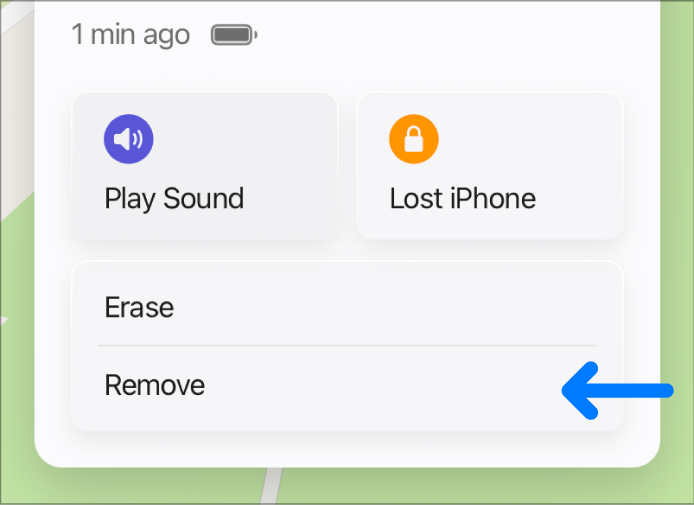


Note: You can also remove your iPhone, iPad, or Mac by signing out of your Apple Account on that device.


...

copied from: Remove a device from Find Devices on iCloud.com - Apple Support



2 replies
Question marked as Top-ranking reply

Sep 15, 2026 1:31 AM in response to zonarch

Did you try to remove the iPad on iCloud.com?

...

If you no longer have the device or if you're unable to turn off Find My in Settings, you can remove it from your account using Find My on iCloud.com.

...

copied from: Turn off Find My on your devices and items - Apple Support


...

If you don’t want a device to appear in Find My, or if you need to set up service, you can remove it from your list of devices.


  1. Go to icloud.com/find, then sign in to your Apple Account (if necessary).
  2. Tip: To sign in without entering a two-factor authentication code, select  at the bottom of the window.
  3. In the list of devices, select the device you want to remove.
  4. If you already selected a device, select All Devices or (X)  to return to the list.
  5. Select Remove This Device. One of the following happens:
    • If the device is online, it can’t be removed, but you can prepare it for service. If you select Continue, the device is marked as Ready for Repair or Trade In for the next 30 days.
  • If the device is offline, Activation Lock is removed immediately, and the device is removed from Find My after 30 days.


Note: You can also remove your iPhone, iPad, or Mac by signing out of your Apple Account on that device.


...

copied from: Remove a device from Find Devices on iCloud.com - Apple Support


Sep 15, 2026 1:57 AM in response to zonarch

The available methods to prepare your iPad/iPhone for service or repair can be found here:

What to do before you sell, give away, or trade in your iPhone or iPad - Apple Support


If your device won't turn-on, or is unresponsive, follow the procedure entitled If you no longer have your iPhone or iPad:


What to do when you need service and can't turn off Find My

Welcome to Apple Support Community
A forum where Apple customers help each other with their products. Get started with your Apple Account.
