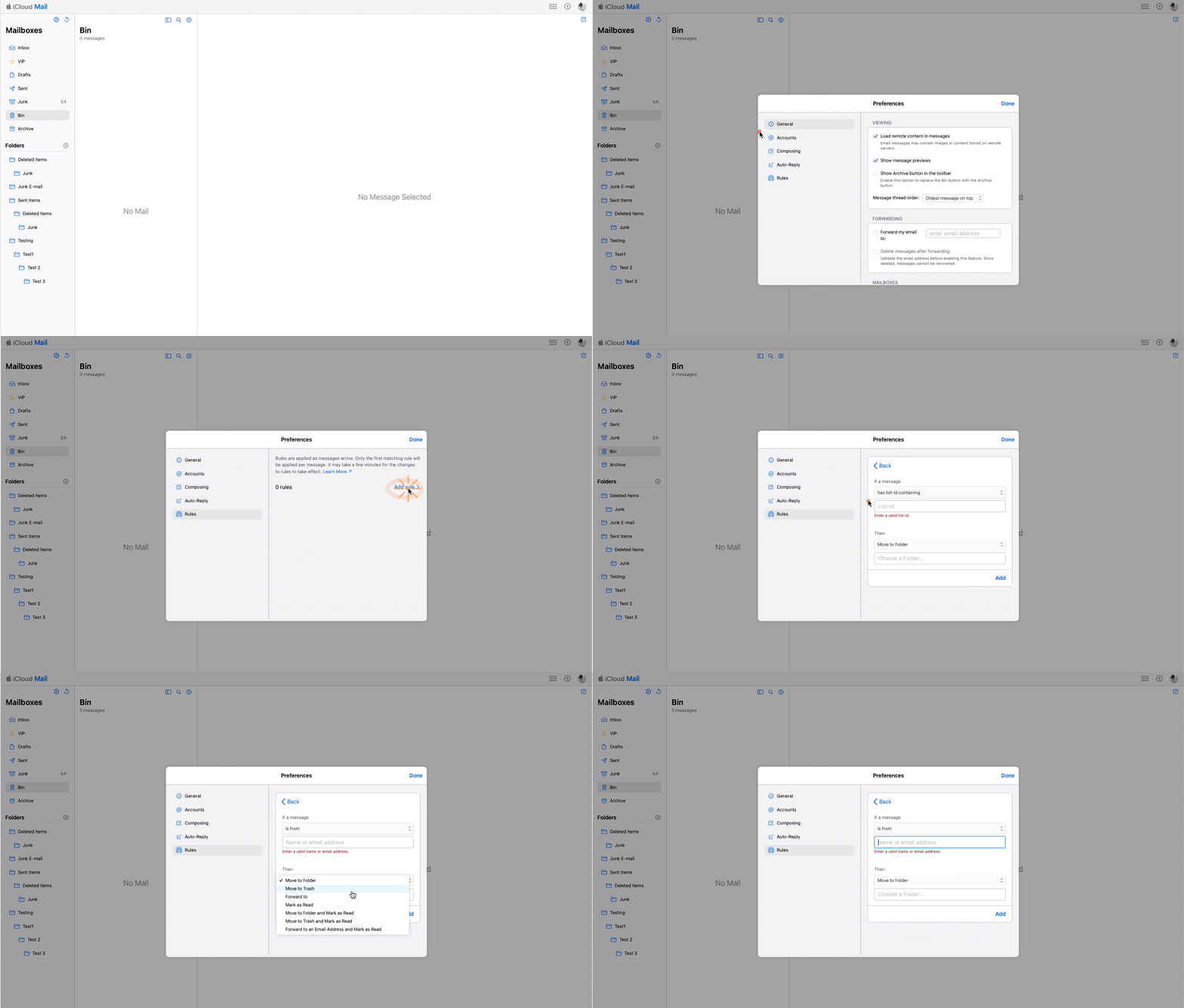
If your incoming email messages are automatically moved or placed in Bin / Trash / Junk / Archive, the primary cause could be a misconfigured rule/filter, or a setting on your Forwarding and POP/IMAP tab. To resolve this issue, please make sure you haven't created any rules/filters with the action to Delete / Move it that would affect the email messages being moved automatically to another folder..
There are two types of Rules.
- server-side
- client-only
If the rule set is on the server side then even if you are not logged into your email account, the rules will be applied to the email immediately.
But if the rule is set on the client side on a Mac then the rule will be activated only when the Mail app is open and is online on the Mac.
This is truly based on the conditions and actions you apply to them.

- iCloud / Gmail only has a Client-side rule option
- Outlook / Exchange has both options, Server and Client side rules can be set
You cannot set a rule on an iPhone. It will follow the rules set on server or at the client end.
- Is this your corporate iPhone? Then please contact the system administrator of your corporate
- If it is your device, in that case, do you have any profile installed by your corporate/organization/enterprise/School Management?
- Erase the profile added by you If you have installed a profile on your own --> Install or remove configuration profiles on iPhone - Apple ...
- Please contact the system administrator of the organization who provided the profile to you
The behavior you're experiencing with your emails on your iPhone 14 may be due to the settings and filters you have in place. Here are a few possible reasons why a majority of your emails go to the Bin/Trash/Archives instead of your Inbox:
- You might have set up specific filters or rules that automatically direct certain emails to your Archives. These filters can be based on various criteria such as sender, subject, keywords, or other attributes. Rules can only be set or edited on a web browser. Set up rules to filter email in Mail on iCloud.com - Apple Support
- The email client or service you are using on your iPhone 14 might have strong spam filters that automatically detect and move suspected spam or junk emails to the Archives folder. These filters aim to keep your Inbox clean by diverting potentially unwanted or unsolicited emails.
- If you have previously manually moved emails to the Archives, your email client might have learned from your actions and applied similar patterns to future emails from the same senders or with similar content.
Move the email that you want in the Inbox from Junk to Inbox manually. Your one-time action will trigger learning for the iPhone and all future mails from that domain ID will arrive at the Inbox.
You can start/stop them by applying a Client-based Rule on iCloud.com. Watch the GIF below