Hover stopped working on M4 iPad Pro with Apple Pencil Pro on iPadOS 27

I just now noticed that hover is not working on my M4 iPad Pro 13" with my Apple Pencil Pro. I'm not sure if it's an iPad problem, Apple Pencil problem, or iPadOS 27 problem. I have checked settings and Hover is on. I have turned Bluetooth off and on. I have restarted my iPad and it's still not working. Is anybody else having this issue?

iPad Pro (M4, 2024)

Posted on Oct 4, 2026 2:29 PM

Reply
Question marked as Top-ranking reply

Posted on Oct 6, 2026 2:51 AM

The Apple Pencil Pro documentation states that the Pencil's Hover function works with your iPad Pro M4:

Apple Pencil Pro - Tech Specs - Apple Support


1. Apple Pencil hover works with iPad Pro (M4 and M5), iPad Pro 11‑inch (4th generation), iPad Pro 12.9‑inch (6th generation), iPad Air (M2 and M3) and iPad mini (A17 Pro).


Ensure that you have updated your iPad to the most recent version of iPadOS. At the time of writing, iPadOS 27.0.1 is current.


If you have already updated the iPad and it is not operating as expected, try a forced-restart - as this will often clear an isolated or post-update software issue:


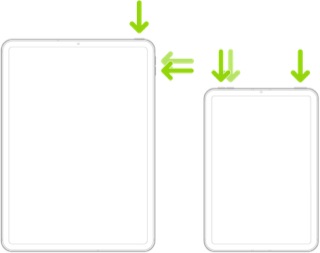
Force restart iPad (models with Face ID or with Touch ID in the top button)

If your iPad doesn’t have the Home button, do the following:

  1. Press and quickly release the volume button nearest to the top button.
  2. Press and quickly release the volume button farthest from the top button.
  3. Press and hold the top button.
  4. When the Apple logo appears, release the top button.


If the problem persists after performing the restart, it may be necessary to reset your iPad settings. While this reset will not cause any loss of data, as a precaution, it is always wise to ensure that you have a current iCloud or iTunes backup before performing the reset:

How to back up your iPhone, iPad, and iPod touch - Apple Support


When you are happy to proceed, you can perform the reset from iPad settings:

Settings > General > Transfer or Reset iPad > Reset > Reset All Settings


If the problem still doesn’t clear, the next step is to reset the iPad to factory settings:

Restore your iPhone, iPad, or iPod to factory settings - Apple Support


Otherwise, you would be best advised to seek assistance directly from Apple Support. You can contact the Support Team using the Support link at top-right or bottom-left of this page. Alternatively you can initiate and manage your support cases using the excellent Apple Support App. If not already installed on your iPad, the App can be downloaded from the App Store:

https://apps.apple.com/app/apple-support/id1130498044


Should the problem remain unresolved, you might also consider submitting a Bug Report via Apple's Product Feedback portal. For iPad and iPadOS:

Feedback - iPad - Apple


When submitting your Bug Report, please ensure that you include details of your device model and installed OS versions within the body-text of your report along with details of the problem.  Do not rely upon the pick-list alone - as this often fails to include the most recent OS versions.


Every Bug Report counts. Unless sufficient reports are submitted (with adequate detail), Apple may not assign resources to investigate and correct the issue.


3 replies
Question marked as Top-ranking reply

Oct 6, 2026 2:51 AM in response to Tsaxman

The Apple Pencil Pro documentation states that the Pencil's Hover function works with your iPad Pro M4:

Apple Pencil Pro - Tech Specs - Apple Support


1. Apple Pencil hover works with iPad Pro (M4 and M5), iPad Pro 11‑inch (4th generation), iPad Pro 12.9‑inch (6th generation), iPad Air (M2 and M3) and iPad mini (A17 Pro).


Ensure that you have updated your iPad to the most recent version of iPadOS. At the time of writing, iPadOS 27.0.1 is current.


If you have already updated the iPad and it is not operating as expected, try a forced-restart - as this will often clear an isolated or post-update software issue:


Force restart iPad (models with Face ID or with Touch ID in the top button)

If your iPad doesn’t have the Home button, do the following:

  1. Press and quickly release the volume button nearest to the top button.
  2. Press and quickly release the volume button farthest from the top button.
  3. Press and hold the top button.
  4. When the Apple logo appears, release the top button.


If the problem persists after performing the restart, it may be necessary to reset your iPad settings. While this reset will not cause any loss of data, as a precaution, it is always wise to ensure that you have a current iCloud or iTunes backup before performing the reset:

How to back up your iPhone, iPad, and iPod touch - Apple Support


When you are happy to proceed, you can perform the reset from iPad settings:

Settings > General > Transfer or Reset iPad > Reset > Reset All Settings


If the problem still doesn’t clear, the next step is to reset the iPad to factory settings:

Restore your iPhone, iPad, or iPod to factory settings - Apple Support


Otherwise, you would be best advised to seek assistance directly from Apple Support. You can contact the Support Team using the Support link at top-right or bottom-left of this page. Alternatively you can initiate and manage your support cases using the excellent Apple Support App. If not already installed on your iPad, the App can be downloaded from the App Store:

https://apps.apple.com/app/apple-support/id1130498044


Should the problem remain unresolved, you might also consider submitting a Bug Report via Apple's Product Feedback portal. For iPad and iPadOS:

Feedback - iPad - Apple


When submitting your Bug Report, please ensure that you include details of your device model and installed OS versions within the body-text of your report along with details of the problem.  Do not rely upon the pick-list alone - as this often fails to include the most recent OS versions.


Every Bug Report counts. Unless sufficient reports are submitted (with adequate detail), Apple may not assign resources to investigate and correct the issue.

Oct 5, 2026 7:42 PM in response to Tsaxman

Any chance that you cloned one iPad from the other when you were setting it up? I recently bought a Mini. For convenience, I cloned it off of my 13" M4 Pro. Everything looked normal until I realized that Pencil pressure wasn't working. It would not surprise me if other settings could be corrupted as well.


It turned out to be something in the settings that got copied from the previous device. Rather than pairing itself to the Pencil Pro, I think it assumed everything was moving permanently from one device. to the other.


Apple Pencil Pro not responding to pressu… - Apple Community


Oct 5, 2026 5:26 PM in response to Tsaxman

Update...


I used my Apple Pencil Pro on my wife's iPad and hover worked as it is supposed to. I used her pencil on my iPad and hover did not work. We are both running iPadOS 27.0.1. So it seems that the problem is with my iPad. To add another wrinkle, I turned on Hover Text in the Accessibility Settings and that shows up. It's just the regular hover effect that is not working. I rely on it when using some apps so this has become quite inconvenient. Any help would be appreciated.

Hover stopped working on M4 iPad Pro with Apple Pencil Pro on iPadOS 27

Welcome to Apple Support Community
A forum where Apple customers help each other with their products. Get started with your Apple Account.