Keyboard appears unexpectedly when selecting text with Apple Pencil in Notes

Here's what happens in Notes:

  1. I'm writing with the pencil
  2. I change the pencil to select text
  3. I select text
  4. the keyboard appears and takes priority over the pencil


Is there a setting to stop this somewhere? The keyboard appearance is wrecking my flow when writing.


[Edited by Moderator]

Posted on Oct 6, 2026 5:00 AM

Reply
Question marked as Top-ranking reply

Posted on Oct 7, 2026 12:55 AM

Hey there,

I completely feel your pain on this one—having that massive virtual keyboard slam onto your screen while you're in the middle of a deep-focus handwriting flow is incredibly jarring.

This isn't actually a glitch; it is an artifact of iPadOS trying to predict whether you want to type or edit text using standard text fields when it registers a specific touch boundary. What is happening is that iPadOS is conflating your Apple Pencil text-selection gesture with a standard system text cursor input. Because the OS thinks a text cursor is active, it forcefully invokes the virtual keyboard.

Thankfully, you can completely neutralize this behavior with a few precise setting adjustments.

Step 1: Disconnect the Text Cursor Triggers (Primary Fix)

The main culprit is usually a setting that tells iPadOS to treat the Pencil like a finger touch in certain contexts, which forces the software keyboard to activate.

  1. Launch Settings on your iPad.
  2. Navigate down to Apple Pencil on the left-side pane.
  3. Look for the toggle labeled Only Draw with Apple Pencil. Turn this ON.
    • Why this helps: This forces iPadOS to explicitly separate finger gestures from Pencil inputs. It tells the Notes app that your Pencil is strictly an ink/selection tool and prevents the system from defaulting back to standard text-insertion workflows when the Pencil tip is pressed down to select lines.

Step 2: Disable the "Scribble" Context Switcher

If you are selecting text and your Pencil accidentally hovers too close to a blank space or an existing text box, the Scribble framework will automatically deploy the shortcut bar or full keyboard layout, expecting you to type.

  1. In the same Settings > Apple Pencil menu, look for Scribble.
  2. Toggle Scribble to OFF.
    • Why this helps: If you are strictly using your iPad for handwritten notes, sketches, and diagramming, turning off Scribble disables the text-parsing engine that constantly looks for handwritten letters to convert into typed text. Without this background listener running, the keyboard loses its permission to constantly override your canvas.

A Quick Pro-Tip for Smoother Selection Flow:

If you are trying to select your handwritten text to move or resize it, make sure you are using the Lasso Tool(the pen icon with the striped design in your tool palette) rather than long-pressing with a standard pen or highlighter tool. The Lasso tool wraps your handwriting in an object-bounding box rather than a text-selection cursor, meaning the system will never attempt to call up the software keyboard because it knows you are manipulating an image layer, not active text strings.

Give these toggles a spin, and your writing environment should return to being totally seamless! Let me know if you still see it popping up after these tweaks.

8 replies
Question marked as Top-ranking reply

Oct 7, 2026 12:55 AM in response to sidewinder02131

Hey there,

I completely feel your pain on this one—having that massive virtual keyboard slam onto your screen while you're in the middle of a deep-focus handwriting flow is incredibly jarring.

This isn't actually a glitch; it is an artifact of iPadOS trying to predict whether you want to type or edit text using standard text fields when it registers a specific touch boundary. What is happening is that iPadOS is conflating your Apple Pencil text-selection gesture with a standard system text cursor input. Because the OS thinks a text cursor is active, it forcefully invokes the virtual keyboard.

Thankfully, you can completely neutralize this behavior with a few precise setting adjustments.

Step 1: Disconnect the Text Cursor Triggers (Primary Fix)

The main culprit is usually a setting that tells iPadOS to treat the Pencil like a finger touch in certain contexts, which forces the software keyboard to activate.

  1. Launch Settings on your iPad.
  2. Navigate down to Apple Pencil on the left-side pane.
  3. Look for the toggle labeled Only Draw with Apple Pencil. Turn this ON.
    • Why this helps: This forces iPadOS to explicitly separate finger gestures from Pencil inputs. It tells the Notes app that your Pencil is strictly an ink/selection tool and prevents the system from defaulting back to standard text-insertion workflows when the Pencil tip is pressed down to select lines.

Step 2: Disable the "Scribble" Context Switcher

If you are selecting text and your Pencil accidentally hovers too close to a blank space or an existing text box, the Scribble framework will automatically deploy the shortcut bar or full keyboard layout, expecting you to type.

  1. In the same Settings > Apple Pencil menu, look for Scribble.
  2. Toggle Scribble to OFF.
    • Why this helps: If you are strictly using your iPad for handwritten notes, sketches, and diagramming, turning off Scribble disables the text-parsing engine that constantly looks for handwritten letters to convert into typed text. Without this background listener running, the keyboard loses its permission to constantly override your canvas.

A Quick Pro-Tip for Smoother Selection Flow:

If you are trying to select your handwritten text to move or resize it, make sure you are using the Lasso Tool(the pen icon with the striped design in your tool palette) rather than long-pressing with a standard pen or highlighter tool. The Lasso tool wraps your handwriting in an object-bounding box rather than a text-selection cursor, meaning the system will never attempt to call up the software keyboard because it knows you are manipulating an image layer, not active text strings.

Give these toggles a spin, and your writing environment should return to being totally seamless! Let me know if you still see it popping up after these tweaks.

Oct 6, 2026 6:19 AM in response to sidewinder02131

Thank your for the additional info'.


As a first step, try updating your iPad to the most recent version of iPadOS. At the time of writing, iPadOS 27.0.1 is current.


Having updated your iPad, should the issue remain, perform a forced-restart - as this will often clear an isolated software issue:


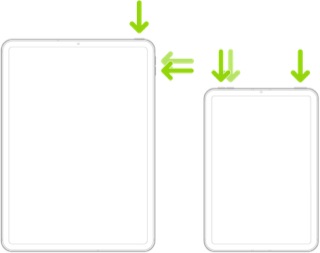
Force restart iPad (models with Face ID or with Touch ID in the top button)

If your iPad doesn’t have the Home button, do the following:

  1. Press and quickly release the volume button nearest to the top button.
  2. Press and quickly release the volume button farthest from the top button.
  3. Press and hold the top button.
  4. When the Apple logo appears, release the top button.


If the problem persists after performing the restart, it may be necessary to reset your iPad settings. While this reset will not cause any loss of data, as a precaution, it is always wise to ensure that you have a current iCloud or iTunes backup before performing the reset:

How to back up your iPhone, iPad, and iPod touch - Apple Support


When you are happy to proceed, you can perform the reset from iPad settings:

Settings > General > Transfer or Reset iPad > Reset > Reset All Settings


If the problem still doesn’t clear, the next step is to reset the iPad to factory settings:

Restore your iPhone, iPad, or iPod to factory settings - Apple Support


Otherwise, you would be best advised to seek assistance directly from Apple Support. You can contact the Support Team using the Support link at top-right or bottom-left of this page. Alternatively and perhaps easier, you can initiate and manage your support cases using the excellent Apple Support App. If not already installed on your iPad, the App can be downloaded from the App Store:

https://apps.apple.com/app/apple-support/id1130498044


You might also visit the Genius Bar at your local Apple Store or Apple Authorised Service Provider (AASP) - where the technicians will be able to assist with troubleshooting:

Genius Bar Reservation and Apple Support Options - Apple

Oct 7, 2026 5:03 AM in response to sidewinder02131

sidewinder02131 wrote:
Thank you @aashmansingh_4 for the sympathy and the tips. My system was already set up per your insight as well as using the Lasso Tool (always!), and still I was vexed. I had to upgrade to 27.0.1 then a hard re-boot (insight from @LotusPilot). So far, so good since then.


Copy and paste from AI-generated content can be surprisingly empathetic. 😉


Delighted to learn that the issue remains resolved following a straightforward restart.

Keyboard appears unexpectedly when selecting text with Apple Pencil in Notes

Welcome to Apple Support Community
A forum where Apple customers help each other with their products. Get started with your Apple Account.

