​​ ​

The Apple Support Community will permanently close on November 20, 2026. Starting today, the site will no longer accept new posts and is available in a read-only state.


You can continue to find trusted guidance and support on the official Apple Support site. 


We want to thank the community members who have contributed their time and expertise to help others with their Apple products.


Unable to transfer data from iMac to Mac mini

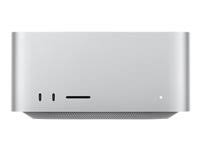
Hi, I just bought a Mac Mini 4Pro, loaded with everything, to replace my iMac 2012 (Catalina 10.15.8). I have asked the help of ChatGPT to get the proper steps and solve possible compatibility issues. Two days later, we are closer but still not able to create a proper backup. We used Time Machine (2014) and it would not cooperate with my iMac. Tried the transfer directly machine to machine via ethernet cable, didn't work. Tried ethernet cables through router, did not work, tried wifi, did not work, bought a new 4GB hard drive to do a backup, did not work. I don't know what to do, I am almost out of memory, am unable to update some software and run others, I have 1TB of memory and 32GB of RAM so still not bad but I can't seem to get it done and I am fed up with ChatGPT giving me the runaround. Can someone pleeeeeeeaaaaase help.


thank you in advance

Posted on Nov 10, 2026 5:40 AM

Question marked as Top-ranking reply

Posted on Nov 10, 2026 7:03 AM

rbellie wrote:
I am almost out of memory, am unable to update some software and run others, I have 1TB of memory and 32GB of RAM so still not bad but I can't seem to get it done and I am fed up with ChatGPT giving me the runaround. Can someone pleeeeeeeaaaaase help.

First, you don't seem to understand the distinction between memory & storage. Your 1TB is how much storage you have on the internal SSD while the 32GB of RAM is the amount of memory your system has. Here is an article which may help to explain the differences:

https://www.backblaze.com/blog/whats-diff-ram-vs-storage/


Second, you mention you are "almost out of memory". Do you mean storage space on that 1TB internal SSD? If so, then that would be a huge problem which a backup won't solve. How much Free storage space is shown in Disk Utility? Avoid the very misleading "Available" storage value shown everywhere since it is not synonymous with Free (except perhaps with macOS 27.x Golden Gate).


Ideally most people should always have at least 80GB to 100GB of Free storage space since even that amount can sometimes quickly disappear for seemingly simple workloads. Some people may need to have lots more Free space if their workloads utilize lots of storage such as video editing. If you have less than 20GB of Free storage space, then you have a storage problem which you need to resolve by either relocating the largest items to external media or by purchasing another computer with more internal storage.


Some reasons why an external drive won't work includes the external drive requiring more power than the computer can supply. In this case, either use a dedicated power supply with the external drive or connect it to a USB hub or dock which provides extra power to its USB ports.


Another reason is you may need a higher quality USB cable. The cables shipped with the product from the manufacturer many times will be low quality cables just barely able to support the device. Macs tend to require higher grade cables ever since the release of macOS 26 last year (cables should also be less than one meter in length).


Make sure to try connecting the external drive directly to the computer and try other USB ports on the computer to see if that makes any difference. If that does not work, try using a powered USB hub.


Also, make sure you have properly erased the whole physical drive as GUID partition and APFS (top option). If you don't erase the physical drive, then some of the original partitioning from the factory will not be overwritten which can sometimes cause a problem. Unfortunately Disk Utility hides the physical drives from view by default. See the following Apple article for details on how to properly erase the whole physical external drive:

https://support.apple.com/guide/disk-utility/erase-and-reformat-a-storage-device-dskutl14079/mac


Now if your "almost out of memory" is really about macOS showing all your memory (aka RAM) as being used, then this is perfectly normal these days. As long as the Memory Pressure graph in Activity Monitor is not showing red or yellow, then you are Ok. If the Swap used value next to the memory pressure graph is over 10GB even if graph is green, could indicate your workloads need to be modified to utilize less memory.


As @KiltedTim mentions, we need more details on exactly what happens & does not happen with each attempt including any exact error messages.


FYI, AI is over rated. Half the stuff these AIs were trained on is outdated especially when it comes to Macs and macOS. Plus there is a lot of junk & misinformation about Macs out there as well.....the AI learned that as well. AI can be useful if someone already has a good understanding of the topic as that person can weed out the junk spewed by AI, but won't they won't recognize the junk if they are not familiar with the subject matter. This is what the AI companies don't tell people. Perhaps one day this will change.


5 replies
Question marked as Top-ranking reply

Nov 10, 2026 7:03 AM in response to rbellie

rbellie wrote:
I am almost out of memory, am unable to update some software and run others, I have 1TB of memory and 32GB of RAM so still not bad but I can't seem to get it done and I am fed up with ChatGPT giving me the runaround. Can someone pleeeeeeeaaaaase help.

First, you don't seem to understand the distinction between memory & storage. Your 1TB is how much storage you have on the internal SSD while the 32GB of RAM is the amount of memory your system has. Here is an article which may help to explain the differences:

https://www.backblaze.com/blog/whats-diff-ram-vs-storage/


Second, you mention you are "almost out of memory". Do you mean storage space on that 1TB internal SSD? If so, then that would be a huge problem which a backup won't solve. How much Free storage space is shown in Disk Utility? Avoid the very misleading "Available" storage value shown everywhere since it is not synonymous with Free (except perhaps with macOS 27.x Golden Gate).


Ideally most people should always have at least 80GB to 100GB of Free storage space since even that amount can sometimes quickly disappear for seemingly simple workloads. Some people may need to have lots more Free space if their workloads utilize lots of storage such as video editing. If you have less than 20GB of Free storage space, then you have a storage problem which you need to resolve by either relocating the largest items to external media or by purchasing another computer with more internal storage.


Some reasons why an external drive won't work includes the external drive requiring more power than the computer can supply. In this case, either use a dedicated power supply with the external drive or connect it to a USB hub or dock which provides extra power to its USB ports.


Another reason is you may need a higher quality USB cable. The cables shipped with the product from the manufacturer many times will be low quality cables just barely able to support the device. Macs tend to require higher grade cables ever since the release of macOS 26 last year (cables should also be less than one meter in length).


Make sure to try connecting the external drive directly to the computer and try other USB ports on the computer to see if that makes any difference. If that does not work, try using a powered USB hub.


Also, make sure you have properly erased the whole physical drive as GUID partition and APFS (top option). If you don't erase the physical drive, then some of the original partitioning from the factory will not be overwritten which can sometimes cause a problem. Unfortunately Disk Utility hides the physical drives from view by default. See the following Apple article for details on how to properly erase the whole physical external drive:

https://support.apple.com/guide/disk-utility/erase-and-reformat-a-storage-device-dskutl14079/mac


Now if your "almost out of memory" is really about macOS showing all your memory (aka RAM) as being used, then this is perfectly normal these days. As long as the Memory Pressure graph in Activity Monitor is not showing red or yellow, then you are Ok. If the Swap used value next to the memory pressure graph is over 10GB even if graph is green, could indicate your workloads need to be modified to utilize less memory.


As @KiltedTim mentions, we need more details on exactly what happens & does not happen with each attempt including any exact error messages.


FYI, AI is over rated. Half the stuff these AIs were trained on is outdated especially when it comes to Macs and macOS. Plus there is a lot of junk & misinformation about Macs out there as well.....the AI learned that as well. AI can be useful if someone already has a good understanding of the topic as that person can weed out the junk spewed by AI, but won't they won't recognize the junk if they are not familiar with the subject matter. This is what the AI companies don't tell people. Perhaps one day this will change.

Nov 10, 2026 10:07 AM in response to rbellie

rbellie wrote:
Hi, I just bought a Mac Mini 4Pro, loaded with everything, to replace my iMac 2012 (Catalina 10.15.8). I have asked the help of ChatGPT to get the proper steps and solve possible compatibility issues. Two days later, we are closer but still not able to create a proper backup. We used Time Machine (2014) and it would not cooperate with my iMac.


Did you format the Time Machine backup drive as Mac OS Extended (Journaled), a.k.a. HFS+? In the early days of APFS, Time Machine knew how to back up APFS-formatted volumes – but not how to back up to APFS-formatted ones. The backup drive itself had to be formatted using HFS+.


Later, Apple rewrote Time Machine completely, so now APFS is the preferred Time Machine backup drive format on Sequoia, Tahoe, or Golden Gate. But it was not always so.


An alternative might be to use Carbon Copy Cloner or SuperDuper! to make a clone backup of your iMac. Migration Assistant can migrate from a Time Machine backup or from a "startup disk" (a.k.a. clone backup).

Nov 10, 2026 6:31 AM in response to rbellie

The definitive source and experience is here with fellow users, not with some flawed and outdated AI query which has a very high probability of wrong information or step omission that can make this migration experience untenable.


That 4 TB (not GB) hard drive needs to be formatted as APFS using Apple's Disk Utility before Time Machine on Tahoe or Golden Gate can back up to it. Personally, I do not mix operating system versions on the same TM drive.

Unable to transfer data from iMac to Mac mini

Welcome to Apple Support Community
A forum where Apple customers help each other with their products. Get started with your Apple Account.