Hi Mona,
Custom formatting can be used to display something Numbers interprets as a "number" as a combination of number(s) and text.
But Numbers interprets an entry (as opposed to a display) that contains both numbers and text as a text string, and custom formatting can't be used to display only the numeric characters in that string. You'll need Find and Replace, as already suggested, or a formula, to make that conversion.
One difficulty with Find/Replace is that it is All or One-at-a-time.
Clicking the Replace and Find button, as suggested by Wayne, can get tedious,if you have a large number of replacements to do (you have three for each entry). Clicking Replace All, as suggested by Jerry, does exactly that; great if the only hyphens in your document are the ones you want to replace, not so great if there are hyphens that are not part of the UPC codes, and that you want to keep.
Here's an alternate method that requires inserting a temporary column to do the conversion, but can be restricted to apply only to the column containing the UPC list.
In the table below, the original UPCs are in column B.
Column C has been added, and contains the formula shown above the table (and copied below), filled down through the rest of the column.
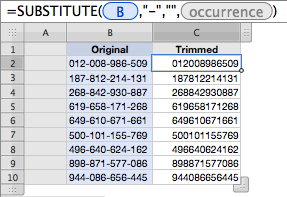
=SUBSTITUTE(B,"-","",)
After the conversion is done, Select and Copy all of the cells that contain trimmed UPCs (C2-C10 in the example), then click on the cell containing the first UPC in its original form and go Edit (menu) > Paste Values.
Then select and delete column C.
Regards,
Barry


