How do I find out my hard drive space on a 2008 10.6.8 MacBook?

Hey guys, so I just purchased a new MacBook off of Craiglist and I am very happy. All I want to do is verify what my hard drive space is. This is a 2008 MacBook that has 10.6.8 OS X. I can't update it any further and all I want to know is my space. Also, if anyone knows i'd like to know how to measure my screen size to order a new battery off eBay. Also, if anyone wants to help tell me exactly how to order a battery you're free to!! Thanks very much 🙂

MacBook, Mac OS X (10.6.8)

Posted on Jul 7, 2012 7:48 PM

Reply
6 replies

Jul 8, 2017 12:11 AM in response to Keagster McSwaggerton

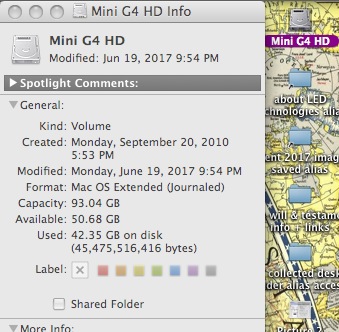
If the icon for the Macintosh HD is visible on the desktop, click once to

highlight the icon but not open it; then use the File menu in Finder, to

click and look down the column and select Get Info. ~ This would give

you the information about the Hard Disk drive capacities.
User uploaded file


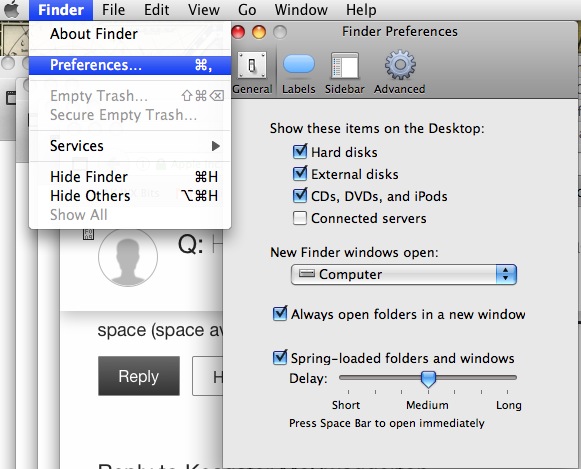
And if your hard disk drive icon is hidden, you can use a Finder preference

selection to make it visible on the deskop, then use 'Get Info' on highlighted

icon. Or use ' Command + i ' to get info on highlighted icon file. (two keys)
User uploaded file


Another way would be to use "about this Mac" and look into 'more info'

to open System Profile or System Information, depending on vintage OS.

The hardware information includes ATA drive specs, & other specs also

including software installed in the computer.


Frederick (5 years ago) told of a way to Get Info -- if the HDD icon is present on desktop:

"To see how much room you have on your hard drive right click (Control key + Click)

and select Get Info from the drop down menu.and check Available"


This should work in most any Mac OS X version from early until present.

The screenshots above are from my G4 Mac Mini internal 93GB ATA HDD.


Good luck & happy trails! 🙂

Jul 7, 2012 8:43 PM in response to NateJacobs13

All MacBooks have a 13.1" screen


If you have an Early 2008 White or Black plastic MacBook with the removable battery you can get a new third party battery fairly cheap on eBay.

Black Batteries http://shop.ebay.com/i.html?_nkw=macbook+black+battery&_sacat=0&LH_BIN=1&_sop=12 &_dmpt=Laptop_Batteries&_odkw=macbook+white+battery&_osacat=0&_trksid=p3286.c0. m 270.l1313

White Batteries http://shop.ebay.com/i.html?_nkw=macbook+white+battery&_sacat=0&LH_BIN=1&_sop=12 &_dmpt=Laptop_Batteries&_odkw=macbook+black+battery&_osacat=0&_trksid=p3286.c0. m 270.l1313

Or for $129 from The Apple Store http://store.apple.com/us/product/MA566LL/A?mco=MTY3ODQ5OTY


If you have the Late 2008 Aluminum Unibody The batteries are a little more expensive.


http://www.ebay.com/sch/i.html?_nkw=aluminum+macbook++battery+A1280&_sacat=0&_od kw=aluminum+macbook++battery+A1278&_sop=12&_osacat=0


To see how much room you have on your hard drive right click (Control key + Click) and select Get Info from the drop down menu.and check Available.

Jul 7, 2012 8:50 PM in response to NateJacobs13

Removing and installing the battery in a White or Black MacBook


Removing the battery:

  1. Shut down the computer. Disconnect any cords connected to the computer.
  2. Turn the computer over.
  3. Locate the battery latch on one side of the battery.
  4. Use a coin to turn the latch a quarter-turn clockwise. The battery should pop up slightly.
  5. Lift the battery out.

User uploaded file

Installing the battery:

  1. Place the right side of the battery into the battery compartment at an angle, as shown below.
  2. Gently press the left side of the battery down until it sits flat.
    User uploaded file
  3. While holding the battery down, use a coin to turn the latch a quarter-turn counter-clockwise. The battery should lock into place.

Note: Keep in mind that once the new battery is inserted, you will need to press the power button to start up the computer.


MacBook (13-inch, Aluminum, Late 2008)

Removing the battery:

  1. Shut down the computer. Disconnect any cords connected to the computer.
  2. Turn the computer over.
  3. Locate the access door latch.
  4. Push down to release the latch, this sets it in the open position, and remove the access door that covers the battery.
    User uploaded file
  5. With the latch still in its open position, gently pull up on the battery tab to remove the battery.

User uploaded file

Note: The latch must be in its released, open position to remove or replace the battery and access door.

Installing the battery:

  1. To replace the battery, make sure the latch is in its open position.
  2. Hold the battery at an angle and slide the lipped edge of the battery below the brackets on the outside edge of the battery bay. Gently press the battery down.

To replace the access door:

  1. Line the access door up with the bottom case and the tabs in the battery bay.
  2. Lower the access door into place.
  3. Make sure it is level with the bottom case of your MacBook.
  4. Press the latch into place, so it is in the closed position.

User uploaded file

Jul 9, 2012 7:52 PM in response to NateJacobs13

Open a Finder window, and at the bottom, you'll see text that goes something like "11 items, 45.89 GB avaliable". That is how much storage space you have left on the hard drive.


Next, open the Apple menu (), and find "About this Mac". This will tell you how much memory you have. (RAM/Memory is both relatively cheap and easy to upgrade, and I would consider it if you have less than 4GB.) Freddy here has explained how to install it.


Finally, search eBay for a MacBook battery for the "Black and White" version. No it's not Pokémon. Make sure it's new, and authorized by Apple. Checkthis oneout. Also, you can buy them directly from Apple.


I hope it helps!

This thread has been closed by the system or the community team. You may vote for any posts you find helpful, or search the Community for additional answers.

How do I find out my hard drive space on a 2008 10.6.8 MacBook?

Welcome to Apple Support Community
A forum where Apple customers help each other with their products. Get started with your Apple Account.