Mavericks corrupts external hard drive

My WD MyBook studio 2TB (fw800) suddenly shows up empty on my desktop after a Mavericks upfrade on my mid 2009 mbp.


Disk Drill is now scanning the WD, and the files are there, about 1,4 TB of it...


How do I get the disc structure back?


I have no Mountain Lion OS-mac to test the WD in..


I had a bootable Mountain Lion on the WD, could that be the problem?


In Disk Drill MyBook has four units; EFI(200Mb), MyBook(1,8Tb), Unallocated 128Mb and Lost partition (200Mb)

iOS 7, Ipad mini + ios7

Posted on Oct 24, 2013 1:08 AM

Reply
1,484 replies

Nov 2, 2013 1:56 PM in response to Bruce in Indy

I bit the bullet and restored my 10.8.5 system from Time Machine. After doing some more investigation under Disk Utility, I finally installed the Lacie RAID Monitor which showed that one of the disk in my older 2big arrays had failed. This should be under warranty, so hopefully it will be taken care of by LaCie.


I'm not convinced just yet that this is the end of the story and I don't plan on upgrading to 10.9 again until a minor update or two have been released. There's still some weirdness in how the good disks are showing up in Disk Utility...


Moral of the story: you'd better have a good backup and a good backup of the backup. If the array containing my Time Machine backups had gone south I would have been in a world of trouble. Time to sign-up for an online backup service, I think...

Nov 2, 2013 5:33 PM in response to Trocafish

Guys, I don't think it has anything to do with firewire, USB, thunderbird, WD software or being external.


I have an internal Western Digital harddrive and Mavericks started to erase data from my internal harddrive today. First system became sluggish, then I noticed that some files were missing and eventually my system crashed. Ever since I cannot boot anymore. Disk Utility sais that my drive needs to be formated.


I never had any Western Digital software installed nor have I an external harddrive.


I also heard that some Seagate harddrives had the same issue.


It seems to be a Mavericks issue. Be aware that Mavericks can start to erase data on your internal harddrive incl. the OS. Do a backup of your internal harddrive as long as you can.

Nov 2, 2013 5:42 PM in response to Trocafish

Looks like this is a Maverick's issue since my toshiba 2.5" hdd in a third party enclosure has the same issue. Maverick automatically repartition the drive into two partitions (EFI and HFS) leaving with 120mb of unallocated space. One being labeled MyBook. I don't have any WD utility or any other disk utily installed that it makes me wonder why it automatically labeled it MyBook. I have three WD external drives I used and only two of them labeled MyBook. One I used for my Time Machine Backup which is 2TB.


I wanted to restore my MBP now from my time machine backup but it only shows me my two oldest backup when I do so. I do my backup atleast once a month and it shows me the last successful backup which I did right before I upgrade to Maverick. I do have multiple backups of my important data (Thank God) based from past experience.


Let's see if I will be able to recover anything from this drive.


Is Apple trying to be like Microsoft now???

Nov 2, 2013 6:49 PM in response to Trocafish

To all who have this problem:

Thanks for the warning. I have 4 Studio II drives and 2 Mac-formatted "black" Mirror drives (all 2 TB, Raid 1, used with Time Machine) and just wanted to upgrade to Mavericks when I read this thread.

Questions:

1. Could it be that it's firmware version dependent? (Which version do you have on your drives?)

I had problems updating the firmware:


Before installing Mac OS Mavericks I wanted to upgrade the firmware of my My Book Studio Edition II drives. I followed all instructions, but when running WDFirmwareUpdater.app I got the message:

The operation couldn’t be completed. (NSURLErrorDomain error -3003.)

But I could continue the firmware upgrade, so I tried it. Unfortunatel in the end I got the message:

Firmware update failed

Unable to find device to update. Check your cable connection, and then run
WD Firmware Updater again.
Click Exit, and then run the WD Firmware Updater again.

Repeating didn't help.

BTW: 3 things were not clear: During the upgrade:

- should WD Drive Manager be running (or quit?)

- should the drive be mounted (or ejected?)

- should the drive be on (or switched off?)

Where can I show/see which firmware version is currently installed?

2. When you encountered the problem, did you try to backup to your drive, when there was already a backup on it? For example previously used by Time Machine under Mountain Lion and now tried to continue to use it under Mavericks? Or did you use a "fresh", empty drive?

BTW Under http://support.wdc.com/product/download.asp?groupid=114&sid=62&lang=en the WD Drive Manager v2.2.7 with WD RAID Manager Version 1.1.4 of 09 October 2012 has been removed by WD. It claimed that it's compatible with Mac OS 10.9! See the screenshot:
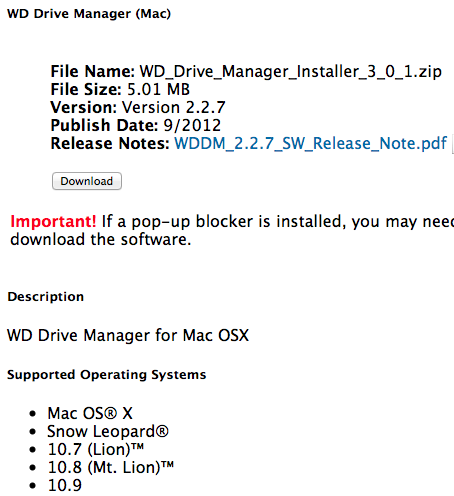


User uploaded file


It's still in Google Cache:


http://webcache.googleusercontent.com/search?q=cache:ObnkSf2cGygJ:support.wdc.co m/product/download.asp%3Fgroupid%3D114%26sid%3D62+&cd=2&hl=en&ct=clnk&gl=uk



Nov 3, 2013 5:39 AM in response to markkempen

markkempen wrote:


Here everyting works fine. I've installed mavericks and I have a WD MyBook 4GB (2x2GB) and all files are showing up fine. I've restarted the system numerous times and no problems. I should note that the drive was connected to my iMac when I was upgrading to mavericks. So the problem is not occuring to everyone.

I believe the problem was remedied at some point by Apple. I upgraded 3 days ago from 10.6.8 on my Mac Mini with 3 WD drives connected and also have no problems. The WD drive manager and other software was put into a folder called "incopatible software" on the Mac HD. I did however find a WD app running in activitly monitor which I stopped from running. I then found a WD folder in Application support which I deleted. All that software that I found by digging may have been a result of trying to reinstall the software from the WD site -said software is no longer available. I think it would be helpful if anyone that's having this problem states when Mavericks was installed.

Nov 3, 2013 7:11 AM in response to Trocafish

I have the same issue: external HD renamed "My Book" and showing as empty.


But the drive is not a WD drive. It is a Seagate 1TB USB drive, no raid, no WD or third party drive software, formatted originally using Apple's Disk Utility. Up until today, there have been no issues with the drive.


I have opened a support case with Apple on this issue.


I am attempting to recover the files to a non-Mavericks Mac as I write this, as that seems to be the only solution. I don't believe there will be a quick fix, if and when Apple decides to respond to this.

Nov 3, 2013 7:19 AM in response to milesdesign

Hi milesdesign,


>It is a Seagate 1TB USB drive, no raid, no WD or third party drive software


Can you please check to see there are no files or folders with "WD", "WesternDigital" or "wdc" in their names in the following folders?:


/Library/Application Support

/Library/LaunchAgents

/Library/LaunchDaemons

/Library/Preferences

/System/Library/Extensions

Nov 3, 2013 8:09 AM in response to AKabas

Hi AKabas,


Yes, I had already checked all of those locations (and the Applications and Utilities folders) and I didn't find anything associated with WD...


BUT, I have now located one file - WDMyBookService - located in /Library/StartupItems/WDMyBookServiceStartupItem (though it was not listed in the Login items in the User system preferences.)


I had not noticed that file or location mentioned in this or any of the several other threads I am following on this issue.


Anyway, I deleted the file and its folder, restarted, and reattached the HD with the issue. Nothing happened - the drive is still named "My Book" and is empty (I didn't really expect that to fix the issue; my only hope is that it might prevent this happening to any of my other drives.)


So... I am now back to my attempt to recover the files from the drive to my non-Mavericks Mac.


Perhaps this is a WD issue after all, though it seems that any drive - regardless of make or type of connection - can be affected.


So... It may be worthwhile for everyone to check their /Library/StartupItems as well as the other places mentioned.

Nov 3, 2013 10:51 AM in response to AKabas

Drives being emptied and renamed to "MyBook" in the absence of WD software is strange.


This is from a WD staff member in the WD forum http://community.wd.com/t5/External-Drives-for-Mac/External-Drives-for-Mac-Exper iencing-Data-Loss-with-Maverick-OS/td-p/613775/page/3


Steps to completely remove WD SmartWare from your Mac:


• Run the SmartWare uninstaller application located in /Applications/

• Using Apple’s Activity Monitor from /Applications/Utilities quit the following processes:

WDDMService

WD Quick View

SmartwareServerApp


• Delete /Library/LaunchDeamons/com.wdc.WDDMService.plist (Entry that causes WDDM to start.)

• Delete /Library/LaunchDeamons/com.wdc.WDSmartWareServer.plist (Entry that causes the SmartWare Server to start.)

• Delete /Applications Support/WDSmartware (Removes all SmartWare support programs)

• Delete /Application/WDSmartWare (SmartWare user interface)

• Delete Library/Preferences/com.wdc.smartware.plist

• From System Preferences->Users Login Items remove WDQuickview for all users. (Entry that runs WD Quick View when a user logs in. There should be a single entry for all users. Deleting it from one any account should remove it for all accounts.)


------------------------


I also put together the following list of places where I found WD software through my communication with Apple, WD and forums. There are a couple more places in it which are not mentioned above.


/Library/Application Support

/Library/LaunchAgents

/Library/LaunchDaemons

/Library/Preferences

/System/Library/Extensions

/Library/StartupItems

Nov 3, 2013 1:29 PM in response to Trocafish

To everyone reporting data loss it would really help if you could provide the following:


  • mac model number / description eg MacBookPro9,1 (Mid 2012 MacBookPro Retina)
  • external drive(s) model, capacity, connection, empty name eg WD MyBook Studio II 6GB connected via Thunderbolt reappeared as empty MyBook and EFI partition


You can find your mac model number using Apple menu > About This Mac > More Info... button under Hardware Overview: Model Identifier.

This thread has been closed by the system or the community team. You may vote for any posts you find helpful, or search the Community for additional answers.

Mavericks corrupts external hard drive

Welcome to Apple Support Community
A forum where Apple customers help each other with their products. Get started with your Apple Account.