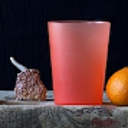
"Chrome" effect in iOS
Hi! Does anybody know what the new "Chrome-Filter" in the iOS 7 camera app is exactly doing? I want to reproduce that effect in Aperture. Thanks for your help!
Aperture 3, iOS 7
Hi! Does anybody know what the new "Chrome-Filter" in the iOS 7 camera app is exactly doing? I want to reproduce that effect in Aperture. Thanks for your help!
Aperture 3, iOS 7
I think you are at the very front of the wave on this one 🙂 .
Here's what I came up with:
The settings show you how I think the effect is achieved:
White Balance➞Tint +10
Enhance➞Contrast +5
Enhance➞Definition +25
Enhance➞Saturation +15
Colors➞Hue=25 (Orange)➞Saturation +60
Colors➞Hue=25 (Orange)➞Luminance +70
Colors➞Hue-25 (Orange)➞Range +50
Yours is the only photo I've seen with this effect, so my guess could be only useful for this one photo. You might save it as an Aperture Effect and see how it does with other Images.
I don't know of any way to set the Hue in the Color Brick. I just used the eyedropper and looked for a true Orange.
HTH,
--Kirby.
Yes, I also guess this has something to do with vibrancy. But there is additionally an effect which is applying a specified "bronze" look to all colors except of the highlighted ones.
Please have a look a the attached photos.
It seems to be a dynamic preset - like the OnOne presets.
with Aperture's buil-in adjustments I cannot get it right for all of the of the objects at the same time.
For example, these settings will get the chairs and the wall right, but not the desk: Add vibrancy and definition, and sample the color of the walls with the eye dropper in the color brick, then shift the tint:
That looks very close to the original, Kirby.
When I tried the Chrome filter on some photos taken with my iPad camera, it was exaggerating the wood tones badly, while other colors stayed the same:
Here is a picture of cupboard in my office with the Chrome filter applied:
All colors nearly stayed the same. The red of the table cloth is a little warmer than originally, the wood tone is much too yellow and the grain more prominent.
"Vibrancy" is an interesting tool. It is specifically non-linear. In this case, for a couple of reasons, it is not (imho) useful.
From the User Manual:
Adjusting Vibrancy in the Image
You use the Vibrancy parameter controls when you want to add a bit of punch to the image without affecting skin tones. The Vibrancy parameter applies saturation to the image in a nonlinear manner. Colors that are already saturated are left alone, while saturation is added to all other colors. In addition, the Vibrancy parameter takes skin tones into account, leaving them untouched. This allows you to take a portrait and desaturate the image except for the skin tones.
(Added:) (Ignore that last sentence for a bit. It applies to de-Vibrancy, which is a useful test of understanding, but is not applicable to this discussion.)
The first reason is that Vibrancy avoids "skin tones". We don't know how these are defined, but it is a safe guess that hues in the orange range are suppressed. This is the opposite of what appears to be done by the Chrome filter.
The second reason is that Vibrancy does not act on pixels that are already high in saturation. This, too (and of course again imho) is the opposite of what seems to be done by the Chrome filter.
The Vibrancy tool exists, I think, to apply a naturalistic saturation to Images -- it gives pictures with people (Caucasian people) in them a kind of glossy-magazine/TV/advertising/Disneyworld look. The example of the Chrome filter is an un-naturalistic effect. I just read that it takes its name, perhaps, from the oddly and unevenly saturated look of Kodachrome.
--Kirby.
Message was edited by: Kirby Krieger
I could not find any documentation on what exactly the filters are doing, but on the test images where I tried the Chrome filter it looked pretty much the same as increasing the "Vibrancy" in Aperture's "Enhance" brick.
Maybe thtat "Chrome" is a little biased towards warmer colors. The yellow and red colors were a little stronger saturated by the filter than blue and cyan.
I'm getting confused (it's just me -- I don't have iOS 7 installed, so I can't try Chrome myself).
The two photos the OP posted -- the top one is "unfiltered" and the bottom one has "Chrome" applied. Right?
When you say "That looks very close to the original, Kirby", you mean my pseudo-Chrome Aperture settings mimic the actual Chrome filter in iOS -- right?
And when you say you tried the Chrome filter on some photos taken with your iPad you mean you used the actual Chrome filter built into iOS -- right?
If I have all that right, then the Aperture settings I listed should probably have the Color range more limited. Maybe
Colors➞Hue-25 (Orange)➞Range +20.
😕
When you say "That looks very close to the original, Kirby", you mean my pseudo-Chrome Aperture settings mimic the actual Chrome filter in iOS -- right?
That is what I meant, Kirby, yes. Sorry for being so obscure.
And when you say you tried the Chrome filter on some photos taken with your iPad you mean you used the actual Chrome filter built into iOS -- right?
Exactly.
If I have all that right, then the Aperture settings I listed should probably have the Color range more limited. Maybe
Colors➞Hue-25 (Orange)➞Range +20.
Sounds good.
The example of the Chrome filter is an un-naturalistic effect. I just read that it takes its name, perhaps, from the oddly and unevenly saturated look of Kodachrome.
Where did you find this? That is interesting.
"Chrome" effect in iOS