New iMovie Audio Ducking

After upgrading to the newest iMovie (version 10.0), I've found what seems to be dramatically less control over "audio ducking." Where in previous versions I could set a clip to duck all others to a broad range of mixes, this newest version of iMovie seems to limit that control.


Even by boosting a clip's level to 400% and setting the ducking level to it's lowest setting (strange that there's only a slider and no longer a percentage shown), my audio mix is still unacceptable. In other words, my background music still gets in the way of the audio of my primary clip.


I'd like to use this new version of iMovie but find that I must use iMovie '11 (version 9.0.9) in order to have more flexibility with ducking.


Is there a setting or solution that I'm missing? Or is there a fix? Thanks in advance.

iMovie 10.0-OTHER, OS X Mavericks (10.9), MacBook Pro Mid-2012
Posted on Nov 1, 2013 1:50 PM

Reply
26 replies

Nov 2, 2013 2:59 PM in response to xJoe999

I think I found it in the iMovie help.


Adjust audio

iMovie has a number of tools you can use to automatically enhance the audio in your movie. You can boost the volume level of quiet audio in a clip, apply an equalizer preset, reduce background noise, and lower the volume of other audio playing along with a clip.

Show

Automatically enhance audio


Hide

Lower the volume of other clips that play at the same time

When you have background sound or other clips with audio playing at the same time as a clip you want to hear in the foreground, you can automatically lower the volume of the other clips so that they don’t compete with the clip you want to hear.

For example, if you record a section of voiceover audio, you can have iMovie lower the volume of background music and other clips while the voiceover clip plays.

  1. In the timeline, select the clip whose audio you want to hear in the foreground.User uploaded file
  2. Click the Adjust button in the toolbar.User uploaded fileThe adjustments bar appears above the viewer.
  3. To show the volume controls, click the Volume button.User uploaded file
  4. Select the “Lower volume of other clips” checkbox.User uploaded fileThe volume of the clips that aren’t selected is lowered.User uploaded file
  5. Drag the slider to set the volume of other clips relative to the volume of the selected clip.


Show

Nov 21, 2013 10:41 PM in response to BobRhodes

How to lower the volume of audio or raise the volume of audio. This tutorial will lower the volume of the music soundtrack you've added to a movie in order to hear the sound on the video temporarily. You may do this because all the talking on the video is boring, so you put music over it, but you want to hear someone make a joke so you need to turn the music down.


1. In your music soundtrack, hold the Command key and click on a point in the music soundtrack timeline before and after you want to hear the video's audio.

2. In your music soundtrack, hold the Command key and click the points in the music soundtrack timeline – not the video's timeline – where your video's desired audio starts and stops.

3. You will have four points now in your music soundtrack.

4. With the second and third points (from the left), drag it down to 0%.

5. Do the reverse with your video's desired audio points.


It looks like the attached screenshot.

User uploaded file

Nov 2, 2013 7:58 PM in response to BobRhodes

Just noticed this today - either I'm missing something obvious or we can throw this on the pile of annoying changes iMovie is going through.


Even with the slider all the way to the left on the ducking volume, this was not enough to reduce the volume of the background music - the voice of the on-camera subject still could not be heard clearly.


The only solution I found was to drag down the volume of the background music track at the bottom of the window, down from 100%, along with keeping the ducking slider all the way to the left.


I think Apple figures that most consumers are more interested in how to "share" their video on social networks than how to make a semi-professional video.

Nov 7, 2013 3:57 AM in response to BobRhodes

There are bugs with the new iMovie 10, changing transition lengths is one, scrubbing while playback on time, stabiliser adjustment not accurate (harder to control), and just discoverd today that ducking video sound with a music track isn't working for me. There is no % percentage anymore, and istead look like each video clip has to be adusted instead (at least that is what they said at the iMovie tutorial at Apple Store) - defeats the upgrade as means this version will mean more time to produce anything than previous version with offered more features, and ones that actually worked.


The new iMovie 10 looks nice, but functions less impressive than previous version.

Nov 7, 2013 9:20 AM in response to BobRhodes

Thank you for the answer in the previous posts, though I missed it when I first skimmed the replies. So I'll state it very simply for other people like me who need things stated very simply:


How To Reduce The Audio Of A Background Music Track Under A Single Video Clip (also known as "Ducking") In iMovie 10.0

(You use this when you want the music to swell for graphics and fade down a little when someone's talking.)


1. Drag the music clip you want into place on the project timeline, so it's under the "talking" video clip. (Its volume will be 100%. You can leave this alone.)


2. In project timeline click on the video clip with the talking. The clip will appear in the Adjustment box.


3. Click the Adjust icon. Click the Audio icon. Check "Lower volume of other clips."


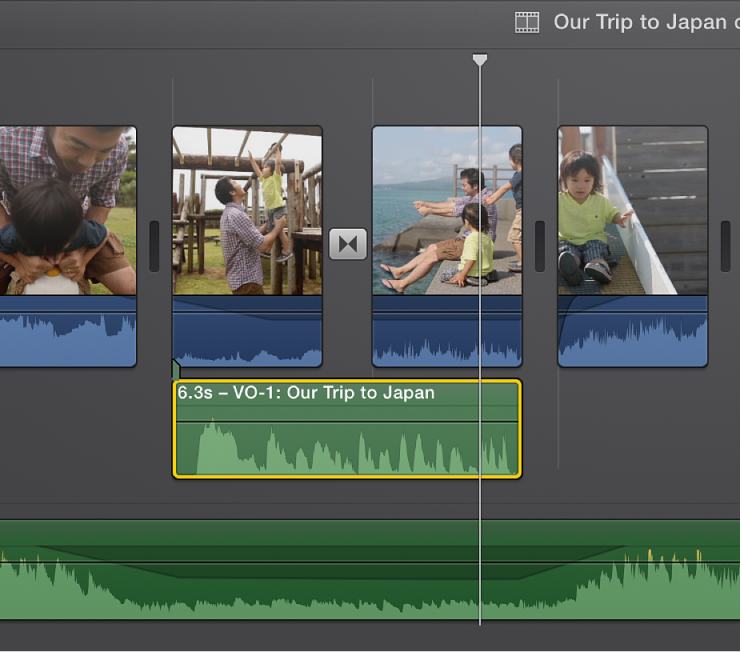
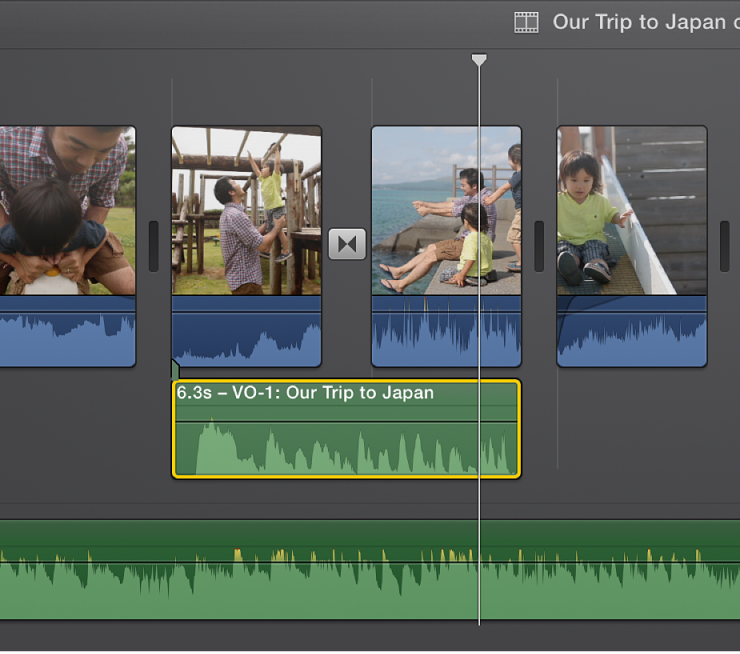
4. As you move the slider button to the right, look at your music track. A "shadow" is growing under your talking video clip and the music track volume is going down for the duration of that clip. Slide it further to the RIGHT for MORE ducking. Slide it to the LEFT for LESS ducking. (This is somewhat counterintuitive.)


5. You can do this for a bunch of video clips at once by selecting them. But I prefer to do it a clip at a time.


Hope this helps somebody.

Nov 10, 2013 2:22 PM in response to Slackbridge

I have the slider all the way to the left, but it still DRAMATICALLY lowers the background music to the point where it is a very awkward transition. I only want the background music to drop slightly since there isn't much of interest on the audio of the clip (just a few words). Do you know how to do this? I'm in the middle of a major project, and I wish I'd never changed to '13.

Nov 10, 2013 5:41 PM in response to Slackbridge

I think the range of volume for the ducking is relative to the volume of the clip. The particular clip I'm having trouble with has only a few words during a 30 second clip. Therefore, the new iMovie is trying to outsmart itself by only allowing me to have the background music at a certain level. If I turn the volume of the clip up to 400%, the background music would be louder but those few words are blasted. Make sense?

Feb 2, 2014 11:49 AM in response to Steven Vance

I have iMovie 10.0.2, and I can't get it to do this. I can't select just one section in the sound bar and decrease and/or increase the volume in that one point (i.e., 1—10 secs). I used to be able to do this — really easily — before the update.


There's no more clicking and dragging over a section to lower the volume in that section now.


And, when I hold down the Command and/or Option keys, I still can't section off an area for the purpose.


Arggggh.

Feb 2, 2014 9:05 PM in response to BobRhodes

I had this exact same situation, and got completely stumped by the 'reduce other tracks' slider. Not only does it not show the percentage so that you can easily make sure all clips have the same levels, but it's completely counter-intuitive to slide it UP to decrease the other tracks, and DOWN to increase them.


For those who didn't see the other user's replies... you need to drag that slider to the RIGHT to decrease other tracks.

Feb 12, 2014 9:55 AM in response to Steven Vance

Thank you for your post and screen shot. Nothing like it in any of the official Apple documentation. It was a bit confusing at first, based on your screen shot. What I found was that I had to "Create a Movie" using the new clips I had added before I could edit the waveform at the level you've demonstrated. Once I created a new "Movie" nad added my clips, I could then select the clip in question and even double click in the Waveform area to zoom in on the audio only.


When I was at the "Project" level (let's call it) immediately after import, I could only use the supplied iMove adjustment button, which allows only wholesale output level adjustment, not the granular editing you depicted.


I would have NEVER figured this out without your guidance.

Jul 31, 2014 9:52 AM in response to BobRhodes

Tip: If you are having trouble hearing the audio clip over the background music, you can also detach the audio track from the video and duplicate it. This way you can hear the audio at 800% instead of 400%.


1. Click on the video clip. On the iMovie taskbar, click Modify > Detach Audio

2. Click on the audio track, which is now separate from the video track.

3. On your keyboard Control + Copy

4. Select the beginning of the audio track, and then click Control + Paste


Now you have two audio tracks of the original. This trick can also be used if you want the background music louder than the video's audio. Just duplicate the background music track.


Hope this helps someone!

This thread has been closed by the system or the community team. You may vote for any posts you find helpful, or search the Community for additional answers.

New iMovie Audio Ducking

Welcome to Apple Support Community
A forum where Apple customers help each other with their products. Get started with your Apple Account.