
how do i back up my iPhone?
Here is a guide on how to backup your iPhone
Should I back up with iCloud or iTunes?
Get help deciding whether to use iCloud or iTunes to back up the content on your iOS device.
Use iCloud
iCloud Backup provides an easy and reliable backup solution for customers who want to back up their iOS devices wirelessly and automatically.
Back up to iCloud
If you're using iCloud, it can automatically back up your data if you've chosen this option. You can verify your iCloud backup and make sure that it's up to date by following these steps:
- Tap Settings > iCloud > Storage & Backup.
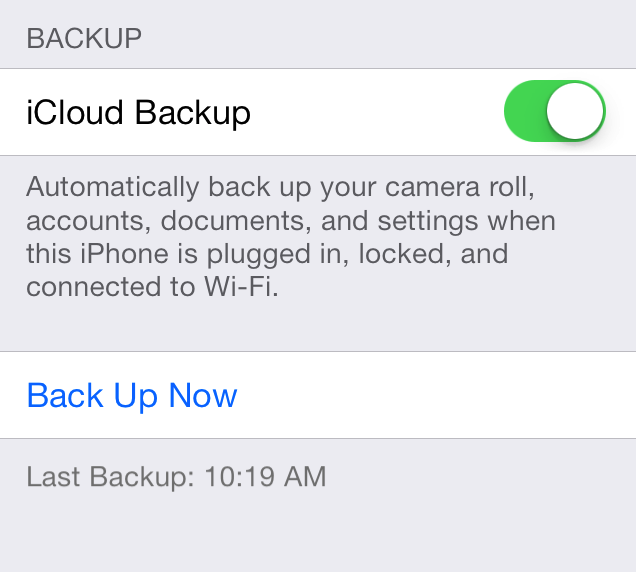
- Turn on iCloud Backup if it's off.
- Tap Back Up Now.
Restore from an iCloud backup
If you have a new iOS device, or if you need to restore your iOS device to resolve an issue, follow these steps.
- Follow the initial steps in the iOS Setup Assistant (select your language, and so on).
- Select Restore from iCloud Backup when the assistant asks you to set up your iPhone (or other iOS device).
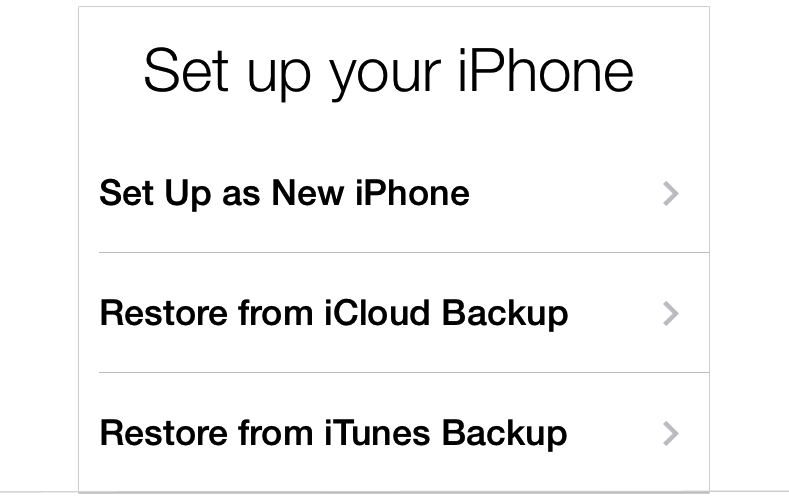
- Select the backup you created earlier.
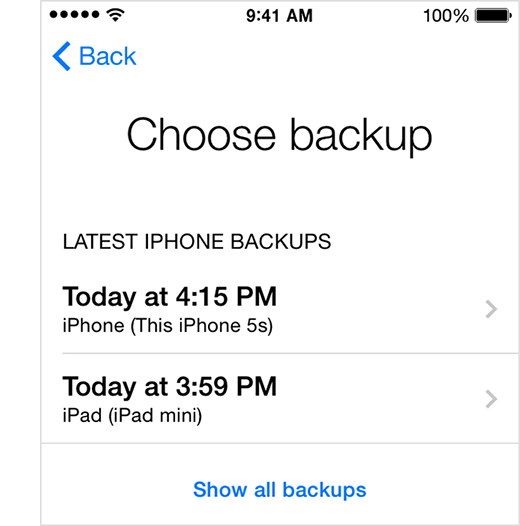
You can restore a backup only by using the iOS Setup Assistant.If you've already set up your device, you can erase all current content to go through the iOS Setup Assistant again. Tap Settings > General > Reset > Erase All Content and Settings. Do this only if you already have a backup, because this step will remove all current content from your device.
Use iTunes
You can use iTunes to back up and restore your content on your iPhone, iPad, or iPod touch. Note that iTunes and iOS do not support installing backups of newer versions of iOS onto devices using earlier versions of iOS.
Back up
To back up the content on your iOS device, follow these steps:
- Make sure your computer has the latest version of iTunes.
- Connect your iOS device to your computer.
- Choose File > Devices > Back up.
If you're using iTunes 10.7 or earlier, right-click the device from the list and choose Backup Now.
You can also back up by syncing your iOS device with your computer. When you use iTunes to sync, backing up is the first step.To verify that the backup finished successfully, open iTunes Preferences and select the Devices tab. You'll see the name of the device along with the date and time iTunes created the backup.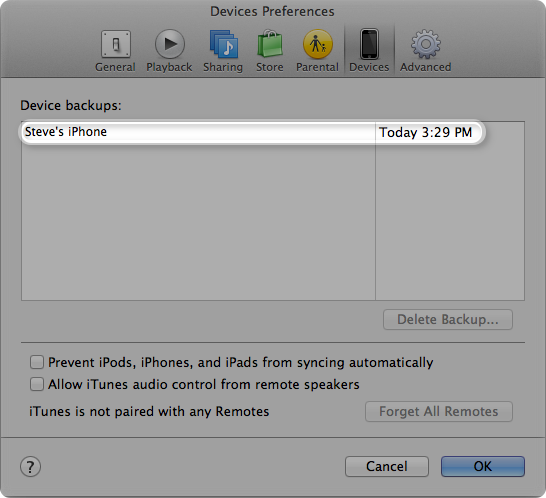
Restore from a backup
If you have a new iOS device, or if you need to restore your device to resolve an issue, follow these steps:
- Connect your iOS device to the computer that has your backup.
- Make sure this computer has the latest version of iTunes.
- Choose File > Devices > Restore from Back up.
If you're using iTunes 10.7 or earlier, right-click the device from the list and choose Restore from Backup.
Apple Internal Comments
If you're troubleshooting an iCloud issue and need to back up the device, consider making a secondary backup with iTunes.
iTunes and iCloud both create a date- and time-stamped backup when you select "Restore from the back up of…" or "Restore as New." iTunes retains these backups; see iTunes: About iOS backups for more details. For iCloud backup details and steps to manage, see iCloud: Managing your iCloud storage.
To back up all personal data and content, follow this article (or send it to the customer): How to back up your data and set up as a new device.
iPhone 5s, iOS 7.1