HT204686: How to erase your iOS device and then set it up as a new device or restore it from backups
Learn about How to erase your iOS device and then set it up as a new device or restore it from backups
-
All replies
-
Helpful answers
-
Aug 26, 2014 11:55 PM in response to adarshfromindiby Ocean20,Are you performing the last few steps? They are:
Restore your device using a previous backup in iCloud
- Erase all content and settings by tapping Settings > General > Reset > Erase All Content and Settings.
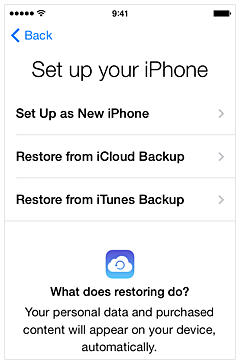
- When your device turns on, complete the setup assistant. When prompted to set up your device, choose Restore from iCloud Backup and enter your user name and password.

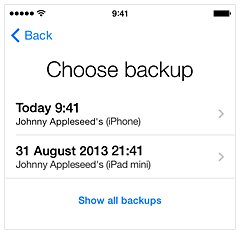
- iCloud will prompt you to choose a backup. Select the backup you wish to use and tap Restore to continue.

Restore your device using a previous backup in iTunes
- Ensure that you have the latest version of iTunes installed.
- Mac: Choose iTunes > Check for Updates
- Windows: Choose Help > Check for Updates
- Connect your device to your computer.
- Select the Restore from Backup option by choosing File > Devices > Restore from Backup.
- Choose the desired backup from the list provided.
- Note: If Find My iPhone is enabled you need to turn it off in Settings > iCloud before you can restore your device.Some Apple services (such as two-step verification for your Apple ID) require Find My iPhone to be turned on. After testing the issue, sign in to your iCloud account and enable Find My iPhone.
IF you are then you are restoring from a backup and the phone will have everything that was in the backup. Try stopping just before the step headed:
Restore your device using a previous backup in iCloud