yosemite graphics problem on macbook

Hello, ever since I've upgraded to OSX Yosemite, any time I use an app that switches to discreet graphics, my macbook freezes and requires a hard reboot. I have since installed a program that forces everything to use integrated graphics, but obviously that is a bandaid at best. Is anyone else having issues with their graphics cards post Yosemite?


Apps that caused crashes (so far): Adobe Photoshop CS6, Hearthstone, MPlayer OSX Extended, and basically any game that tries to use the discreet Nvidia graphics card.

MacBook Pro with Retina display, OS X Yosemite (10.10), 2012 MacBook Pro Retina 2.3GHz 16Gb

Posted on Oct 22, 2014 1:14 AM

Reply
136 replies

Dec 18, 2014 8:06 AM in response to Leopardus

I think you are mismatching the procedure to reset ACL for all user (using resetpassword utility launched via terminal after having booted from recovery partition), with the procedure suggested in the discussion I linked, which basically says to boot in safe mode, repair permissions with disk utility, reset SMC, reset PRAM.

Obviusly one is supposed to have the laptop disconnected from periphals to follow that procedure. Have you even read it, and then tried it?

It worked for me.


Once again here's the link Guide: How to solve Yosemite memory leaks and CPU usage

there is no boot from recovery hd, nor ACL repair involved.

Dec 18, 2014 8:40 AM in response to Rayced

Obviously your problems are not solved Sonny!


"After having done once again the procedure to repair disk permissions and reset SMC & PRAM that I linked in my previous answer

Now the lagging on graphics is gone when connected to the Thunderbolt Display in clamshell mode.

What I'm repeatedly noticing is that, whenever I have to fix disk permissions, I'll always get these that were wrong on displaypolicyd both user and group ownership to 244 instead of 0"


It is better to do your disk repairs from the untampered recovery mode/partition, than from the live system. BTW Boot (Startup) can be done from the Recovery Mode. Minimal files drivers are loaded, just for the purpose of repairing a system. (You do that by pressing Command-R during startup)


And no, I am not confusing the issue. I know perfectly well what can be reset, and or set with the tool. There are several other tools available from there, including a full system reinstallation, and ..... Disk Utility!


I have read the important parts of the thread quoted, but it is not Gospel and not always necessary to reset PRAM and or SMC. Apple support documentation deals very clearly with that.


The title of this thread reads, however: yosemity graphics problems on macbook.


I have successfully migrated our Macs to Yosemite and solved the related problems that we had.


I fully agree with you that a Hardware Test could and should be done when necessary. However his Mac worked before the migration.

Dec 18, 2014 10:22 AM in response to Leopardus

If you'd read that procedure, you'd also gotten that disk permission repair is done while in safe boot mode.

The problem with diplaypolicyd permissions is gonna always re-occur unless disabling the security setting for password request after a certain amount of time the display has been in sleep mode.

Having clarified that I don't know if the problem get triggered by that permission. All I am saying is that it re-occurs that change. Perhaps what really do the trick is the SMC and PRAM reset done after having fixed permissions in that way.


Finally I think you can call names as "sonny" or "old sport" etc. someone else's, not me since I don't recall having any kind of relationship with you aside of having both written on this topic.

Dec 18, 2014 11:51 AM in response to Rayced

Excuse the dry humor, it indicates the time that we grew up.


For your benefit I pasted the updated support page wrt Safe Boot and what it does. Kindly point out the permission solving to all of us.


I would like to repeat that the title of the thread deals with graphic problems on a MacBook. It does not help to heap problems onto another thread, as the solutions could be specific to a particular system.


The re-occurance indicates that the specific problem still has not been identified and rectified.


I sincerely hope that you will find a solution, but all indications point to software, not hardware.


I will check on it tomorrow. It is late in Europe.

OS X: What is Safe Boot, Safe Mode?

Learn more about Safe Mode, a special way to start up your Mac.

What is "Safe Mode"?

Safe Mode (sometimes called Safe Boot) is a way to start up your Mac so that it performs certain checks, and prevents some software from automatically loading or opening.

Starting up in Safe Mode does several things:

  • It verifies your startup disk, and attempts to repair directory issues if needed.
  • Only required kernel extensions are loaded.
  • All user installed fonts are disabled while you are in Safe Mode.
  • Startup Items and Login Items are not opened during startup and login on OS X v10.4 or later.
  • In OS X 10.4 and later, font caches that are stored in /Library/Caches/com.apple.ATS/uid/ are moved to the Trash (where uid is a user ID number).
  • In OS X v10.3.9 or earlier, Safe Mode opens only Apple-installed startup items. These items are usually located in /Library/StartupItems. These items are different from user-selected account login items.

Together, these changes can help resolve or isolate certain issues on your startup disk.

Starting up in Safe Mode

Follow these steps to start up into Safe Mode.

  1. Be sure your Mac is shut down.
  2. Press the power button.
  3. Immediately after you hear the startup sound, press and hold the Shift key. The Shift key should be pressed as soon as possible after startup, but not before the startup sound.
  4. Release the Shift key when you see the Apple logo appear on the screen.

After the Apple logo appears, it may take longer than usual to reach the login screen. This is because your computer is performing a directory check as part of Safe Mode.To leave Safe Mode, restart your computer without pressing any keys during startup.

Starting in Safe Mode without a keyboardIf you don't have a keyboard available to start in Safe Mode but you have remote access to your computer, you can configure the computer to startup in Safe Mode using the command line.

  1. Access the command line by either opening Terminal remotely, or by logging into the computer using SSH.
  2. Use the following Terminal command:
    sudo nvram boot-args="-x"
    If you want to start in Verbose mode as well, use this instead:
    sudo nvram boot-args="-x -v"
  3. After using Safe Mode, use this Terminal command to return to a normal startup:
    sudo nvram boot-args=""

How to tell your computer is started in Safe Mode

You can check to see if your computer is started in safe mode:

  • The words Safe Mode appear in the upper right corner of the login screen .
  • The Software section of System Information lists the Boot Mode as "Safe" instead of "Normal".
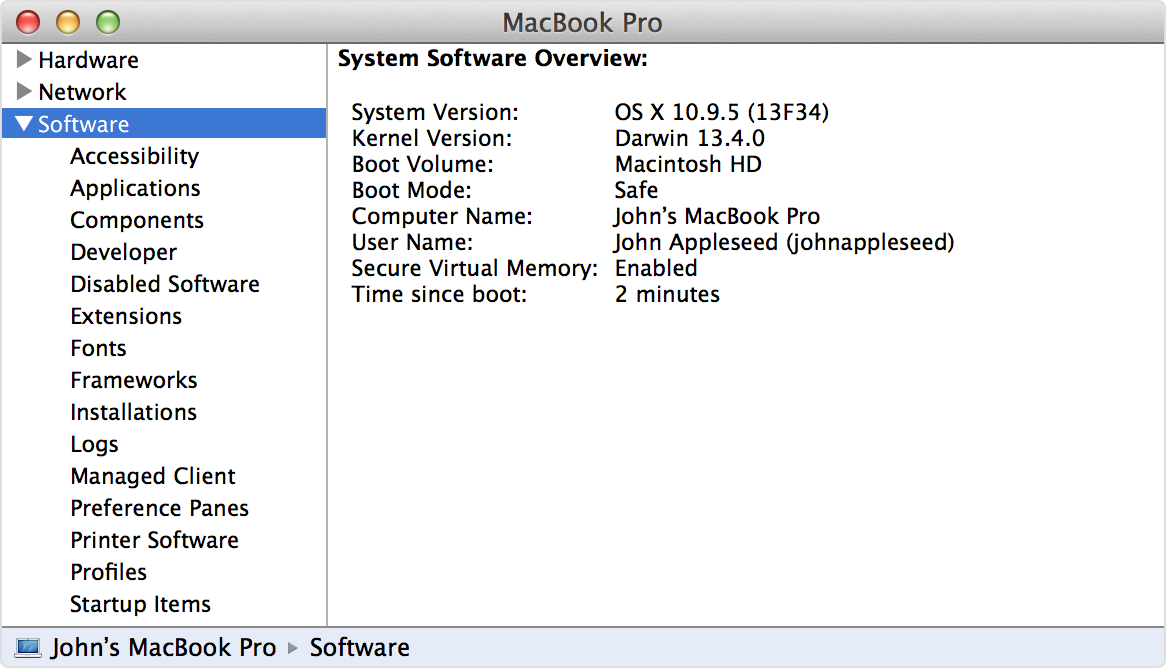
    User uploaded file

Some features aren't available in Safe Mode

Some OS X features aren't available when your Mac is started in Safe Mode. For example, you can't use DVD Player, capture video in iMovie, or use audio input or output devices. Some USB, FireWire and Thunderbolt devices may not be available. Wi-Fi networking might be limited or unavailable depending on the computer and OS X version you're using.

Safe Mode in OS X v10.5 or later also disables hardware accelerated graphics. The OS X menu bar appears solid even if "Translucent Menu Bar" is enabled in Desktop & Screen Saver preferences. Your screen might also "blink" or "tear" during login.

Safe Mode in OS X v10.6 or later also disables File Sharing. This means you can't mount Time Capsule disks or volumes served by computers started in Safe Mode.

Learn More

You can learn more about Safe Mode by searching for "Safe Mode" in the Help menu.

Last Modified: Dec 1, 2014

Dec 18, 2014 9:35 PM in response to Leopardus

Doesn't work for me. Running 10.10 and it crashes constantly in Google Earth. Maybe GE just uses too much processing power but it's not just limited to that. If I have a few apps running, maybe Google Music, a video, etc, it will do the same. I've tried scaled display, switching off the auto-switch in energy saver and a few other things but nothing works. I will update when it happens again as to exactly what I was doing when it crashed. Seems like it's getting worse. In GE, try zooming in and panning around, then try rotating the north icon so you can spin around on the vertical axis, crashes every time. Maybe that's a different issue but not sure. Also with picassa, when I go to scan entire drive for pics, it freezes and says it encountered a graphics problem. Many Google-ish issues. Will update and thank you for the suggestion.

Chris

Dec 25, 2014 1:55 PM in response to thomasteo

I am concerned when reading all these problems. I've just bricked my mac book pro 17" (early 2011) because of graphics problem. After that I did a bit of research on the web and it turned out to be a wide spread problem. But ****, that I only learn after I bought a replacement mid 2014 mac book pro retina 15".

So I am worried that the same nightmare will start again. It seems that Apple has a history of quality issue around discrete graphics adapter.

Ha, ha. I did exactly the same 😮 went out and got a spanking new MBP to be able to continue my work. The good thing about it is that there is no discrete graphics board in it. The bad, really bad: it has specialized, overpriced SSD drive in it which cannot be replaced (yet) without spending a fortune 😢

Dec 26, 2014 12:06 PM in response to r100

well, fortunately I did a complete new install of Yosemite on a new hard drive and kept the original system! Having tried to work with Yosemite for three weeks with increasing problems on the discrete graphics I now give up. Interestingly, though I have tried to install Linux (Ubuntu 14.04 LTS), and using the NVIDIA driver did cause the same kind of problems as Yosemite: black screen and complete system restart. With the community developed driver there weren't any problems, however, graphics power is then limited... So perhaps it isn't Apples fault in the first place, but that of Nvidia?


So now I stopped messing around and put the original hard drive in, 10.6.8. Everything works fine.

Dec 26, 2014 12:33 PM in response to r100

You may have had to replace the graphics card-logic board on your MBPro17"(early 2011), as did I on my 15." Unfortunately the first part Apple installed went belly up and they re-installed another, and things are fine now.
Even though you've spent the money on a new machine, a new logic card will cost you between $300-400. The flexibility of these early 2011 MBPros can't be beat, and I suspect folks like myself want to keep them as long as we can.

Dec 26, 2014 3:43 PM in response to Rayced

Actually not, mine has no Retina display, it is a 6,2 early/mid 2010 i5 with Nvidia GeForce GT 330M (discrete) and Intel (onboard) GPU.

Given the choice to either change the mainboard or stay away from Yosemite, my choice is clear.


Some time ago I had bought another one of the same model for my mother, 2nd hand, that came with Mavericks.

She has no problems so far (but probably is not making high demands on the graphics, so perhaps it never switches to the Nvidia GPU). But I'll make sure she won't upgrade to Yosemite. Perhaps the code name stands for "abandonement in the digital wild"...

Dec 26, 2014 4:04 PM in response to molemi

Well it looks like the issue with your discrete GPU is not related to the manufacturer as you stated though; you are experiencing the same problems as those with an AMD discrete GPU.

Are you using an external display too?

What kind of graphic problems did you experienced on Ubuntu?

Don't you think it's weird that an OS much lighter on graphics as Yosemite (no antialiasing on diagonals… feeling back in the '90s!) has so many issues compared to Mavericks which is much "richer" graphically (lots of shadows, texture, effects, antialiasing).

Dec 27, 2014 8:51 AM in response to molemi

well, fortunately I did a complete new install of Yosemite on a new hard drive and kept the original system! Having tried to work with Yosemite for three weeks with increasing problems on the discrete graphics I now give up. Interestingly, though I have tried to install Linux (Ubuntu 14.04 LTS), and using the NVIDIA driver did cause the same kind of problems as Yosemite: black screen and complete system restart. With the community developed driver there weren't any problems, however, graphics power is then limited... So perhaps it isn't Apples fault in the first place, but that of Nvidia?


So now I stopped messing around and put the original hard drive in, 10.6.8. Everything works fine.

I rebooted on an old backup with Mavericks and had exactly the same kernel panics, etc. as I had with Yosemite. Now I am sure it is a hardware problem. No reinstalls, PMC or PRAM resets will help, unfortunately.


Another thread with the same issues here

Dec 27, 2014 5:09 PM in response to r100

r100 wrote:


well, fortunately I did a complete new install of Yosemite on a new hard drive and kept the original system! Having tried to work with Yosemite for three weeks with increasing problems on the discrete graphics I now give up. Interestingly, though I have tried to install Linux (Ubuntu 14.04 LTS), and using the NVIDIA driver did cause the same kind of problems as Yosemite: black screen and complete system restart. With the community developed driver there weren't any problems, however, graphics power is then limited... So perhaps it isn't Apples fault in the first place, but that of Nvidia?


So now I stopped messing around and put the original hard drive in, 10.6.8. Everything works fine.

I rebooted on an old backup with Mavericks and had exactly the same kernel panics, etc. as I had with Yosemite. Now I am sure it is a hardware problem. No reinstalls, PMC or PRAM resets will help, unfortunately.


Another thread with the same issues here


Haven't you moved to the newest MacBook Pro model?

BTW I'm still experiencing slowdowns with graphic effects only when connected to an external display in clamshell mode.

If I'm on the built-in display and using applications that triggers the discrete graphic card I have no slowdowns nor graphic glitches at all.

Mac Book Pro 15" early 2011 16GB RAM Core i7 2,0 GHZ Mac OS X Yosemite 10.10.1 (fresh install) NO GARBAGE installed as Adobe AIR, Adobe Flash Player, Google's crap, Microsoft's crap. Not even Java installed here.

I'd really like to get back at my previous productivity by using my external display fine in clamshell mode.

Also not having to see such things in 2014 on the most advanced OS would be good:

User uploaded file

This thread has been closed by the system or the community team. You may vote for any posts you find helpful, or search the Community for additional answers.

yosemite graphics problem on macbook

Welcome to Apple Support Community
A forum where Apple customers help each other with their products. Get started with your Apple Account.
