Hi Angie_gurl,
Happy Thanksgiving! If you are not hearing sound alerts for incoming phone calls and text messages on your iPhone 5, check these settings and troubleshooting steps:
Change sounds, ringtones, and alerts on your iPhone, iPad, and iPod touch - Apple Support
http://support.apple.com/en-us/HT204019
Go to Settings > Sounds. You'll have these options:
- Turn vibrate off (iPhone only).
- Adjust your ringer and alert volume.
- Prevent the side buttons from changing the ringer volume.
- Set your ringtone, text tone, and other alert tones. To set a tone for a specific person, go to their card in Contacts.
- Turn your keyboard clicks on or off, and turn device lock sound on or off.
If you hear no sound or distorted sound from your iPhone, iPad, or iPod touch speaker - Apple Support
http://support.apple.com/en-us/ts5180
Follow these steps and test the sound after each one.
- Go to Settings > Sounds and drag the Ringer And Alerts slider to turn the volume up.
- If you can hear sound from the speaker, then the speaker works. Continue with these steps to find the setting or switch that's affecting the sound.
- Make sure the Ring/Silent switch is set to ring. If you can see orange, it's set to silent.
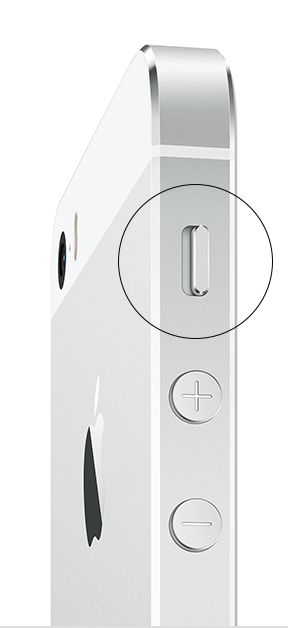
- Restart your device.
- Open an app that has music or sound effects. Adjust the volume with the volume buttons or the slider in Control Center.
- Go to Settings > Bluetooth and turn off Bluetooth.
- If there's still no sound, connect a headset. If you can hear sound through the headset, remove it and clear any dust or debris from the headset jack of your device.
- If the device is in a case, make sure that the case doesn't block the speaker.
- Use a brush to gently clear any debris from the speaker and Lightning connector (or 30-pin dock connector). The brush should be clean and dry and have soft bristles.
- Update your device to the latest version of iOS.
If you followed these steps and still hear no sound or distorted sound, contact Apple Support.
Enjoy your day!
- Judy


