deleting paragraph marks

Hi

I just pasted some text into Pages 5.5.1 and the text ended up having a paragraph forced mark at the end of every line. Does anyone know how to get rid of this?? the text originated in a PDF that came from scanning a typed manuscript that I want to be able to edit. In Acrobat Pro, I selected the option to make it editable... and then I selected all, and copied, and then pasted into Pages. My goal is to be able to take this manuscript of about 150 typed pages and edit it... so if there are other suggestions than the PDF in Acrobat, that's great too. but in the meantime... how do I get rid of these paragraph marks!? thanks much. working on MBP 15 inch, mid 2012, with Yosemite.


User uploaded file

Posted on Nov 25, 2014 6:43 PM

Reply
19 replies

Sep 12, 2016 10:31 AM in response to PeterBreis0807

Thanks all -- I need to research Automator, because I don't know what that is. I have to admit that I'm hesitant to take the document to another application, because it's formatted (and is 400 pages) for different styles, etc.


I did manage to select the paragraph symbol and paste it into the Find box, but it selects all of the spaces between words in the paragraph instead of just the paragraphs. I've done it several times to make sure I'm ONLY selected the paragraph symbol, but keep getting this:

User uploaded file

Sep 12, 2016 2:21 PM in response to Drew Reece

Thank you --


you wrote:

"Personally I think the image you just posted looks correct, the paragraph marks seem to be in the correct places - are you sure you didn't already find & replace those items?"


I probably wasn't clear enough in my question...

My issue isn't that the paragraph marks are in the right place. It is that the paragraph marks in the document were inconsistent. Therefore, instead of going thru 400 pages to delete some extra paragraph marks, I wanted to remove all of the paragraph marks and then use the style spacing (i.e. before and after paragraph) so that the spacing was consistent before and after all paragraphs, based on their assigned style. (this is what I've been doing in my newer documents and it works well.)


However... I did manage to select the paragraph symbol using your advice, and deleted them all.

BUT, when I deleted all of the forced paragraphs, all of my style settings disappeared! So, my great idea doesn't seem to work anyway.


FYI -- This is what one page looks like, with the styles and the paragraph marks: As you can see, there are a bunch of paragraph marks at the bottom of the page that I don't want.
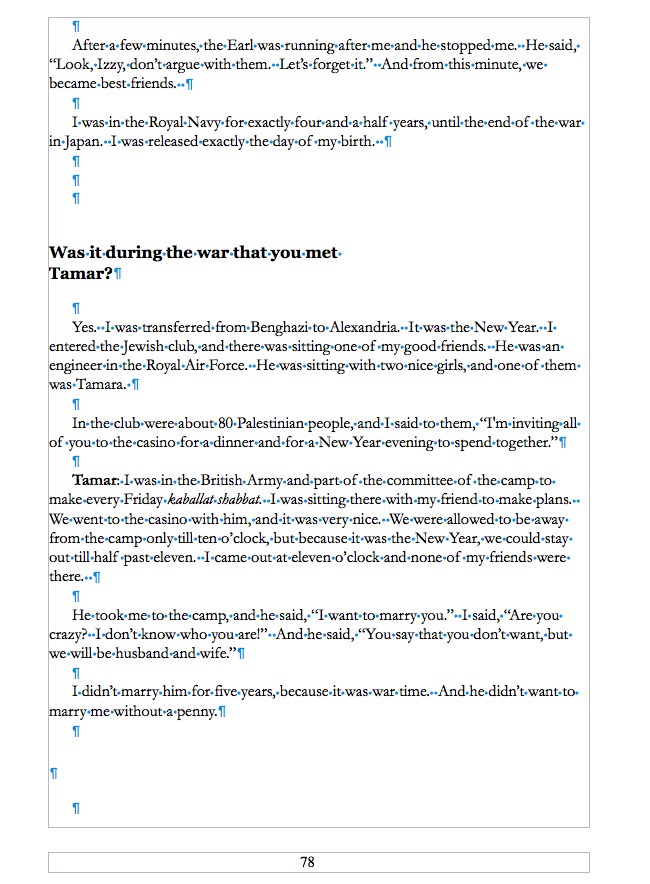

User uploaded file


again, it doesn't seem like my idea will work because I lose the styles when I delete all of the paragraph marks.


I am not sure about the comment you made about Acrobat, since I've never used this document in Acrobat.


Also, when I open in Preview, select all, copy and then paste in a new Pages document, only the paragraph symbols appear.
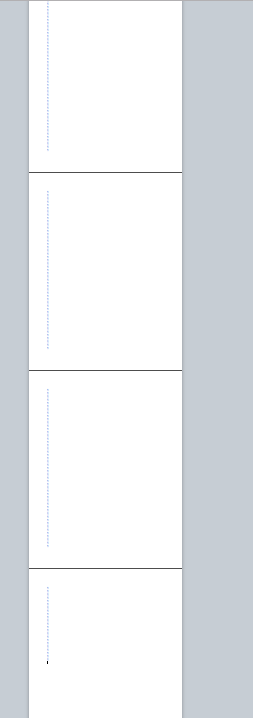
User uploaded file


Thank you again for your suggestions and time..... :-)



Dec 14, 2014 3:42 PM in response to mbpellie

This is a little buggy in Pages but...

Find & Replace invisibles by selecting what you want to replace then

choose “Edit” Drop down menu > Find > Use Selection for Find

Or press (command+E)

Your highlighted selection is placed in the Find line in the “Find & Replace” window

You will not see it on the Find line, but it is there.

Something is there because the word “Find” no longer shows in the Find line.

Now you can use Find and Replace just like you use it with text


Or you can add invisibles to the Replace line too:


1) Highlight the invisibles symbol you want to put in the “Replace” line.


2) Click “Edit” drop down menu > Find > Use Selection for Replace

Your highlighted selection is placed in the Replace line in the “Find & Replace” window

You will not see it on the Replace line, but it is there.

Something is there because the word “Replace” no longer shows in the Replace line.

Re: how to replace paragraph markers and tabs in Pages

Nov 25, 2014 7:56 PM in response to mbpellie

You can do a search and replace in any texteditor. Page 5 has become needlessly clumsy.


1. If you don't have it already add an extra return at the ends of real paragraphs (so there are 2)


2. Do a search and replace on 2 paragraph returns by copying and pasting the 2 returns into the Find, replace with a marker eg <P>


3. Search and replace on the returns, replacing them with a space


4. Search on <P> and replace with a paragraph return.


Apps like TextSoap will do all this for you.


Peter

Nov 26, 2014 3:32 AM in response to mbpellie

Hi mbpellie,


Just adding to Peter's step 1.


1. If you don't have it already add an extra return at the ends of real paragraphs (so there are 2)


You could make a guess that a full stop (period) followed by a paragraph mark is the end of a real paragraph.

Copy one [full stop and paragraph mark] and paste into Find.

Replace All with full stop<P>


Then proceed with Peter's steps 3-4.

This is not infallible; you will need to proof read. But it will help make it easier to do Step 1 instead of typing extra paragraph marks on 150 pages. And it negates step 2.


Regards,

Ian.

Sep 11, 2016 1:35 PM in response to undernourished

I am back with a similar question.... want to remove ALL paragraph breaks in a document, but can't seem to "highlight" a paragraph symbol! When I try various tricks to do so, thinking I've highlighted that symbol, instead, I end up "finding" all of the spaces between words, NOT paragraphs. Is there some trick to typing in the paragraph symbol into the find/replace window?


Thanks! I'm using Pages 5.6.2

Sep 11, 2016 3:52 PM in response to mbpellie

I don't know where this issue originates - it may be that Acrobat Pro added the paragraph marks to the line endings or they could be the original document as a part of it's formatting.


Automator has a 'extract text from PDF' action. I would run that on the original document to see if it is different to the modified Acrobat one.


Add a 'Get selected Finder items' and a 'Extract PDF Text' action to a new workflow & select your document in Finder & run it. It may give you different results to open in Pages.

Sep 11, 2016 4:03 PM in response to Drew Reece

Drew


pdf files do not have a constant flow of text like Word Processor documents. The text is in chunks, usually one line at a time with an anchor point. It may even be broken up into smaller pieces by changes in formatting such as kerning which is done simply by adding a new anchor point.


Preview is smart enough to not just detect columns but also to detect paragraphs. Use that to extract the text instead of Adobe Acrobat which seems to get worse with every iteration now, like most of Adobe's software.


Peter

Sep 11, 2016 4:22 PM in response to PeterBreis0807

Preview & the 'extract text' Automator action are the same rendering engine as far as I can tell - that is why I wonder if it will parse text without forcing paragraph marks.


Apologies if it doesn't work, I just thought it was worth trying another tool, there are also command line pdf extraction tools & text filtering options but I suspect that the OP wants to use GUI tools for it.

Sep 11, 2016 4:37 PM in response to Drew Reece

Clicking in the text in Preview and going command a (select All), Copy and Paste, which does not insert line breaks, seems to me easier than going through the arcane and unreliable procedures of Automator.


Also I would not swear that Preview is using the same "rendering engine" of Automator, in fact I have serious doubts that is true, because even the way it converts .eps files to pdf is not the same.


Peter

Sep 12, 2016 11:06 AM in response to mbpellie

Automator is just an Application made by Apple to allow you to join tasks together to make it very easy to 'automate' tasks on your Mac. It's up to you if you don't want to use it, it may mean you don't have to mess about trying to find & replace the paragraph marks.


Whatever you decide just make a copy of the original document & work on that. There is really nothing you can do to the original if you make a copy, especially if you also put a copy on to a USB disk & then put that somewhere for safe keeping.


Have you even tried PeterBreis0807's suggestion –

Open the document in Preview, 'Edit > Select All', 'Edit > Copy', move over to pages & paste it in. Does it look broken in the same way?


We both suspect that Adobe Acrobat has ruined your text, using another tool may prevent that from happening.


If you are able to do so you post the document online & allow us to try to do the steps or you could export a single page in Preview if you wanted. We are guessing how your original document is formatted, which makes it difficult to see where the issue is.

Sep 12, 2016 11:13 AM in response to mbpellie

Do you know about keyboard shortcuts for selecting?


Hold shift and press the arrow keys to make the selection expand in that direction. It may make it easy to select a return & a space character. You can then copy that & paste it into the find search & replace fields.


Personally I think the image you just posted looks correct, the paragraph marks seem to be in the correct places - are you sure you didn't already find & replace those items?

Sep 12, 2016 4:11 PM in response to mbpellie

I don't know why pages removes your styling, franky I don't use it often enough to tell why. I would try TextEdit to see if it is just Pages making a mess with it's styling.


As for the duplicate paragraph marks, you will need to find & replace multiple ones, e.g. find 3 repeating paragraph marks & replace with one - rinse & repeat until it is in better shape.


I'm a little confused by your first post - you said you used Acrobat Pro to make it editable, copied & pasted from there to Pages, in your last post you said you didn't use Acrobat - only one of those can be correct ?

This thread has been closed by the system or the community team. You may vote for any posts you find helpful, or search the Community for additional answers.

deleting paragraph marks

Welcome to Apple Support Community
A forum where Apple customers help each other with their products. Get started with your Apple Account.