iTunes - 32 bit mode - with old video, in Yosemite?

Hi,


I'm considering upgrading to Mac OS X Yosemite from OS X 10.7.5. However, I have read online that Yosemite only supports 64 bit mode applications.


I have a large video library of iTunes content, which I began purchasing about 10 years ago. When I upgraded another Mac I own to 10.8 (from 10.6), I found that I could no longer play some of my iTunes video files. On example is Stargate SG:1. Upon attempting to play this video and others, an error message would appear reporting that "This movie requires QuickTime, which is not supported by this version of iTunes."


The solution to this problem (as described here: iTunes for Mac: Older media files may require iTunes to reopen in 32-bit mode - Apple Support) was to check the info box in iTunes to select operation in 32 bit mode. This solved the issue- I was able to play the old video files.


Now I'm considering upgrading to Yosemite. However-- if this option is no longer available (running iTunes in 32 bit mode) will I still be able to play the older video files in the update version of iTunes and Yosemite?


Thanks

Mac mini (Late 2012), OS X Yosemite (10.10.1)

Posted on Nov 27, 2014 6:48 AM

Reply
4 replies

Nov 29, 2014 10:05 AM in response to macdev3456

Hello there, macdev3456.


I definitely commend you for looking into the compatibility of Yosemite with the needs of your content before upgrading. It seem you are already familiar with the article that references the way to address playing content that requires 32-bit mode in iTunes 12 and OS X 10.10. These steps are still relevant in all current versions:


iTunes for Mac: Older media files may require iTunes to reopen in 32-bit mode - Apple Support


iTunes 10.4 or later on OS X Lion opens by default in 64-bit mode. However, some older media files in your iTunes library may still rely on QuickTime to play, and QuickTime only runs in 32-bit mode. In order to play media that encounters this issue, you will need to open iTunes in 32-bit mode first:

  1. In iTunes, choose Quit iTunes from the iTunes menu.
  2. From the Finder, choose Applications from the Go menu.
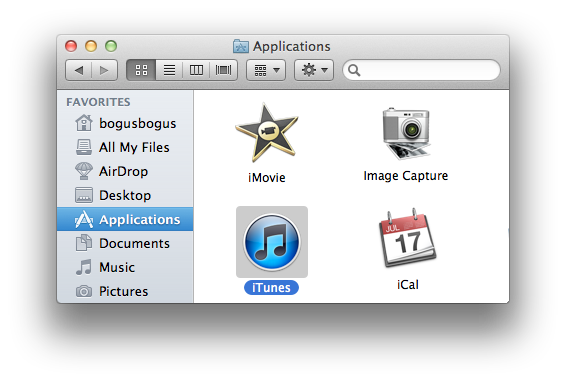
  3. Locate iTunes in the window that opens.
    User uploaded file
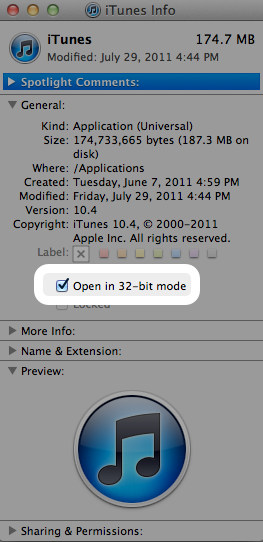
  4. Click the iTunes icon to select it. Then, choose File > Get Info.
  5. Enable the option to "Open in 32-bit mode."
    User uploaded file
  6. Reopen iTunes.


Thanks for reaching out to Apple Support Communities.


Cheers,

Pedro.

Nov 29, 2014 10:56 PM in response to macdev3456

Just in case you're unsure if the reply above answers your question (after all, the icons used for iTunes don't represent the ones used by Yosemite), I just did a "Get Info" on the application and the option to open in 32-bit mode still exists in Yosemite. Whether you want to upgrade to the newest version of iTunes, especially if you have a very large library, is a different question, and I'd suggest checking out the differences in library display and content management options first.

This thread has been closed by the system or the community team. You may vote for any posts you find helpful, or search the Community for additional answers.

iTunes - 32 bit mode - with old video, in Yosemite?

Welcome to Apple Support Community
A forum where Apple customers help each other with their products. Get started with your Apple Account.