Hi Brian470,
Welcome to the Support Communities! The resources below will explain your options for connecting to a TV. You may also need to refer to the TV manufacturer for additional settings for video and audio.
OS X Yosemite: Use your TV as a display
http://support.apple.com/kb/PH19036?viewlocale=en_US
You can set up your TV as a computer display
Many televisions can also be used as computer displays. To connect your Mac to your television, you need a video cable that connects your computer’s display port to your TV. If you can’t find a cable that connects the ports on your Mac and TV, you may also need an adapter for the cable.
If you have an HDTV and a Mac with a Thunderbolt port  , Mini DisplayPort
  , or HDMI port, the cable could also let you play your computer’s audio on your TV.
If your Mac has a Thunderbolt or HDMI port: It can send audio to your HDTV.
If your Mac has a Mini DisplayPort: It may be able to send audio to your HDTV. To find out, choose Apple menu > About This Mac. In the window that appears, click Overview, then click the System Report button.
In the window that appears, select Audio (Built In) below Hardware in the Contents list.
A list of your computer’s audio devices appears. If HDMI Output or HDMI/DisplayPort output is listed, your computer’s Mini DisplayPort can send audio.
Connect the video cable (and adapter, if necessary) from the computer’s Thunderbolt port , HDMI port, or DVI port to the TV’s video input port.
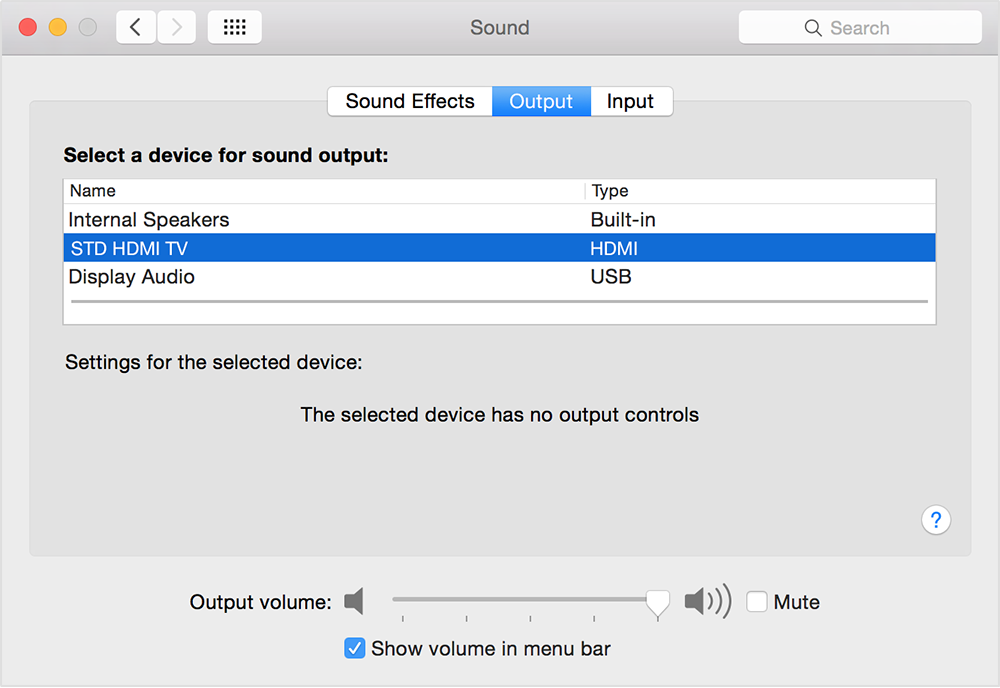
If you want your HDTV to play audio as well as video from your Mac, choose Apple menu > System Preferences, click Sound, then click Output.
Select your HDTV or the AV receiver that is part of your sound system in the list of devices.
Note: If your Mac has a Mini Display port
, make sure you use a cable (and adapter, if necessary) that supports both audio and video.
Learn about overscan and underscan - Apple Support
http://support.apple.com/en-us/HT202763
Mac computers: Frequently asked questions about using HDMI - Apple Support
http://support.apple.com/en-us/HT4214
Which resolutions are supported on Macs using HDMI?
The HDMI port supports up to 1080p on HDMI connections. With the HDMI to DVI adapter, the HDMI port will work with resolutions up to 1920 x 1200. Mac Pro (Late 2013), MacBook Pro (Retina, Late 2013 and later), iMac (27-inch, Late 2013 and later), and Mac mini (Late 2014) also support 4k Displays.
Which type of audio works with Macs using HDMI?
Apple supports 8-channel, 24-bit audio at 192kHz, Dolby Surround 5.1, and traditional stereo output.
What should I do if a Mac doesn't display correctly on a full screen doesn't display any video?
From the Apple () menu, choose System Preferences. Then, choose Displays from the View menu. Adjust the Underscan setting until the image fills the screen.
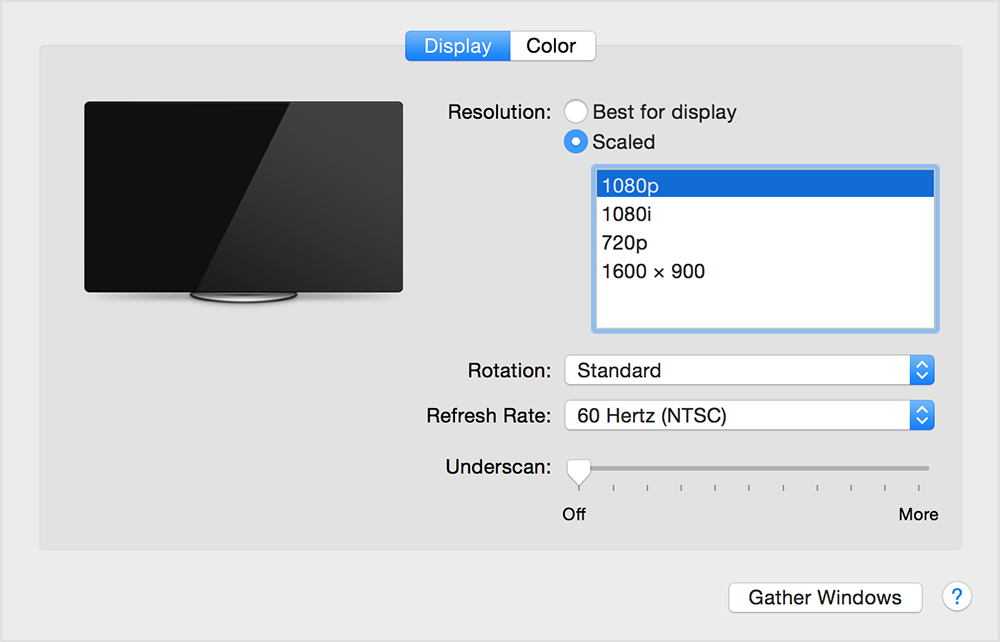
How do I open System Preferences if I don't see a menu bar or dock?
On keyboards with brightness controls, hold down the Option key and the press one of the brightness keys (F1 or F2). This opens the Displays System Preferences pane. You can also press Command-Shift-A to open the Applications folder, then double-click System Preferences. Another method is to hold down the Command or Control key (depending on your settings) and press the Space bar to activate the Spotlight menu. Then, type "displays" and press Return.
My HDMI cable is connected but there is no audio.
In System Preferences, select Sound. Click the Output tab and then select your HDMI device from the list.
I hope this information helps ....
- Judy


