Hi,
It helps if you start by going to the View menu and choosing Show Rulers and Show Invisibles. The second shows non-printing formatting marks and will help work out where you are in the document.
On your first page, select all the text and set the margins as you want them. Click at the end of the text , and press return to make sure you have completed a paragraph. Then go to the Insert menu and choose Section Break (this should work with Page Break too). This will have the effect of creating a second page below your first. Now click back into the text above the break. You should see this, with the blue left margin where you originally set it and the section break as a thick horizontal line at the end:
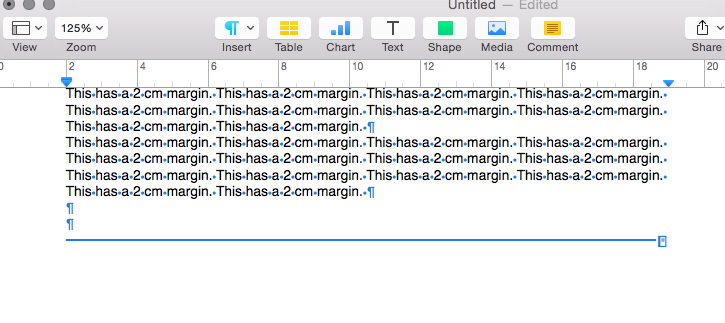
Now click into the second page and type a couple of paragraphs, followed by a paragraph return. Select all of that text (but not the section break) and change the margins in the ruler. You can also drag the first-line indent control (a small rectangle) separately from the overall indent control (the triangle).
This will give you this:
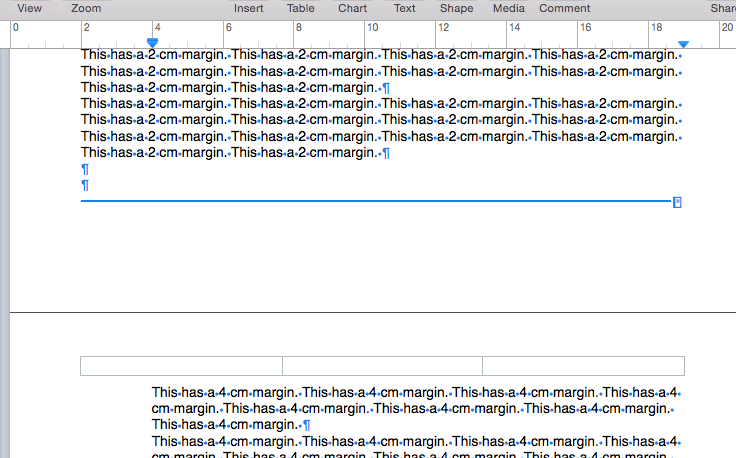
The crucial thing is to select all the text on the separate pages before you set the margins - and not to select the page or section break itself when you're changing the settings. Any text that you subsequently type on the second page will pick up the margin settings from the text on that page.
Hope this helps,
H


