mikehende

Q: Shift click not working on macbook pro 2013?

I am trying to select some files in sequence in a folder ion the hard drive but clicking on one file at the top of the list, holding down the shift and clicking on the 5th file does not select files 1-5, instead it is working like a ctrl function in windows where any file I select will only highlight that file, thing is it works in itunes help please?

Posted on Dec 22, 2014 3:53 PM

Close

Q: Shift click not working on macbook pro 2013?

  • All replies
  • Helpful answers

  • by pedro d,Solvedanswer

    pedro d pedro d Dec 24, 2014 6:26 AM in response to mikehende
    Community Specialists
    Dec 24, 2014 6:26 AM in response to mikehende

    Hello there, mikehende.


    When having issues with some keys not functioning as expected, the following Knowledge Base offers some great steps for troubleshooting the issue:


    One or more keys on the keyboard do not respond - Apple Support


    Some keys don't work as expected

    1. From the Apple menu, choose System Preferences.
    2. From the View menu, choose Speech.
    3. Click the Text to Speech tab.
    4. If "Speak selected text when the key is pressed" is enabled, the key or key combination set to speak text cannot be used for other purposes or used to type text--click Set Key and change it to a less-commonly used key combination (try to use modifier keys such as Shift, Command, Option, and Control). Or, disable the "Speak selected text when the key is pressed" option.
    5. Click the Accessibilty or Universal Access pane in System Preferences, then click the Keyboard tab.
    6. Make sure that Slow Keys is turned off. With Slow Keys on, you need to press a key for a longer period of time for it to be recognized.
    7. In the Accessibilty or Universal Access pane, click the Mouse tab, and make sure Mouse Keys is turned off. With Mouse Keys enabled, you cannot use the Numeric Keypad to enter numbers--instead the keypad moves the pointer (cursor). (There is an option to enable Mouse Keys with five presses of the Option key; you may want to turn that option off to avoid accidentally enabling it.) If Mouse Keys is enabled and you are using a keyboard with no numeric keypad or Num Lock function, see Unable to type while Mouse Keys is enabled in Mac OS X.
    8. If the function keys on the top row of the keyboard are not working as expected, see Mac OS X: How to change the behavior of function keys.
    9. If the issue persists, use Keyboard Viewer to help isolate the issue:
      1. Click the Language & Text pane (Mac OS X v10.6) or International pane (Mac OS X v10.5.8 or earlier) in System Preferences.
      2. Click the Input Sources tab (or Input Menu tab in Mac OS X 10.5.8 or earlier).
      3. Click the Keyboard & Character Viewer "On" checkbox to select it (click the Keyboard Viewer "On" checkbox in Mac OS X 10.5.8 or earlier).
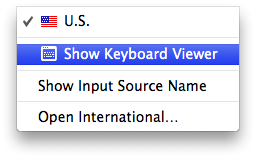
      4. From the Input (flag) menu, choose Show Keyboard Viewer.
      5. If the keyboard is connected and detected by OS X, the keys you type will highlight in the Keyboard Viewer window. Open TextEdit (or any text application), and try to type something using the keys that were previously not responding to see if they highlight in Keyboard Viewer.
    10. Start from the Mac OS X Install Disc, choose Terminal from the Utilities menu and test the keys which were previously not working.  If the keys work while started from the Install disc, then the keyboard itself is working correctly.  Use How to troubleshoot a software issue to isolate the software issue that may be causing the keys to not respond.


    Thanks for reaching out to Apple Support Communities.


    Cheers,

    Pedro.

  • by mikehende,

    mikehende mikehende Dec 24, 2014 7:17 AM in response to pedro d
    Level 1 (4 points)
    Desktops
    Dec 24, 2014 7:17 AM in response to pedro d

    Thank you very much and Happy Holidays!

  • by pedro d,

    pedro d pedro d Dec 25, 2014 10:03 AM in response to mikehende
    Community Specialists
    Dec 25, 2014 10:03 AM in response to mikehende

    Hello again.


    You're very welcome. I'm glad the information was helpful in resolving your issue.


    Happy Holidays to you as well!


    Sincerely,

    Pedro.