How do I change the account name in Mail on the iPad?

I Am setting up my new iPad mini running iOS 8.1.

other her mail accounts I have set up show the account name as the email address but when I set up my iCloud account the account name simply says "icloud".

It is a bit confusing because there are other iCloud's mail accounts set up that just list it by email address.


Does anyone know know how to change the displayed account name in Mail?

iPad (3rd gen) Wi-Fi, iOS 5.1.1

Posted on Dec 27, 2014 1:35 PM

Reply
3 replies

Dec 29, 2014 12:02 PM in response to Gabe Hamrick

Hi Gabe Hamrick,

Welcome to the Support Communities!

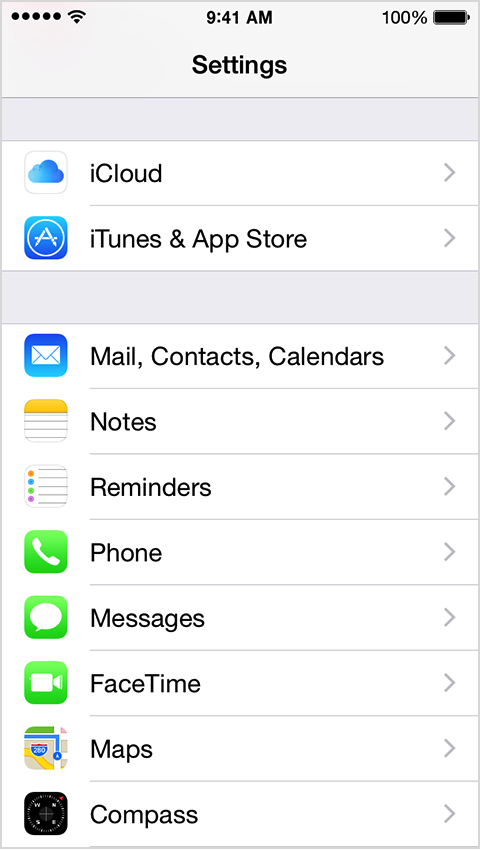
You can change the Description field of your iCloud email account so that it displays what you want. Follow the steps in the article below to get into you Mail settings. However, in step 3 instead of adding an account, you should already see your iCloud account showing in the Accounts section of the screen.

Add an email account on your iPhone, iPad, or iPod touch - Apple Support

http://support.apple.com/en-us/HT201320


1. Tap Settings.
User uploaded file 2. Scroll down and tap Mail, Contacts, Calendars.
User uploaded file


3. Tap on your iCloud account. On the next screen, tap on your (name)@icloud.com email address to the right of the word Account. Change the Description field to whatever you want to display. Tap Done in the upper-right corner.

I hope this information helps ....


- Judy

This thread has been closed by the system or the community team. You may vote for any posts you find helpful, or search the Community for additional answers.

How do I change the account name in Mail on the iPad?

Welcome to Apple Support Community
A forum where Apple customers help each other with their products. Get started with your Apple Account.