hi all. im having an issue where any music I purchase goes in my library but not into and purchased list or recently purchased list. I cant find any way of sorting it. anyone else have similar issue ? im in uk if it makes any difference. was fine until update why cant they just leave well alone ? I have a ipad which I refuse to update as its the only device that shows purchased history properly
Welcome to the Support Communities! What version of iTunes for Windows are you using? Version 12 shows your recent purchases. What version iOS do you have on your iPad. I'll include the links below regarding how to view your purchase history.
Using the new iTunes - Apple Support http://support.apple.com/en-us/HT203128
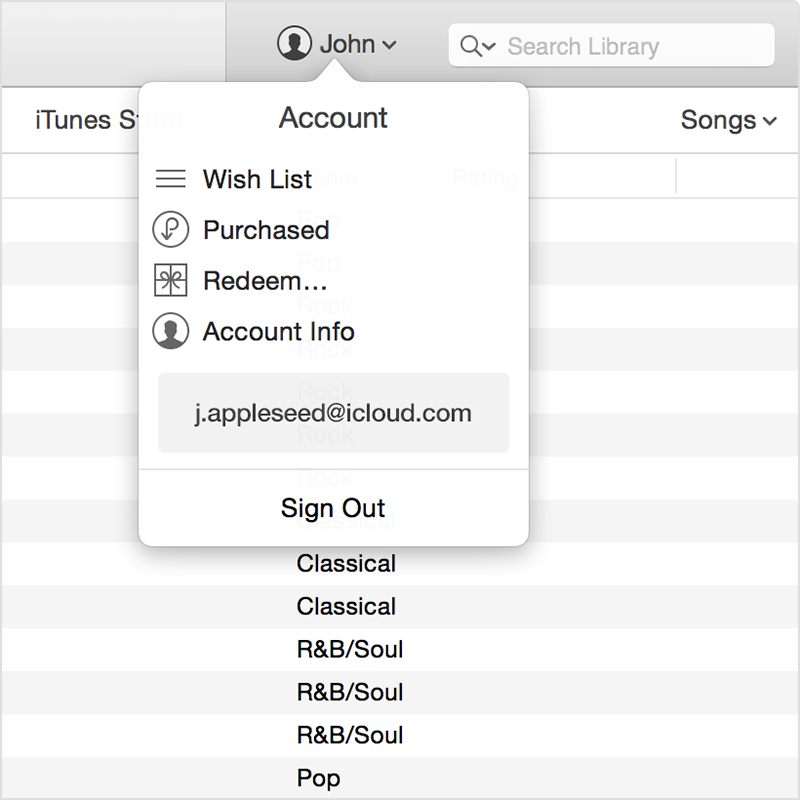
Account details
In iTunes 12, you can access your account information from anywhere in iTunes. And you can quickly access your Wish List, Purchases or Family Purchases (if you are using iCloud Family Sharing), or redeem a gift card from the same menu. Click on your account name to see more options.
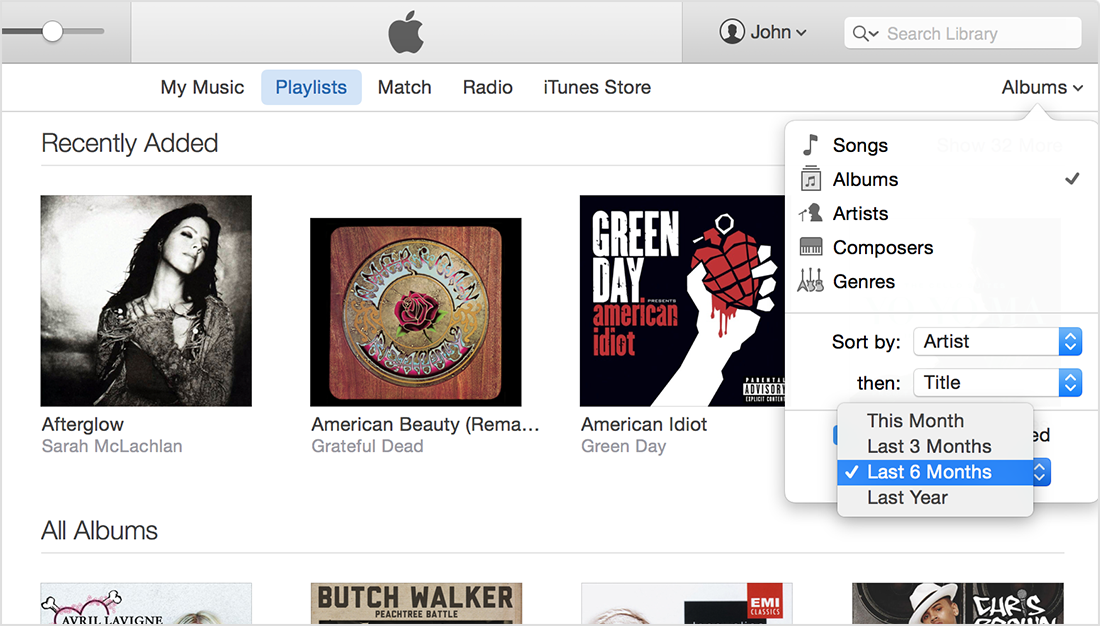
Recently Added
iTunes puts recently added albums, movies, or TV shows at the top of your library, so that you can always find something new to play.
You can change the frequency Recently Added updates or turn it off completely in the view pop-up menu. The frequency options are This Month, Last 3 Months, Last 6 Months, and Last Year. Uncheck the box next to Show Recently Added to turn it off.
See your purchase history in the iTunes Store - Apple Support http://support.apple.com/en-us/ht2727
If you want to know what apps, songs, movies, TV shows, or books you've bought in the past, you can view your purchase history for the iTunes Store, App Store, iBooks Store, and Mac App Store in the iTunes Store.
You can view your purchase history in the iTunes Store on a Mac or PC. Just remember to sign-in with the same Apple ID that you used for your purchases.
If you use Family Sharing, you'll see what you bought using your Apple ID, but you won't see what other family members bought, unless you sign in using their Apple ID.
See your purchase history
Click to open your account in iTunes.
Sign in with your Apple ID. iTunes will open to your purchase history, and you'll see the items you purchased.
Alternatively, you can:
Open iTunes.
Click iTunes Store.
Click Sign In.
Enter your Apple ID and password.
Click your Apple ID and select Account from the drop-down menu.
Next to Purchase History, click See All. It might take a moment for your Purchase History to appear.
To see the details for a purchase, click the arrow to the left of the order date. Your most recent purchases are first. You'll see the date, time, and web order number in the top-right corner. If you don't recognize a purchase, see if it's one of these types of charges.
Learn more
Download past purchases.
Resolve an unpaid balance.
Manage your Mac App Store purchases.
Hide items in your Purchase History.
Report a problem or request a refund for a purchase made within the last 90 days.
For help with an older purchase, contact iTunes Store support and select Purchases, Billing, and Redemption.
This thread has been closed by the system or the community team.
You may vote for any posts you find helpful, or search the Community for additional answers.
recently purchased music not in library
Welcome to Apple Support Community
A forum where Apple customers help each other with their products. Get started with your Apple Account.