Turn off iCloud Photo Library

Hello,


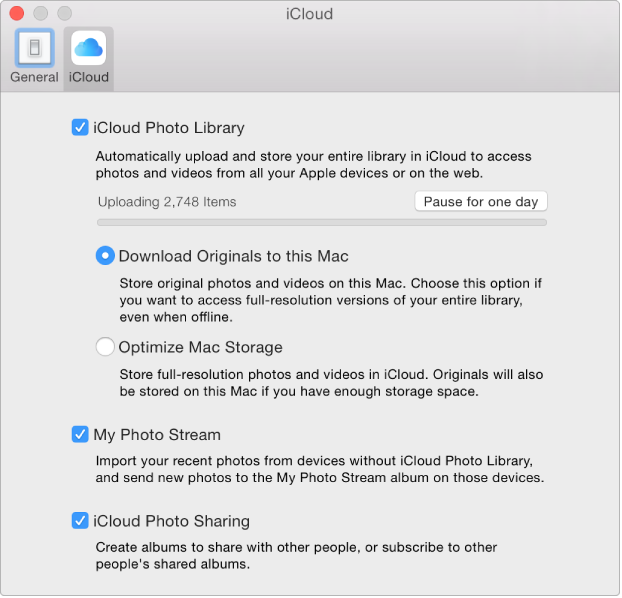
I have a question regarding the iCloud photo library. When I first updated to the newest operating system I ticked the option "Optimise Mac Storage" in Photos and subsequently photos started uploading to the cloud. I even bought additional storage. I enabled this on my phone and iPad, too. Well, I was not too happy with th outcome... The upload took forever and wasn't even finished after weeks and when I had no internet connection I couldn't even view my pictures! Short - I just want to go back to the way things were. But HOW? I have tried to change the preferences in Photos to "Download originals to this Mac" but nothing is happening. I still get a download icon on the bottom right of some photos and they never fully download to my mac. I attached two screenshots. The first one shows what my iCloud preferences look like at the moment. It seems to be still trying to upload pictures and there is no progress bar. When I try to unclick the Cloud Photo Library I get a warning (screenshot 2). I am scared to continue since I don't want to use any pictures.


Who can help me to turn this feature off? I really don't want it anymore...


Thank you all for your help and tipps!


User uploaded fileUser uploaded file

MacBook Pro (Retina, 13-inch, Early 2013), OS X Yosemite (10.10.3), null

Posted on Jun 25, 2015 7:46 AM

Reply
8 replies

Jun 25, 2015 8:06 AM in response to rockmyplimsoul

Well, as I wrote in my question: When I try to unclick the Cloud Photo Library I get a warning (screenshot 2) that I will lose pictures. I am scared to continue since I don't want to lose any pictures. When I go through my library many recent photos are not "downloaded" from my cloud. I get this clock icon on the bottom right that should download but it actually doesn't. The picture never fully downloads. My internet connection is not super fast but it should do to download an image! I am really unsure how to reverse this process without losing my pictures.

Jun 25, 2015 8:47 AM in response to tschamba

You have to wait, until original image image files have downloaded again to your Mac. There is no help for it, if you enabled "Optimize Mac Storage".


See this Help page:

https://help.apple.com/photos/mac/1.0/?lang=en#/phtf5e48489c

Stop using iCloud Photo Library


Important: If you decide to turn off iCloud Photo Library, first be sure to select “Download Originals to this Mac” in the iCloud pane of Photos preferences, so all your original photos can be downloaded from iCloud to your Mac. Be sure to allow time for your originals to download before turning off iCloud Photo Library completely.

  1. Choose Photos > Preferences, then click iCloud.User uploaded file
  2. Deselect the iCloud Photo Library checkbox to turn it off.

After you turn off iCloud Photo Library, the Photos app on your Mac can’t access your iCloud library, and any edits you make to photos on your Mac won’t appear on your other devices. Your library remains in iCloud and available to other devices that use iCloud Photo Library. To turn off iCloud Photo Library on all your devices, open the iCloud pane of System Preferences, click the Manage button, then click Photo Library. Click “Disable and delete.” Your photos and videos will be deleted from iCloud Photo Library in 30 days, unless you click Undo Delete before that time.


Do you have a full backup of your Photo Library from before you enabled iCloud Photo Library?

Jun 25, 2015 11:38 AM in response to léonie

I'm not so sure the OP has to wait. If you read the text of the "Optimize Mac Storage" option (which they initially selected, but changed) that option says that full resolution photos and videos "will also be stored on this Mac if you have enough storage space".


I take this to mean that it is only when your Mac starts running out of drive space that the Photos library will start changing to reduced resolution on the Mac itself. The warning seems to be a general warning anytime you turn off iCloud Photo Library that you could lose full resolution photos or videos, but that would only be if your drive capacity on your Mac forced a reduced resolution local library.


That is not the case here -- there was already enough space on the local drive to begin with. In my opinion, all full resolution items should still be on the OP's Mac.

Jun 25, 2015 12:12 PM in response to rockmyplimsoul

That is not the case here -- there was already enough space on the local drive to begin with. In my opinion, all full resolution items should still be on the OP's Mac.

But you cannot really be sure, that all originals are still there. The problem is, that the first upload did not yet finish. During the upload phase the photos that are uploading may temporarily be removed from the mac and then download again, if space permits.

Jun 26, 2015 12:01 AM in response to léonie

Thank you for your answers! umfortunately you have confirmed what I feared - the best option is to wait and hope that all pictures will be downloaded at some point before disabling. And yes - if only I could quickly identify those pictures that are still in the cloud... for now though I will also try Leonies suggestion with the backup. I think I turned on the iCloud feature pretty quickly after updating (With lots of regrets now...) but I may have a backup from just before that. Most newer pictures are from my iPhone apart from about 300 which I will make sure to export in full resolution from photos and re-import after. The rest should sync over photostream afterwards. I will let you know if it worked! Thanks again.

This thread has been closed by the system or the community team. You may vote for any posts you find helpful, or search the Community for additional answers.

Turn off iCloud Photo Library

Welcome to Apple Support Community
A forum where Apple customers help each other with their products. Get started with your Apple Account.