To export video you must export (file menu ==> export) the unmodified original (and of course after exporting you always verify the export prior to deleting the source) - when you copy an paste (not recommended with photos for any thing - export is alway the best) you only get the first frame JPEG preview of the video - the only way to ge the video is to export the unmodified original or export "n" videos
TO get your videos back after you made this mistake you need to restore your backup form just before you deleted them - other than that you might be able to recover them using file recovery software like File Salvage
From the Photos Help
You can export videos so that you can share them or work with them in other apps. When you export a video, you can choose the movie quality and whether metadata such as a title or description is included with the exported file.
- Select videos you want to export.
- Choose File > Export > Export [number] Videos.
- Click the Movie Quality pop-up menu and choose the video format for the exported video.
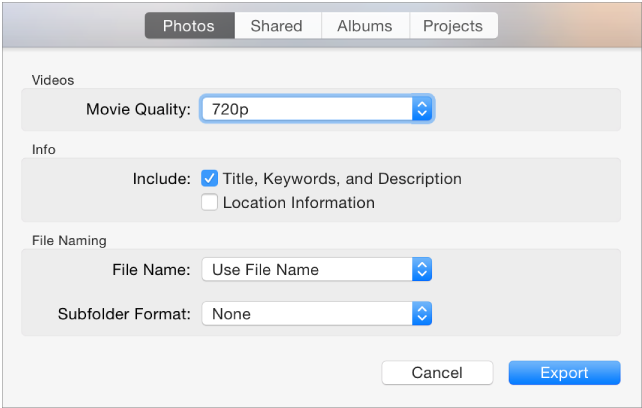
- Click the File Name pop-up menu and choose how to name the exported files (this step is optional).You can name your exported files using the titles you’ve given them in Photos, their filenames, or or a filename numbered sequentially. If you choose Sequential, you can specify text to appear before each number (for example, Birthday01, Birthday02, and so on).
- Click the Subfolder Format pop-up menu and choose how to divide the exported files into folders.For example, if you export videos from several different moments, you can have Photos export each moment as a subfolder named after the moment. Choose None to export the videos as individual files without subfolders.
- Click Export.
- Choose where to save the exported video files, then click Export.
Tip: If you have an iCloud account, you can export photo files to iCloud Drive, then access them from any Mac, iOS device, or Windows PC set up to use iCloud Drive. For more information, search for “iCloud Drive” in Mac Help.
LN

