Hi Rayjrf,
If your iPad 2 is running sluggishly after updating to iOS 9.0.2, there are a few things you can try. But before you do any troubleshooting, always make a backup of your device, using iTunes or iCloud, or preferably both. As an extra precaution, import your pictures from your iPad to your computer.
You can try to update your iOS software first. If you don't see any notable improvement, then try restoring from a backup. As a last measure, erase your device and restore as new, as there may be corrupt data in your backups. The resources below will explain these options in more detail:
Backup your device
How to back up your devices using iCloud or iTunes - Apple Support
https://support.apple.com/en-us/HT203977
Import photos and videos from your iPhone, iPad, or iPod touch to your Mac or Windows PC - Apple Support
https://support.apple.com/en-us/HT201302
Image Capture: Transfer images and other items from your device
https://support.apple.com/kb/PH17894?locale=en_US
Update iOS software
If you can't update or restore your iPhone, iPad, or iPod touch - Apple Support
https://support.apple.com/en-us/HT201263
- Connect your device to your computer and open iTunes. If you don't have a computer, borrow one from a friend or go to an Apple Retail Store or Apple Authorized Service Provider for help.
- While your device is connected, force restart it: Press and hold both the Sleep/Wake and Home button for at least 10 seconds, and don't release when you see the Apple logo. Keep holding until you see the recovery mode screen.
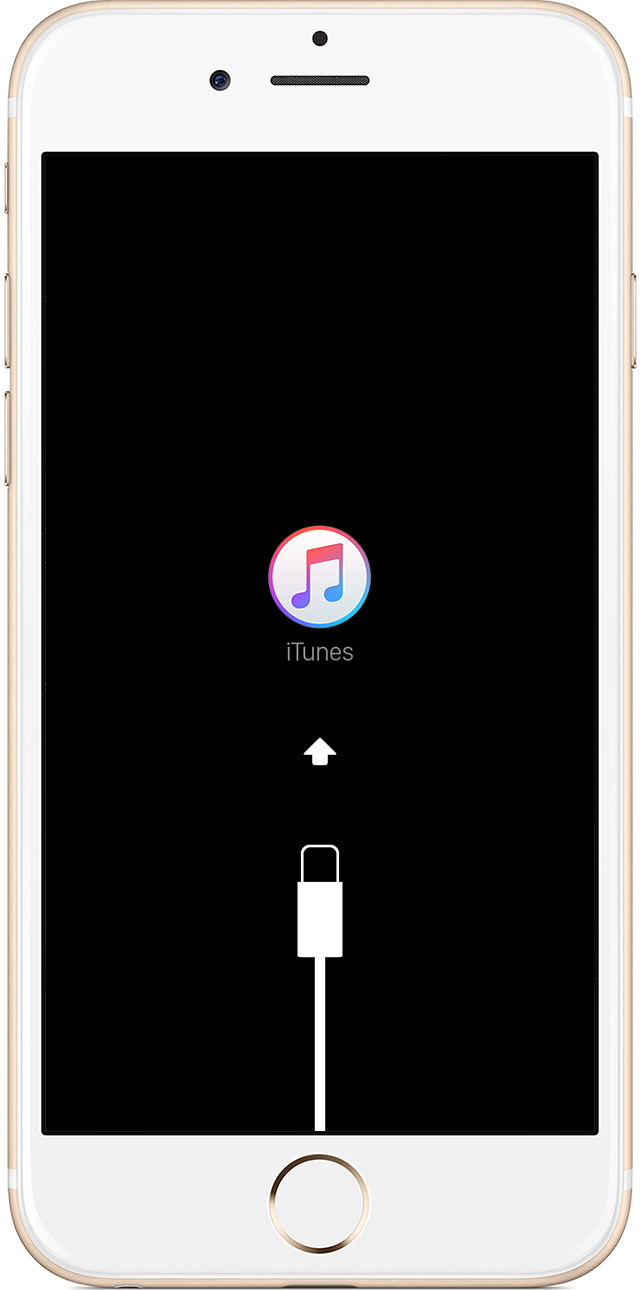
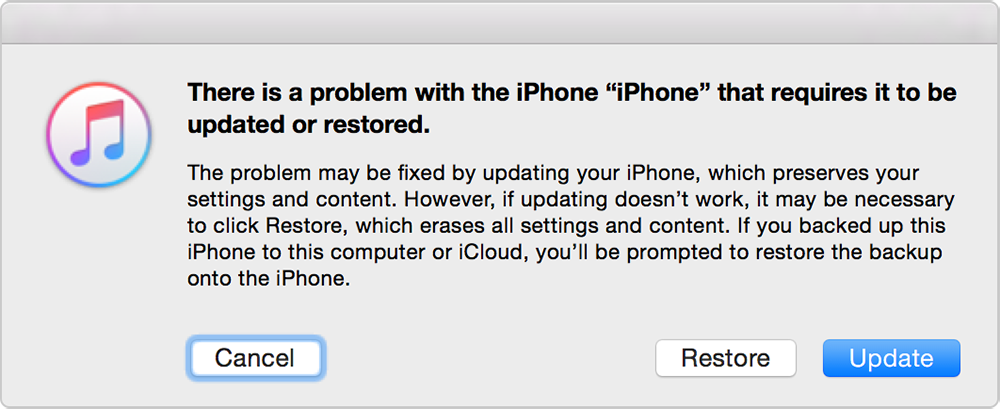
- When you see the option to Restore or Update, choose Update. iTunes will try to reinstall iOS without erasing your data. Wait while iTunes downloads the software for your device.
If the download takes more than 15 minutes and your device exits recovery mode, you'll need to repeat these steps and choose Restore instead of Update when you get back to this step.
- After the Update or Restore completes, set up your device. If you previously backed up your device with iTunes or iCloud and had to restore your device in step 3, you might be able to restore from your backup during setup.
Restore as New
Use iTunes to restore your iPhone, iPad, or iPod to factory settings - Apple Support
https://support.apple.com/en-us/HT201252
When you restore your iOS device or iPod to factory settings, you'll also install the latest version of software. You can then set up your device as new, or restore from a backup.
Restoring iOS or iPod software deletes all your data and content from your device, including songs, videos, contacts, photos, and calendar info.
- Make sure that you have the latest version of iTunes.
- Use iTunes to back up your device. Transfer and sync any additional content to your computer.
- If you're using iOS 6 or later, go to Settings > iCloud and turn off Find My iPhone.
- Connect your device to your computer using the cable that came with it.
- Select your iPhone, iPad, or iPod when it appears in iTunes.
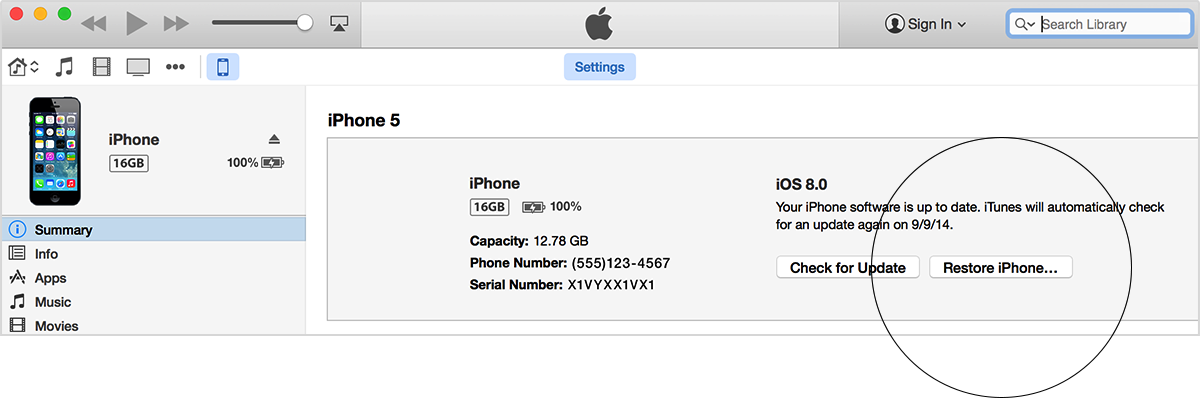
- In the Summary panel, click Restore.
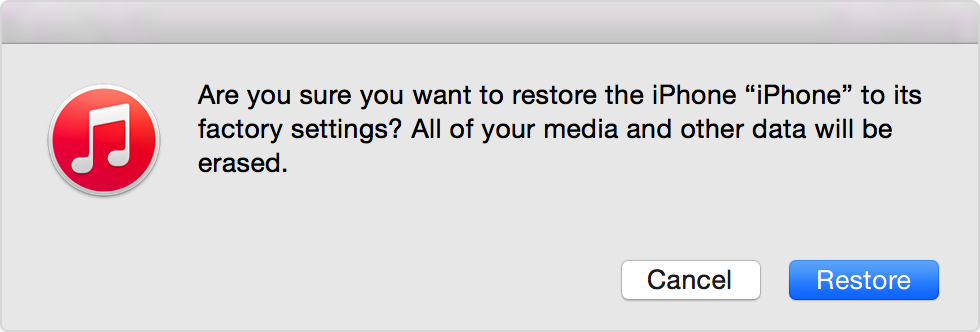
- Click Restore again to confirm that you want to restore your device to factory settings and delete all data and content. iTunes will download the device software file and restore your device.
- After your device is restored to factory settings, it will restart. When it does, you’ll see the "Slide to set up” welcome screen. Follow the steps in the device Setup Assistant. You can set up your device as new or use a previous backup. If you restored an iOS device that has cellular service, it will activate after you finish setting up your device.

Last Modified: May 6, 2015
Take care,


